> ## Documentation Index
> Fetch the complete documentation index at: https://doc.onetoken.one/llms.txt
> Use this file to discover all available pages before exploring further.
# Claude Desktop Version
**Keep the application logged out (or sign out of your account first).**
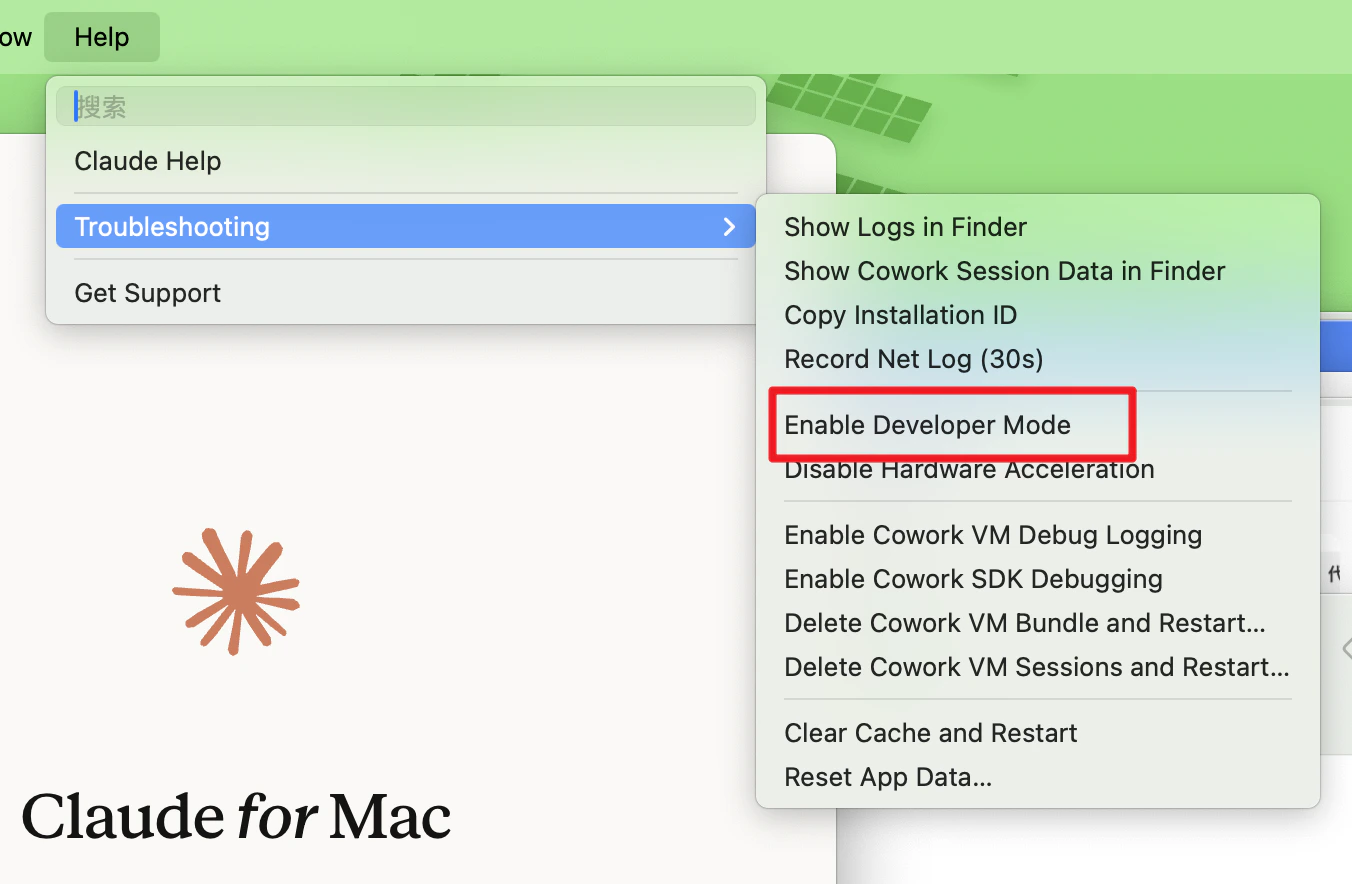
1. Click **Menu** → **Help** → **Troubleshooting** → **Enable Developer Mode**
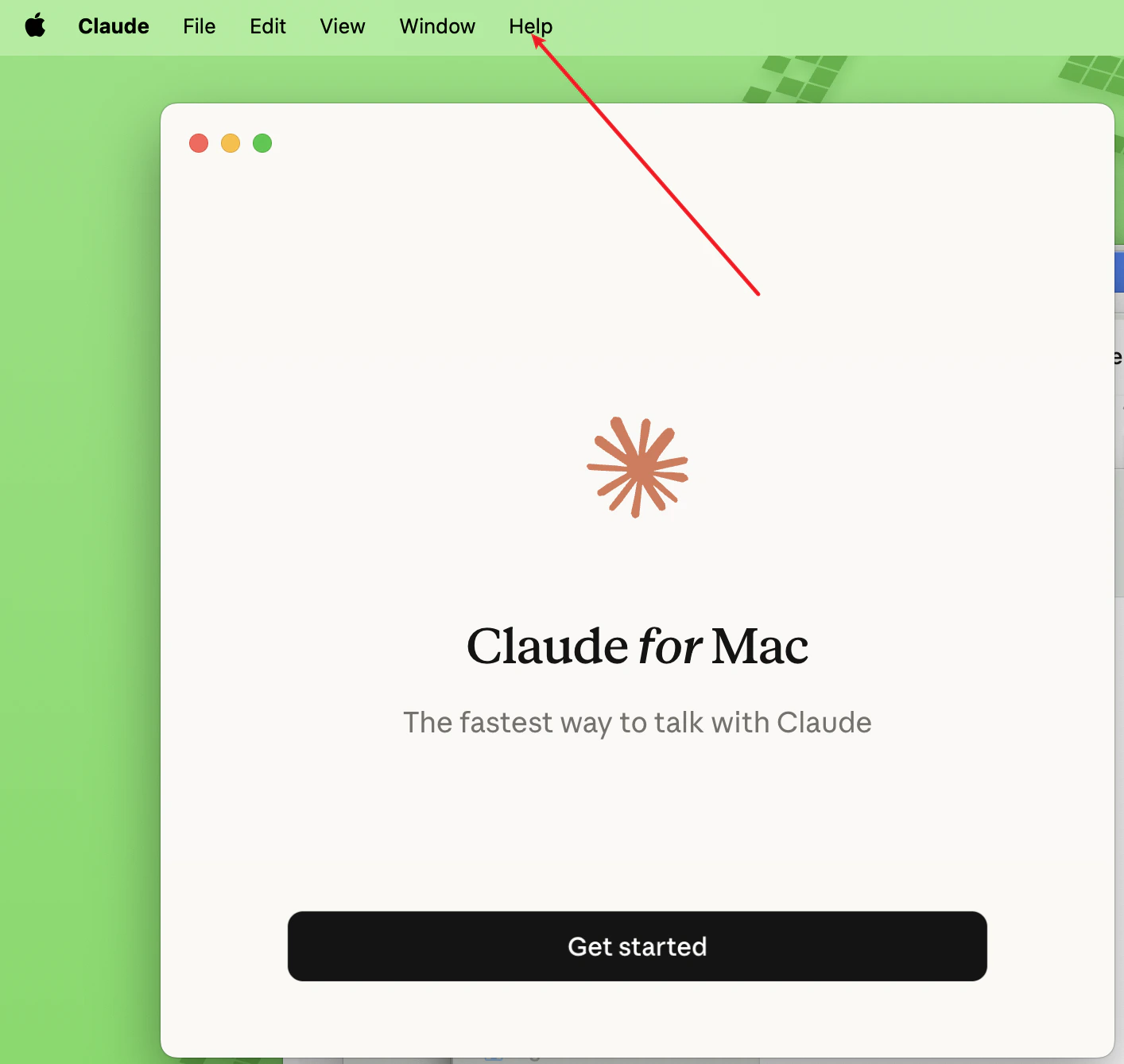
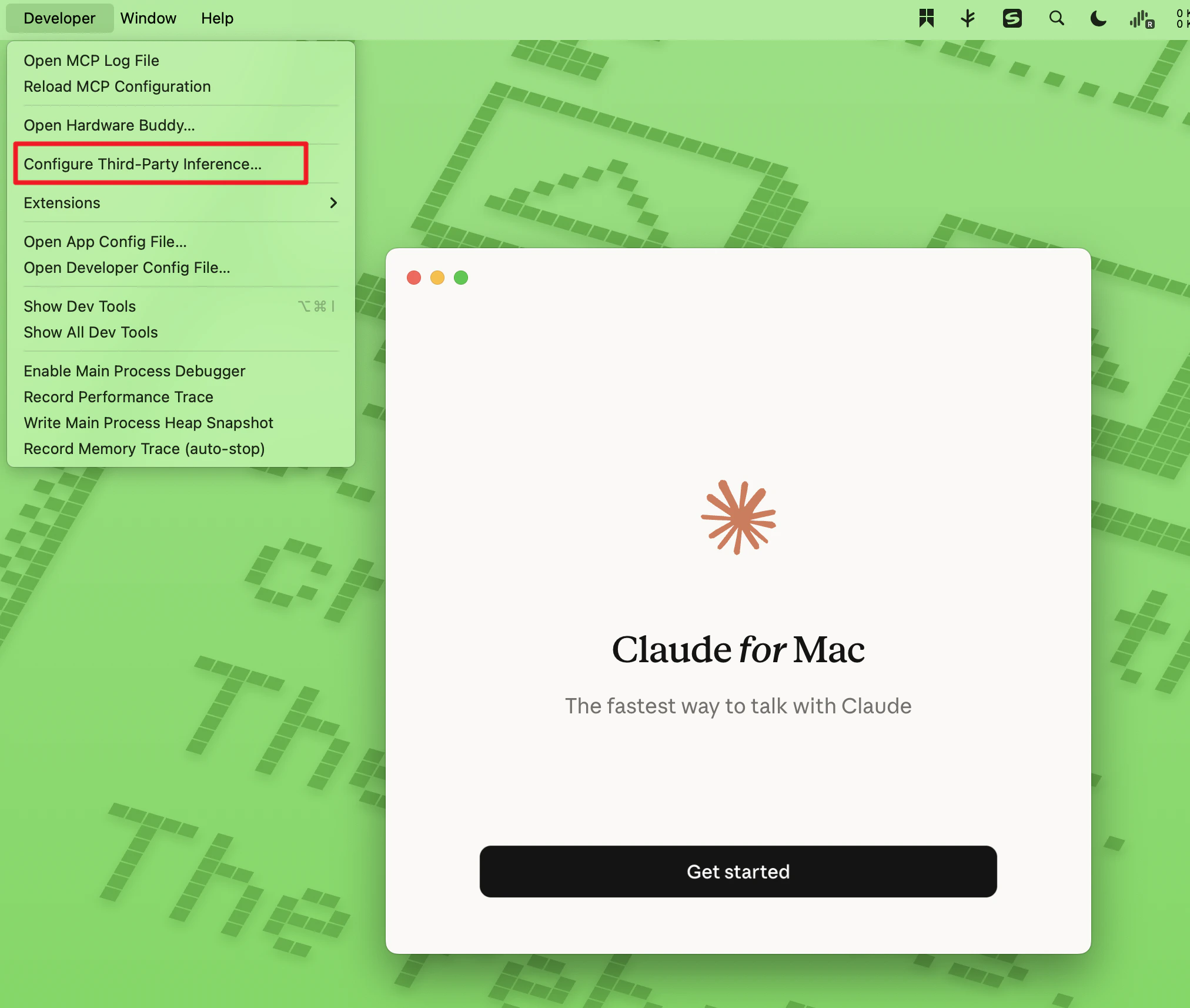
 2. After completing the first step, a **Developer** menu will appear in the menu bar. Click **Configure Third-Party Inference**.
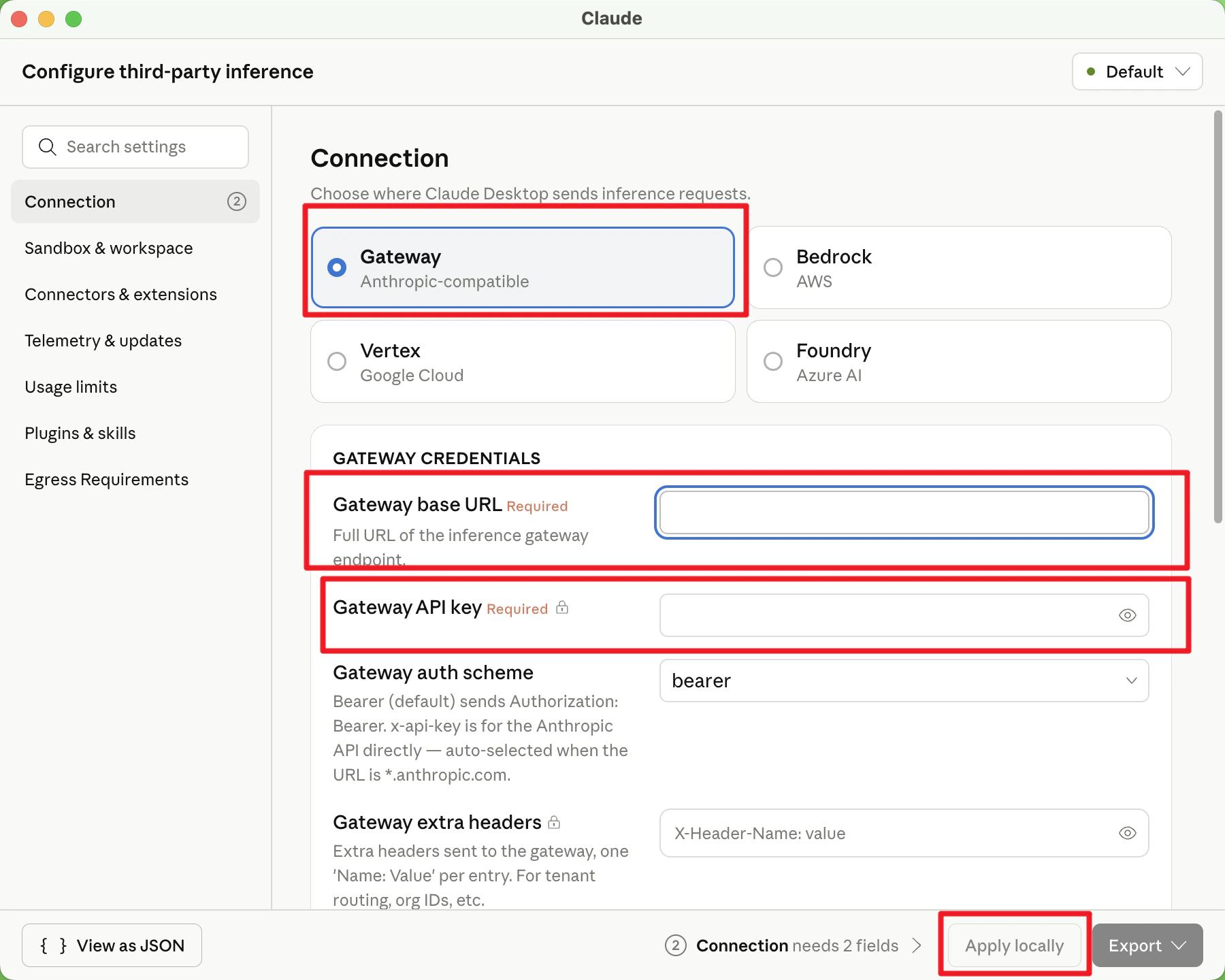
 3. By default, select **Gateway**. Enter the following details:
* **Gateway base URL:** `https://onetoken.one/`
* **Gateway API key:** Use the API Key obtained from the [Onetoken Platform](https://onetoken.one/console/token).
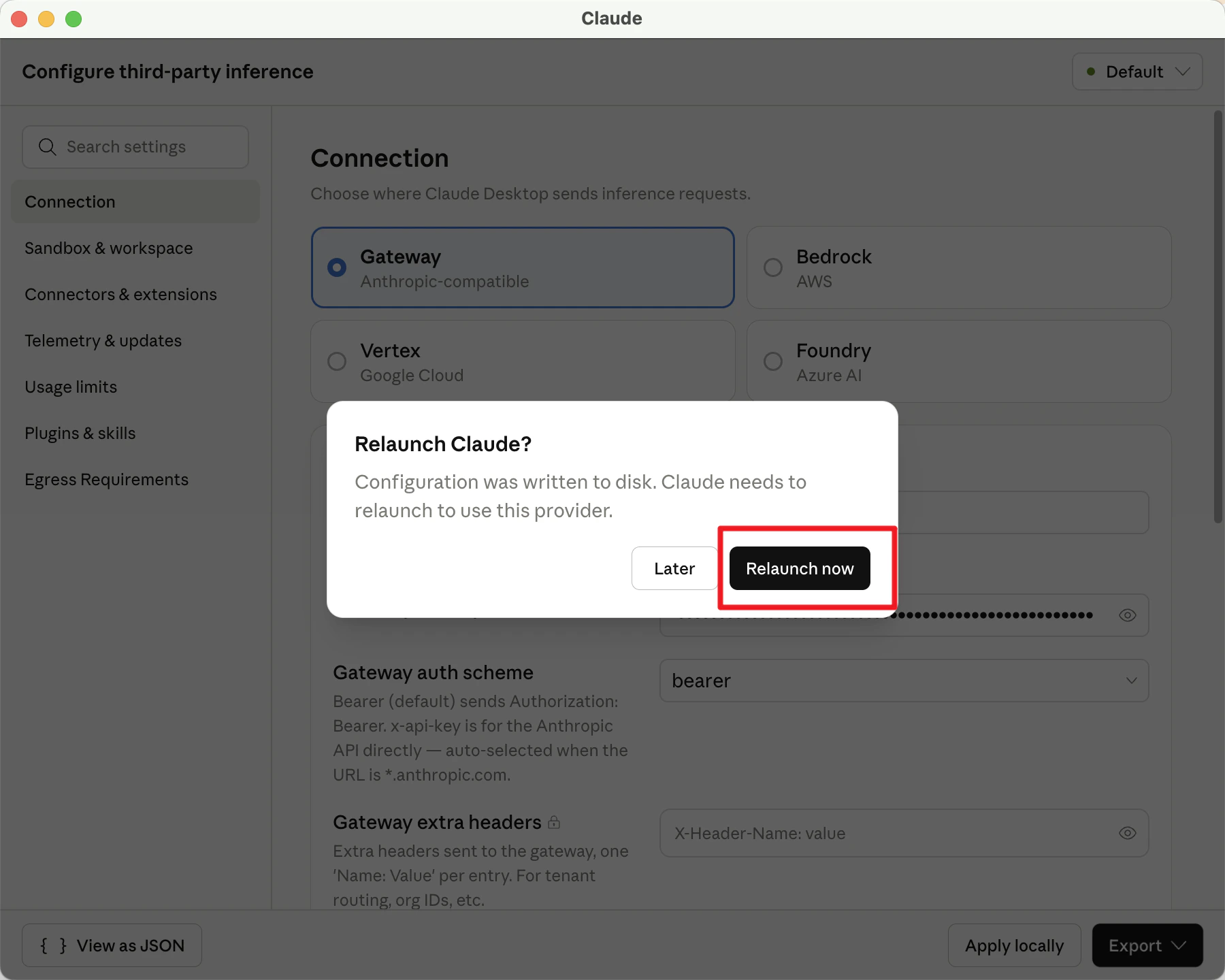
Leave other settings as they are, click **Apply locally**, and then click **Relaunch now** in the pop-up window.
3. By default, select **Gateway**. Enter the following details:
* **Gateway base URL:** `https://onetoken.one/`
* **Gateway API key:** Use the API Key obtained from the [Onetoken Platform](https://onetoken.one/console/token).
Leave other settings as they are, click **Apply locally**, and then click **Relaunch now** in the pop-up window.
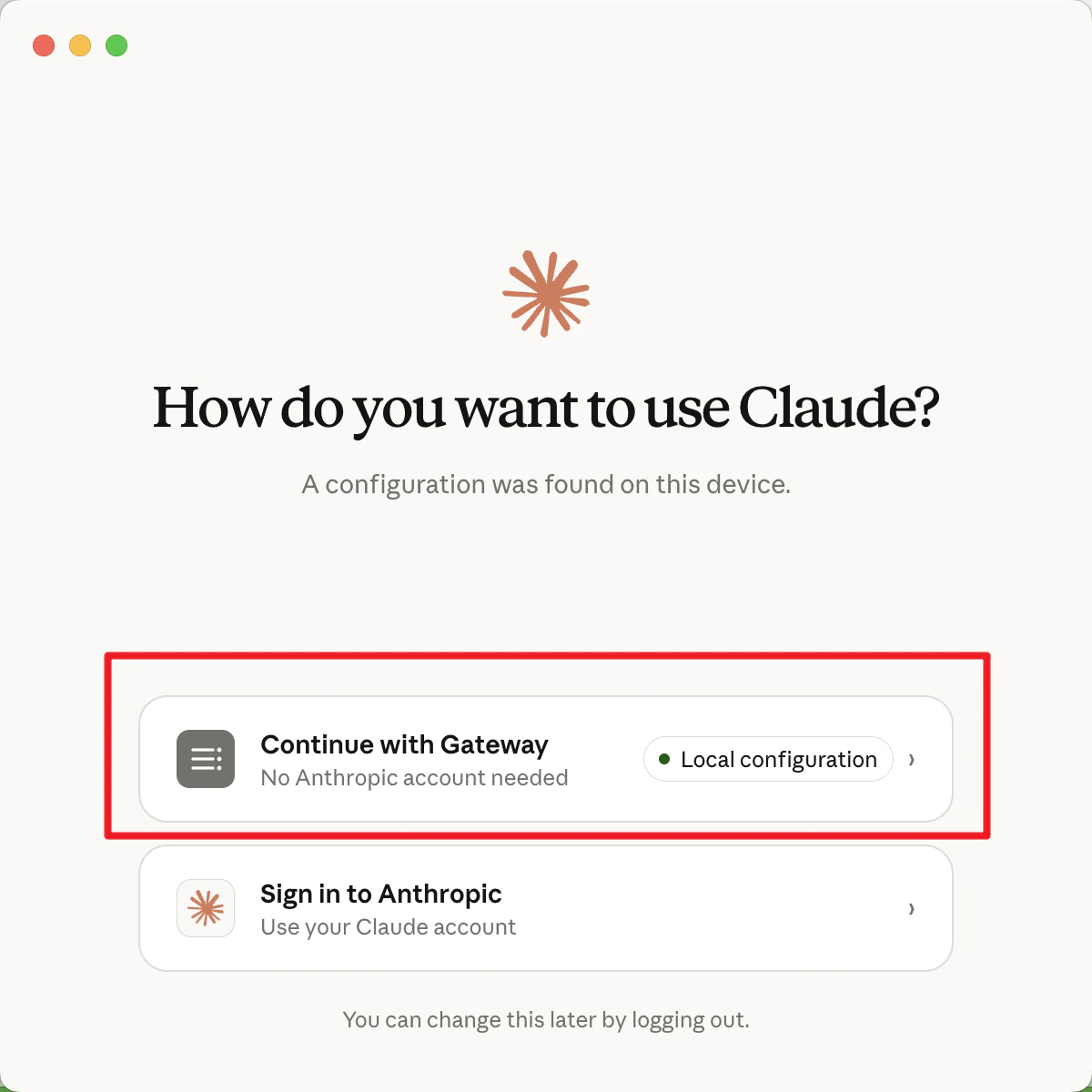
 4. Click **Continue with Gateway**.
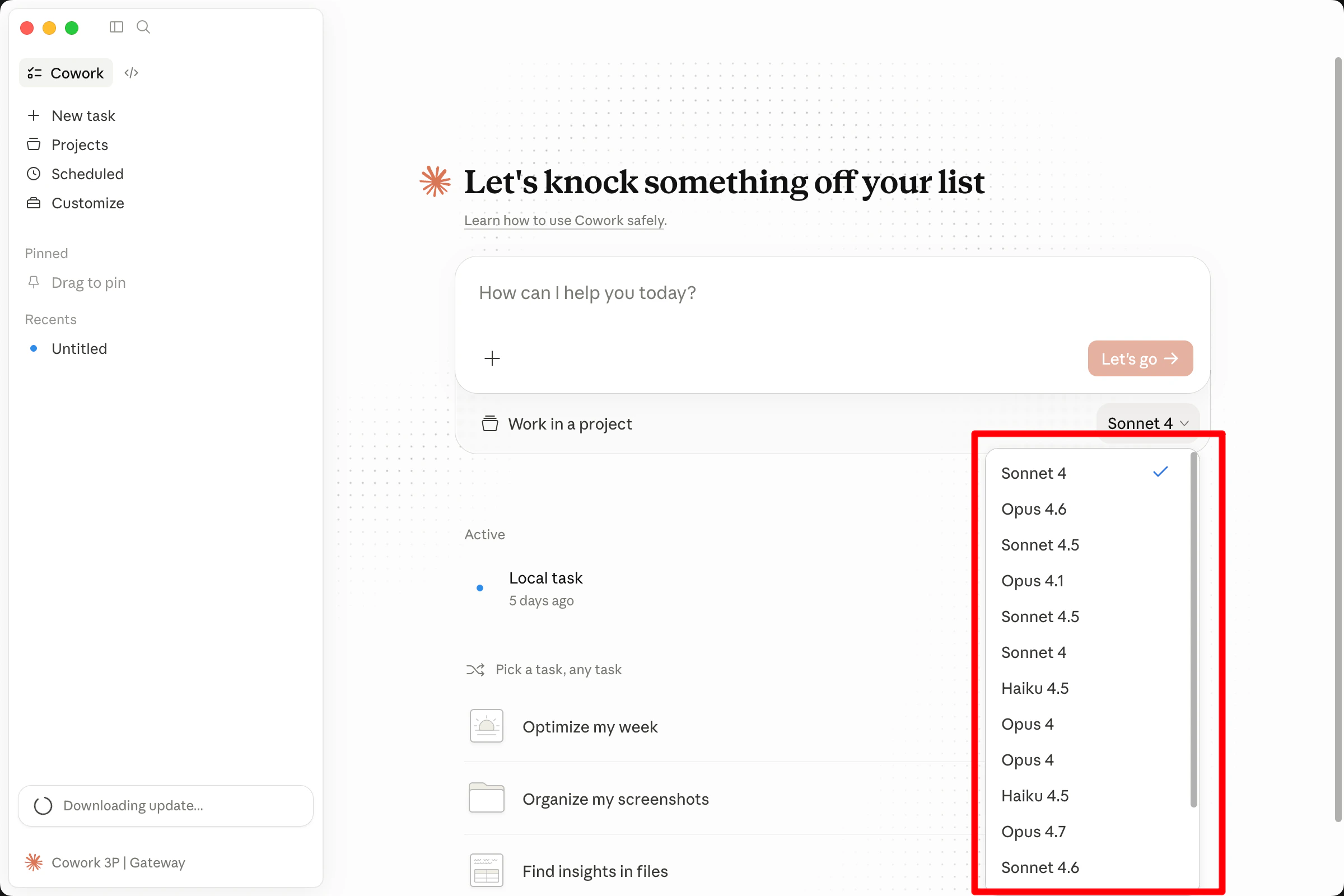
 5. Select the model you wish to use from the bottom of the chat box to begin.