> ## Documentation Index
> Fetch the complete documentation index at: https://doc.onetoken.one/llms.txt
> Use this file to discover all available pages before exploring further.
# Claude Code
> Use Claude Code with Onetoken
## Quickstart
This guide gets Claude Code talking to Onetoken in a few minutes.
### 1. Install Claude Code
#### Install script
```shellscript macOS theme={null} theme={null}
curl -fsSL https://claude.ai/install.sh | bash
```
```shellscript Windows theme={null} theme={null}
irm https://claude.ai/install.ps1 | iex
```
#### npm
Requires [Node.js 18+](https://nodejs.org/en/download/)
```shellscript theme={null} theme={null}
npm install -g @anthropic-ai/claude-code
```
### 2. Point Claude Code at Onetoken
For Anthropic-compatible access via Onetoken, set:
1. `BASE_URL` → `https://onetoken.one`
2. `AUTH_TOKEN` → API key from [Onetoken](https://onetoken.one/console/token)
3. `MODEL` → a model id from the [model list](https://onetoken.one/pricing)
1) Check your default shell:
```shellscript theme={null} theme={null}
echo $SHELL
```
2. Append exports (replace `ONETOKEN_API_KEY`):
```shellscript Zsh theme={null} theme={null}
echo 'export BASE_URL="https://onetoken.one"' >> ~/.zshrc
echo 'export AUTH_TOKEN="ONETOKEN_API_KEY"' >> ~/.zshrc
echo 'export MODEL="claude-sonnet-4-5"' >> ~/.zshrc
```
```shellscript Bash theme={null} theme={null}
echo 'export BASE_URL="https://onetoken.one"' >> ~/.bash_profile
echo 'export AUTH_TOKEN="ONETOKEN_API_KEY"' >> ~/.bash_profile
echo 'export MODEL="claude-sonnet-4-5"' >> ~/.bash_profile
```
3. Reload:
```shellscript Zsh theme={null} theme={null}
source ~/.zshrc
```
```shellscript Bash theme={null} theme={null}
source ~/.bash_profile
```
4. Verify in a new terminal:
```shellscript theme={null} theme={null}
echo $BASE_URL
echo $AUTH_TOKEN
echo $MODEL
```
In CMD or PowerShell, set Onetoken base URL and [API key](https://onetoken.one/console/token) as user env vars.
1. Run:
```shellscript theme={null} theme={null}
REM Replace ONETOKEN_API_KEY
setx AUTH_TOKEN "ONETOKEN_API_KEY"
setx BASE_URL "https://onetoken.one"
setx MODEL "claude-sonnet-4-5"
```
2. New CMD window:
```shellscript theme={null} theme={null}
echo %AUTH_TOKEN%
echo %BASE_URL%
echo %MODEL%
```
1. Run:
```shellscript theme={null} theme={null}
# Replace ONETOKEN_API_KEY
[Environment]::SetEnvironmentVariable("AUTH_TOKEN", "ONETOKEN_API_KEY", [EnvironmentVariableTarget]::User)
[Environment]::SetEnvironmentVariable("BASE_URL", "https://onetoken.one", [EnvironmentVariableTarget]::User)
[Environment]::SetEnvironmentVariable("MODEL", "claude-sonnet-4-5", [EnvironmentVariableTarget]::User)
```
2. New PowerShell window:
```shellscript theme={null} theme={null}
echo $env:AUTH_TOKEN
echo $env:BASE_URL
echo $env:MODEL
```
### 3. Run
From your project:
```bash theme={null} theme={null}
$ cd /path/your-project
> claude
```
First launch may ask you to sign in to Anthropic. To skip:
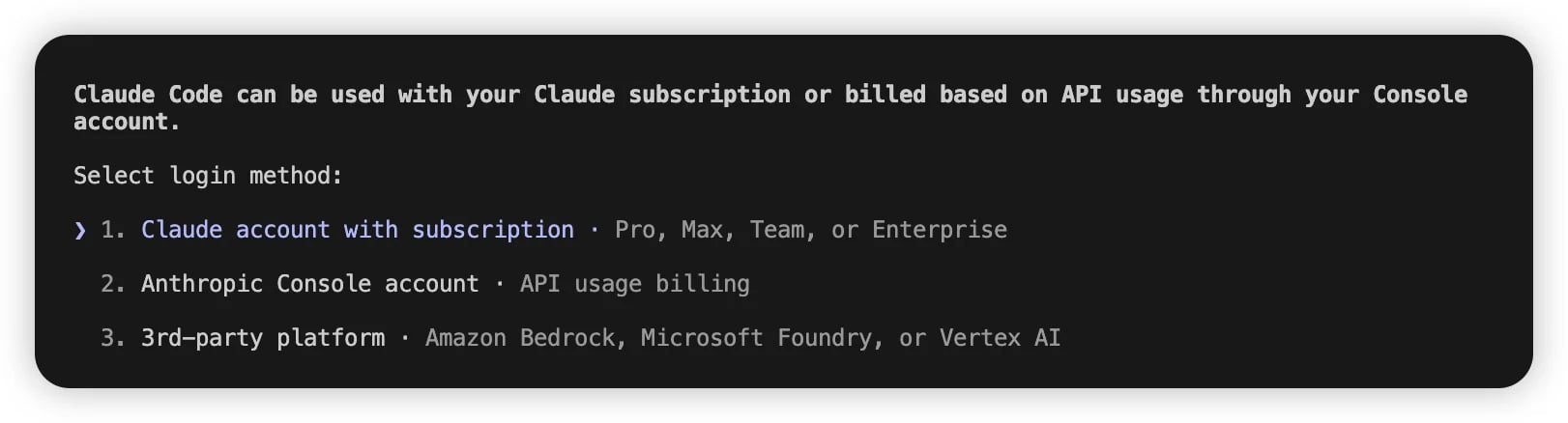 1. Edit `~/.claude.json` (macOS/Linux) or `C:\Users\%USERNAME%\.claude.json` (Windows).
2. Set `hasCompletedOnboarding` to `true`:
```json theme={null} theme={null}
{
"hasCompletedOnboarding": true
}
```
3. Save and run `claude` again.
#### More ways to pick models (priority high → low)
1. **In session**: `/model ` for a one-off switch.
```text theme={null} theme={null}
/model claude-sonnet-4-5
```
2. **CLI flag**: `claude --model ` for one run.
```text theme={null} theme={null}
claude --model claude-sonnet-4-5
```
3. **Env defaults** (global):
```shellscript theme={null} theme={null}
export DEFAULT_OPUS_MODEL="claude-opus-4-5"
export DEFAULT_SONNET_MODEL="claude-sonnet-4-5"
export DEFAULT_HAIKU_MODEL="claude-haiku-4-5"
```
* **OPUS** — hard reasoning / architecture
* **SONNET** — everyday coding
* **HAIKU** — quick checks, search
4. **`settings.json`** (project or user home):
```json theme={null} theme={null}
{
"env": {
"DEFAULT_OPUS_MODEL": "claude-opus-4-5",
"DEFAULT_SONNET_MODEL": "claude-sonnet-4-5",
"DEFAULT_HAIKU_MODEL": "claude-haiku-4-5"
}
}
```
## CC-Switch
1. Open CC-Switch → **Add provider**.
1. Edit `~/.claude.json` (macOS/Linux) or `C:\Users\%USERNAME%\.claude.json` (Windows).
2. Set `hasCompletedOnboarding` to `true`:
```json theme={null} theme={null}
{
"hasCompletedOnboarding": true
}
```
3. Save and run `claude` again.
#### More ways to pick models (priority high → low)
1. **In session**: `/model ` for a one-off switch.
```text theme={null} theme={null}
/model claude-sonnet-4-5
```
2. **CLI flag**: `claude --model ` for one run.
```text theme={null} theme={null}
claude --model claude-sonnet-4-5
```
3. **Env defaults** (global):
```shellscript theme={null} theme={null}
export DEFAULT_OPUS_MODEL="claude-opus-4-5"
export DEFAULT_SONNET_MODEL="claude-sonnet-4-5"
export DEFAULT_HAIKU_MODEL="claude-haiku-4-5"
```
* **OPUS** — hard reasoning / architecture
* **SONNET** — everyday coding
* **HAIKU** — quick checks, search
4. **`settings.json`** (project or user home):
```json theme={null} theme={null}
{
"env": {
"DEFAULT_OPUS_MODEL": "claude-opus-4-5",
"DEFAULT_SONNET_MODEL": "claude-sonnet-4-5",
"DEFAULT_HAIKU_MODEL": "claude-haiku-4-5"
}
}
```
## CC-Switch
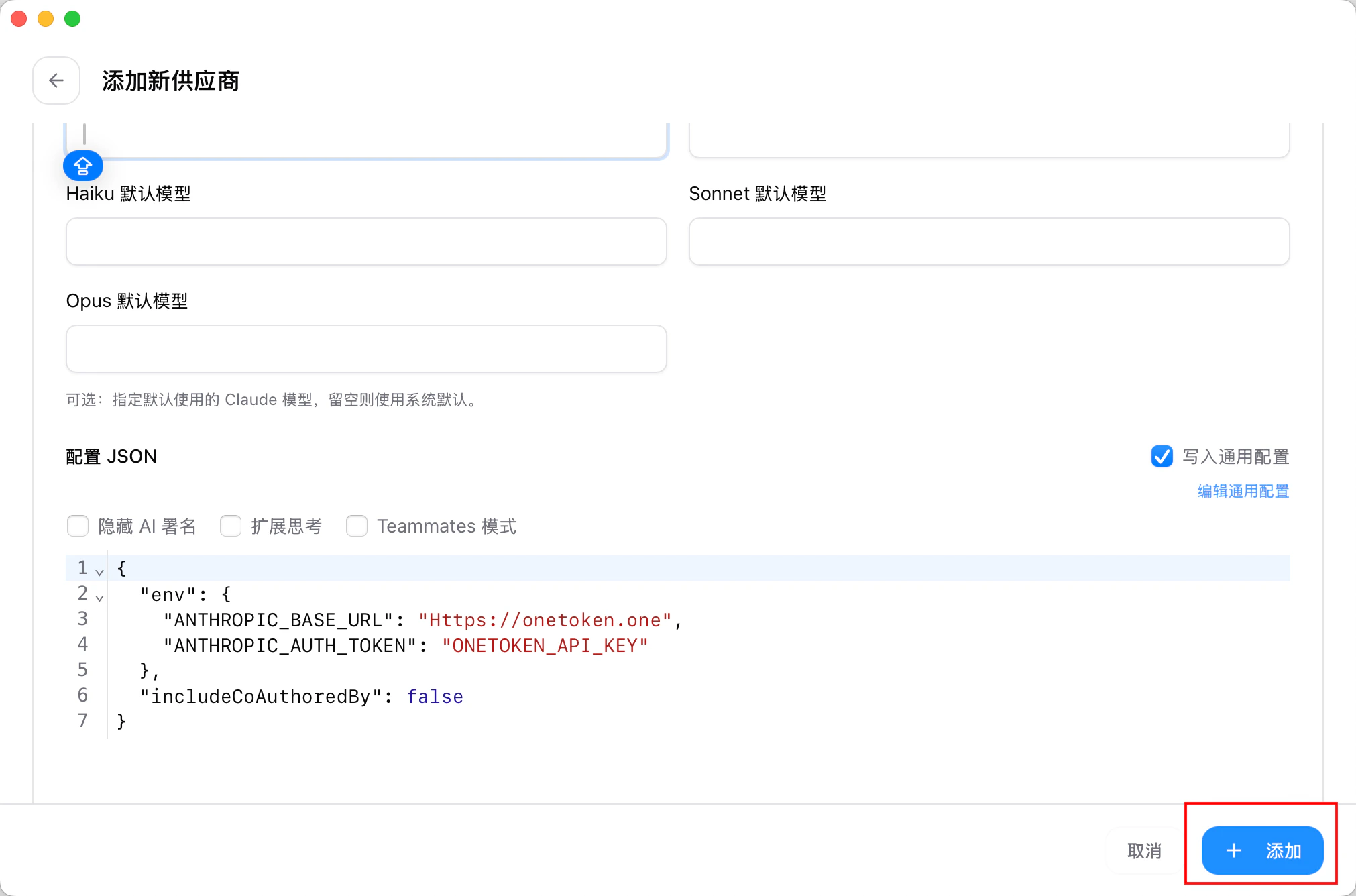
1. Open CC-Switch → **Add provider**.
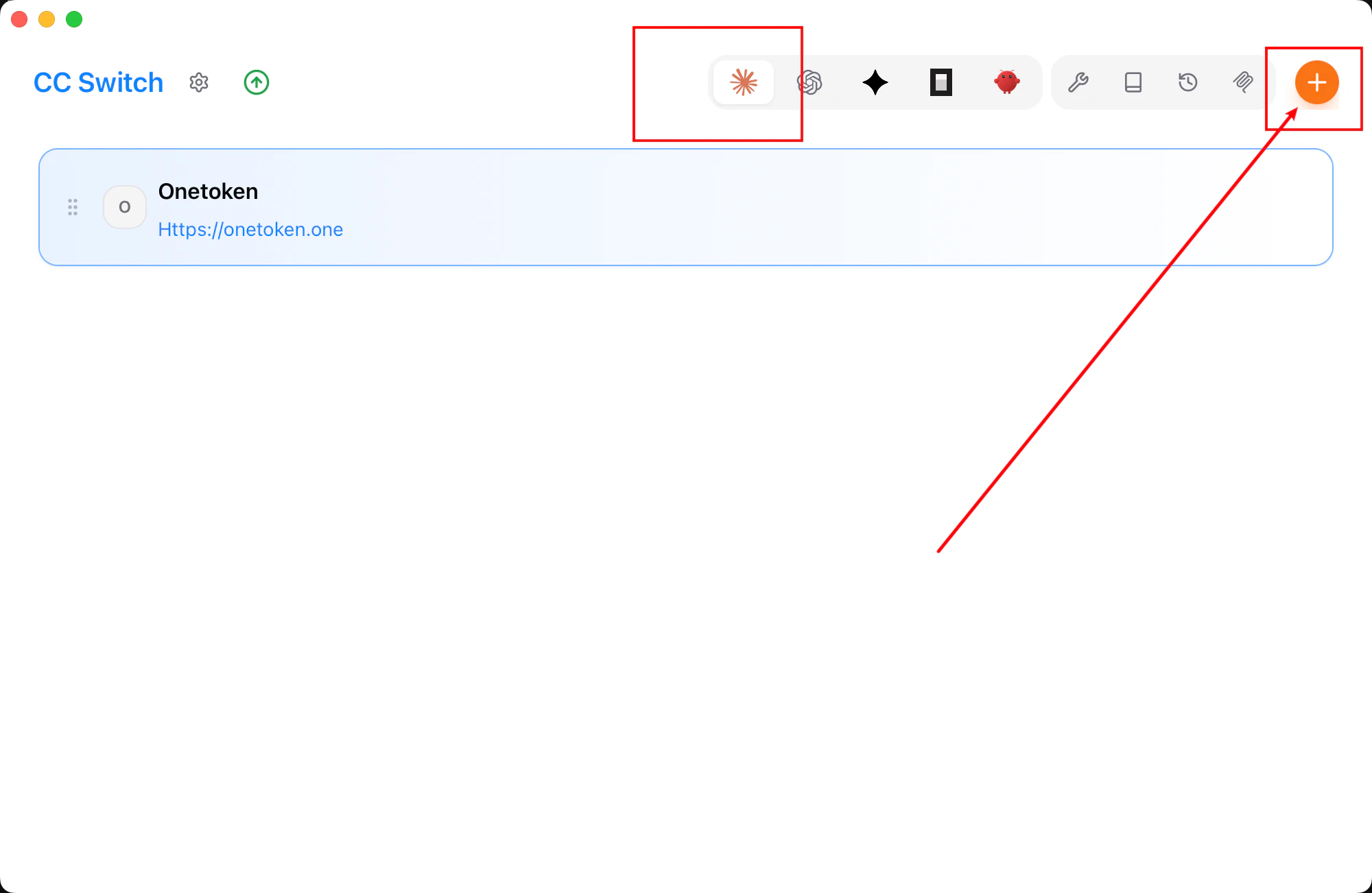 2. Choose **Custom**.
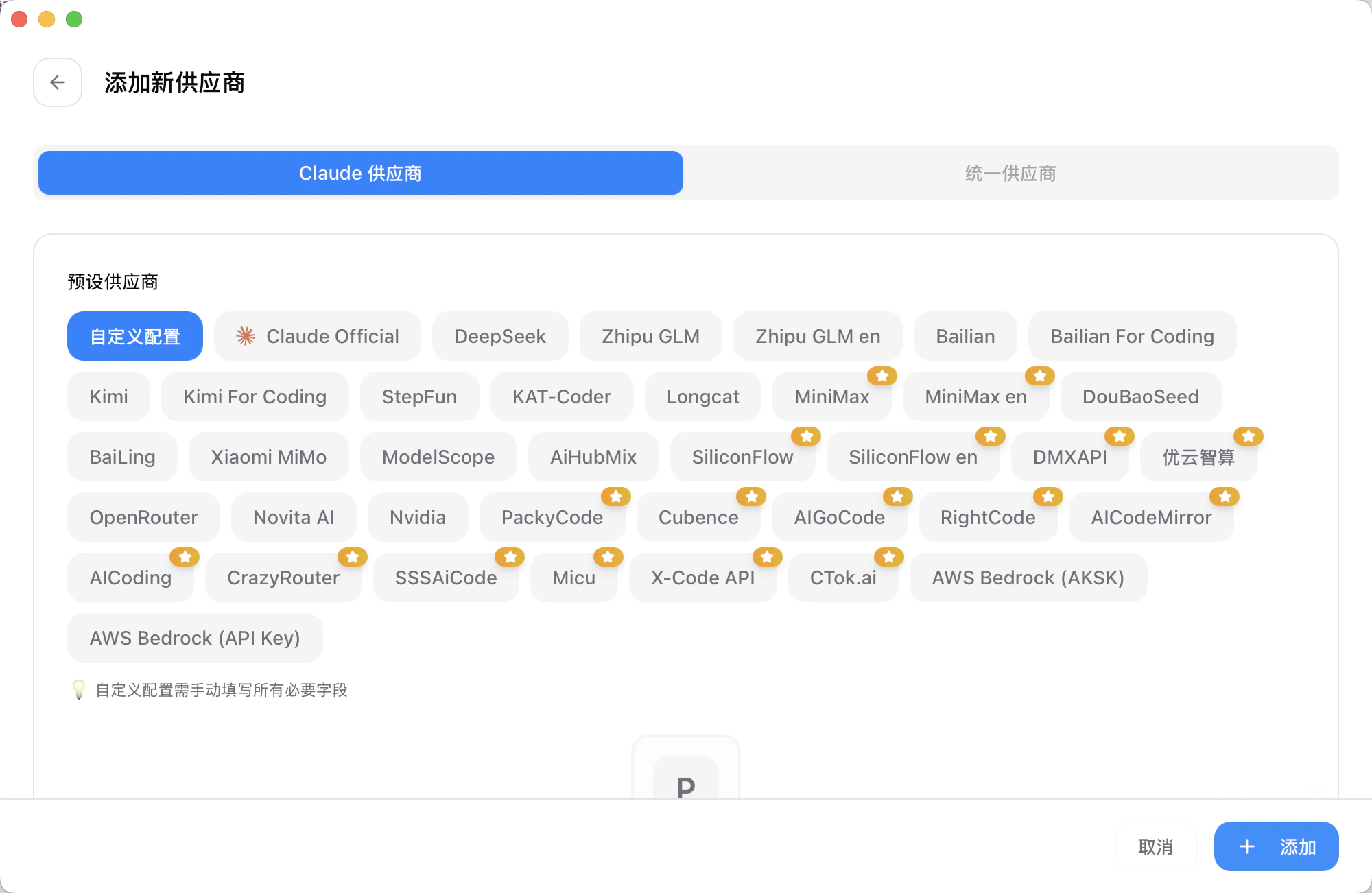 3. Enter API key and endpoint.
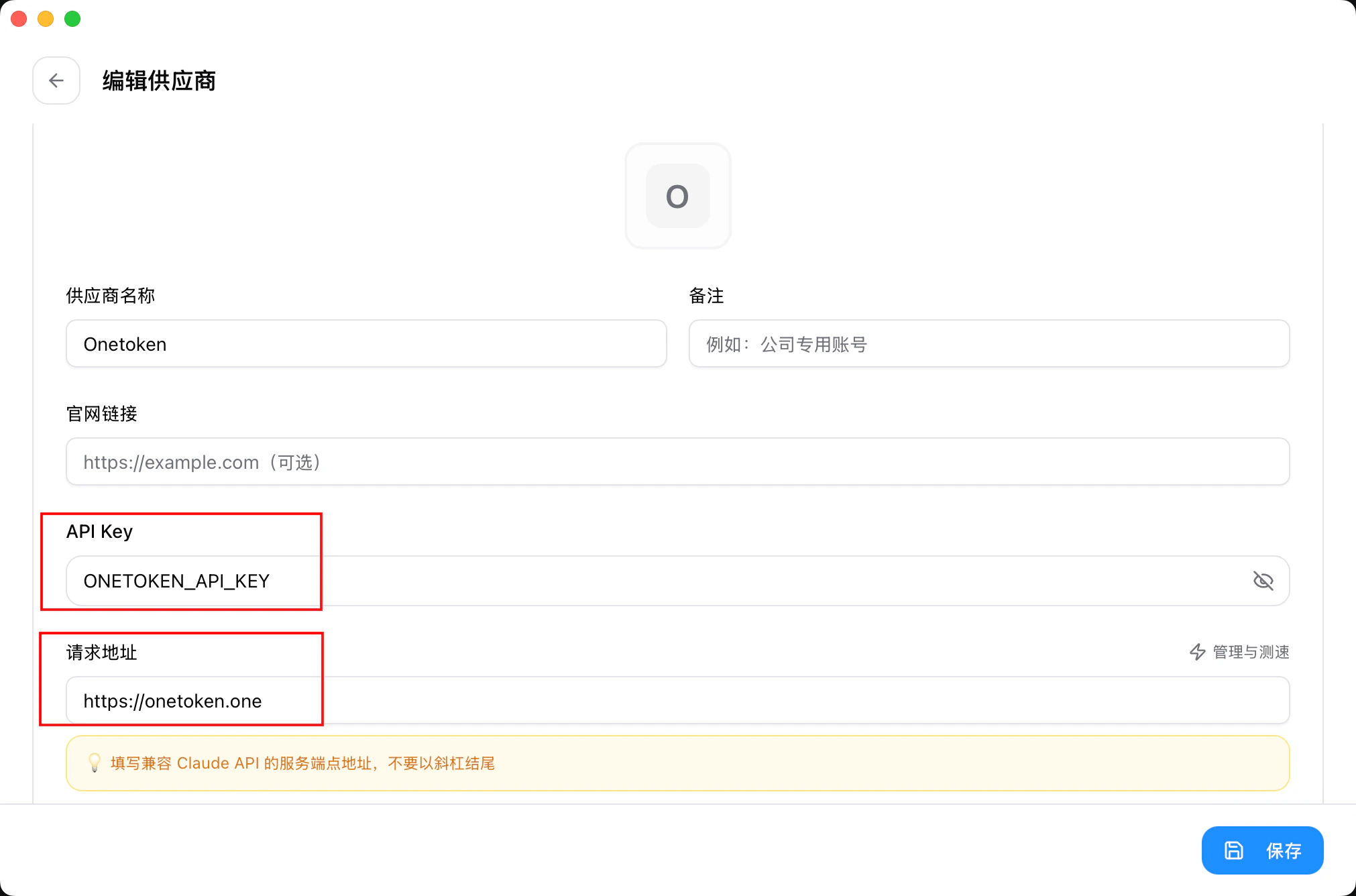 4. **Add** to save.
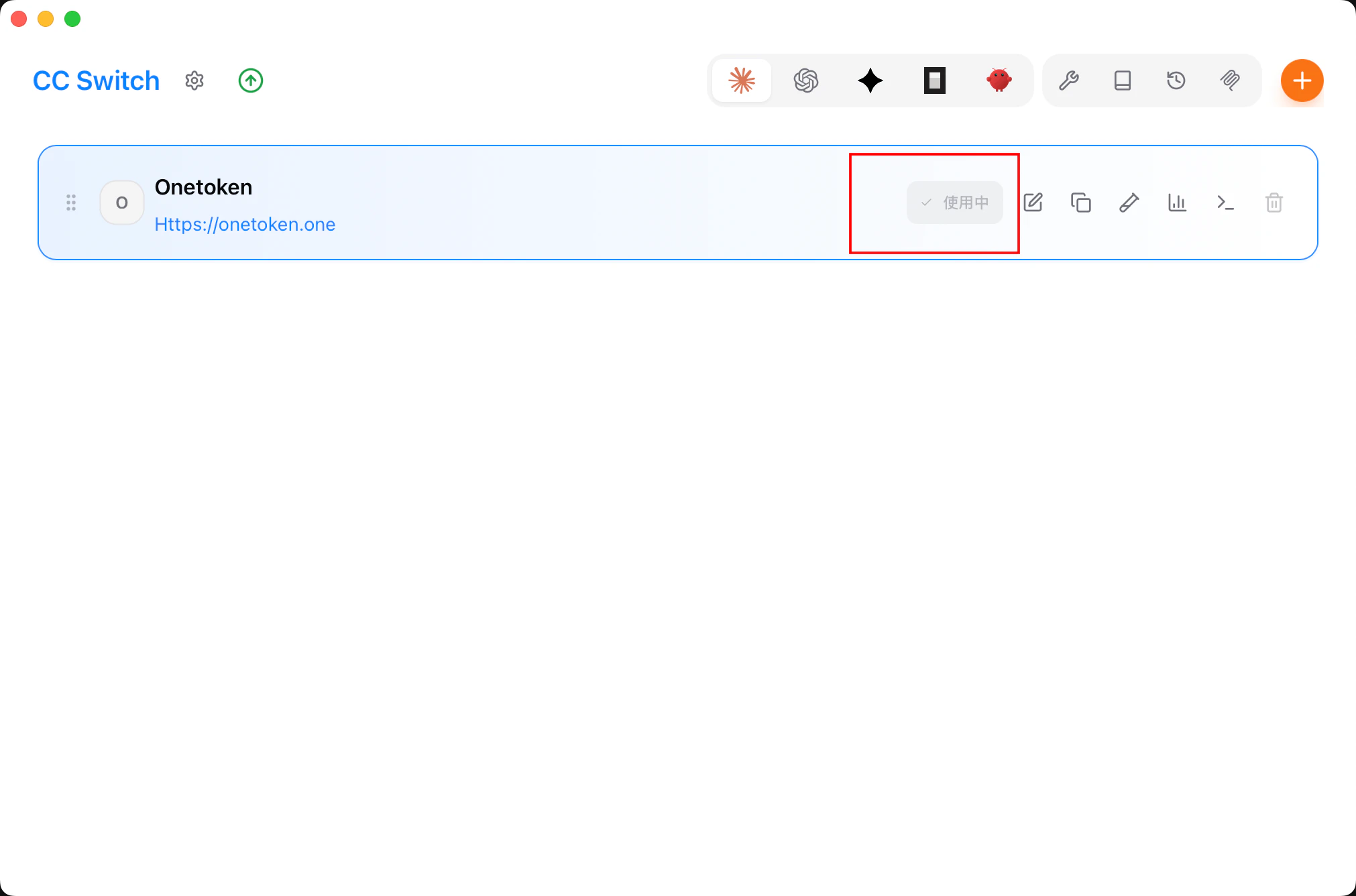
 5. Home → select **onetoken** → **Start**.
 ## VS Code extension
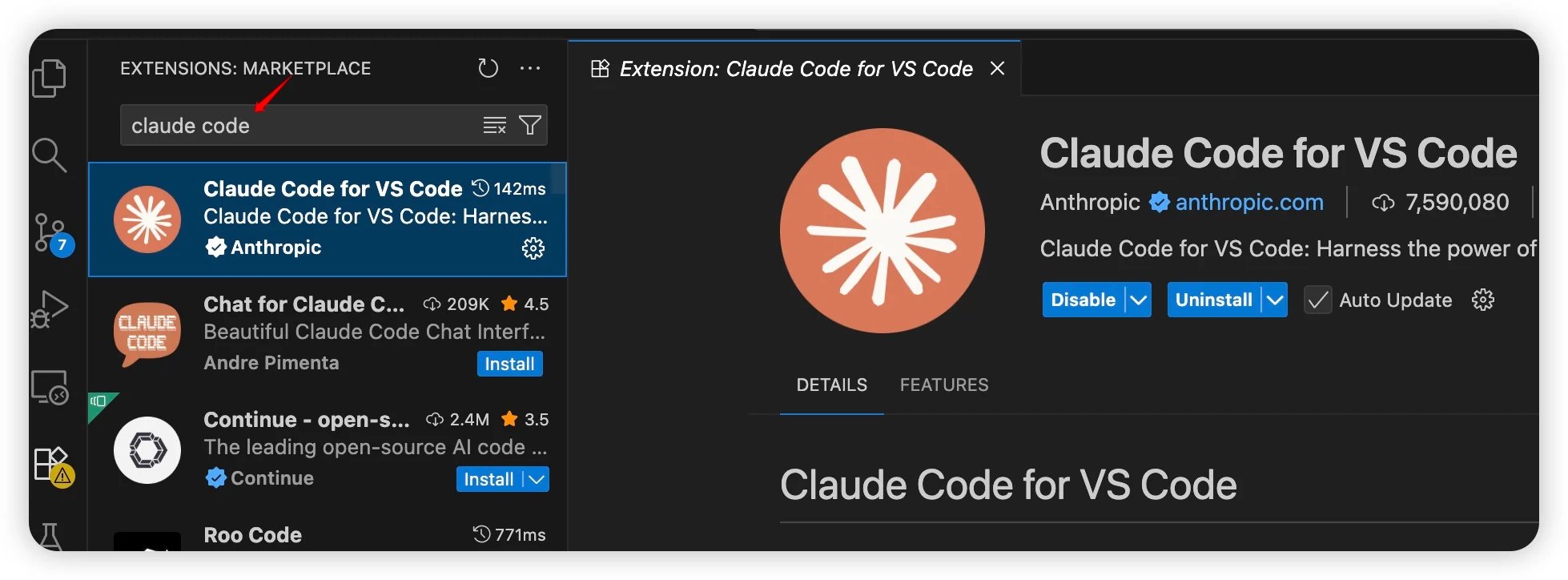
1. Install the extension.
## VS Code extension
1. Install the extension.
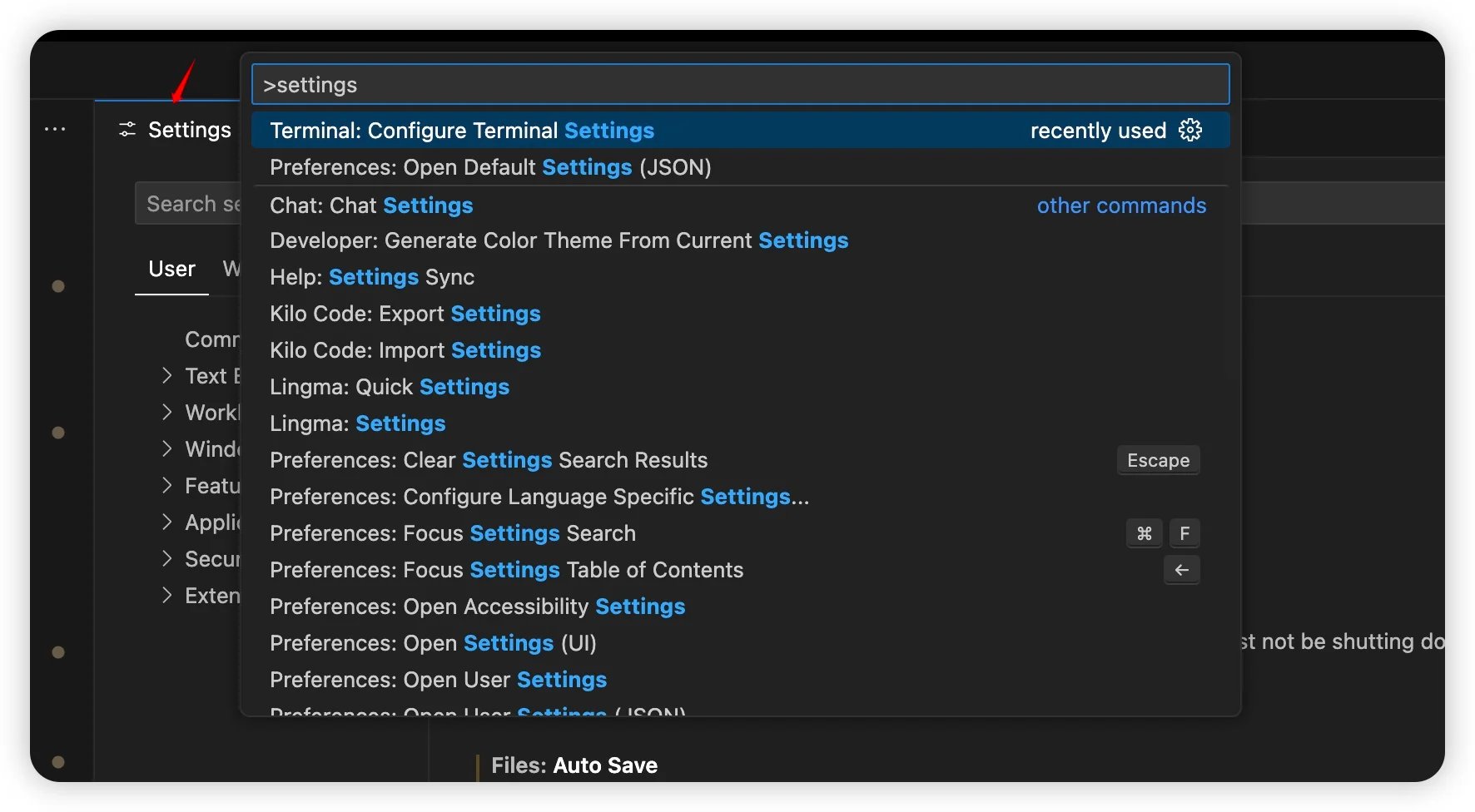
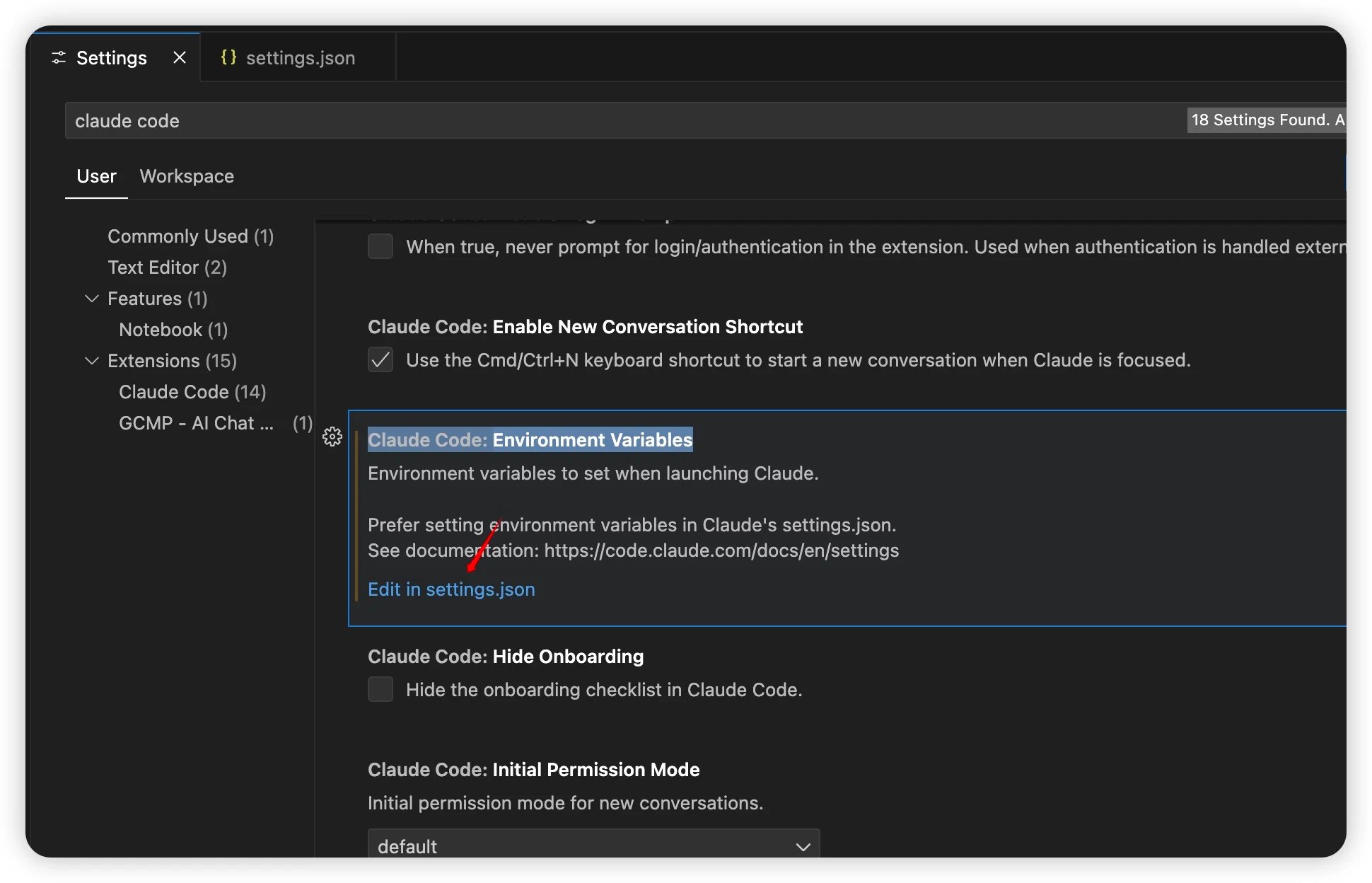
 2. `Ctrl + Shift + P` / `Cmd + Shift + P` → **Settings**.
 3. Search **Claude Code** → `Claude Code: Environment Variable` → **Edit in settings.json**.
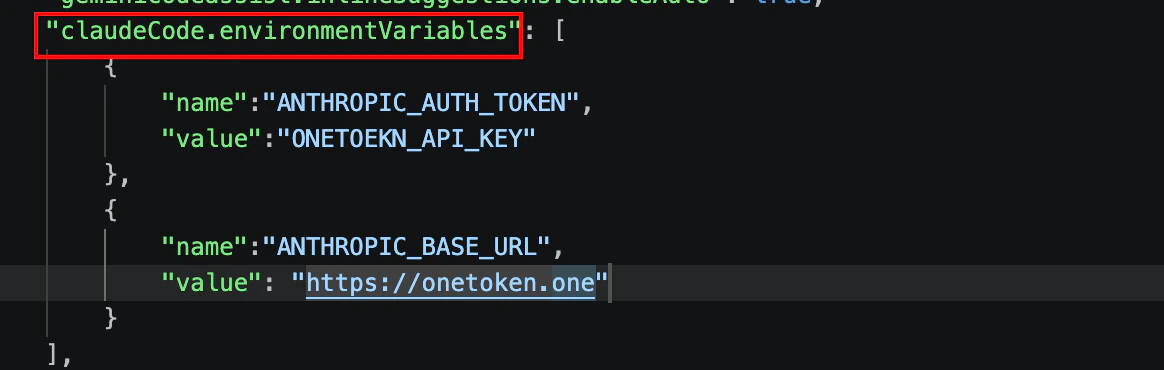
 4. Fill `claudeCode.environmentVariables` with Onetoken values.
 ## Using the deepseek model in Claude code
Available models `deepseek-r1-distill-qwen-14b` `deepseek-v3` `deepseek-v3-0324` `deepseek-v3-1-250821` `deepseek-v3.2` `deepseek-v4-flash` `deepseek-v4-pro`
Method 1: Directly modify the configuration file
Locate the `.claude.json` file in the user's home directory. The specific path is as follows:
* macOS / Linux: `~/.claude.json`
* Windows: `C:\Users\%USERNAME%\.claude.json`
Change the value of `ANTHROPIC_MODEL` to the name of the deepseek model.
```json theme={null} theme={null}
{
"env": {
"ANTHROPIC_AUTH_TOKEN": "sk-**",
"ANTHROPIC_BASE_URL": "https://onetoken.one",
"ANTHROPIC_MODEL": "deepseek-v4-pro"
},
"includeCoAuthoredBy": false
}
```
Method 2: Directly modify the configuration file using CC Switch. change the model name to the DeepSeek model name, and then restart Claude Code.
## FAQ
### Q: `401 , No token provided...`
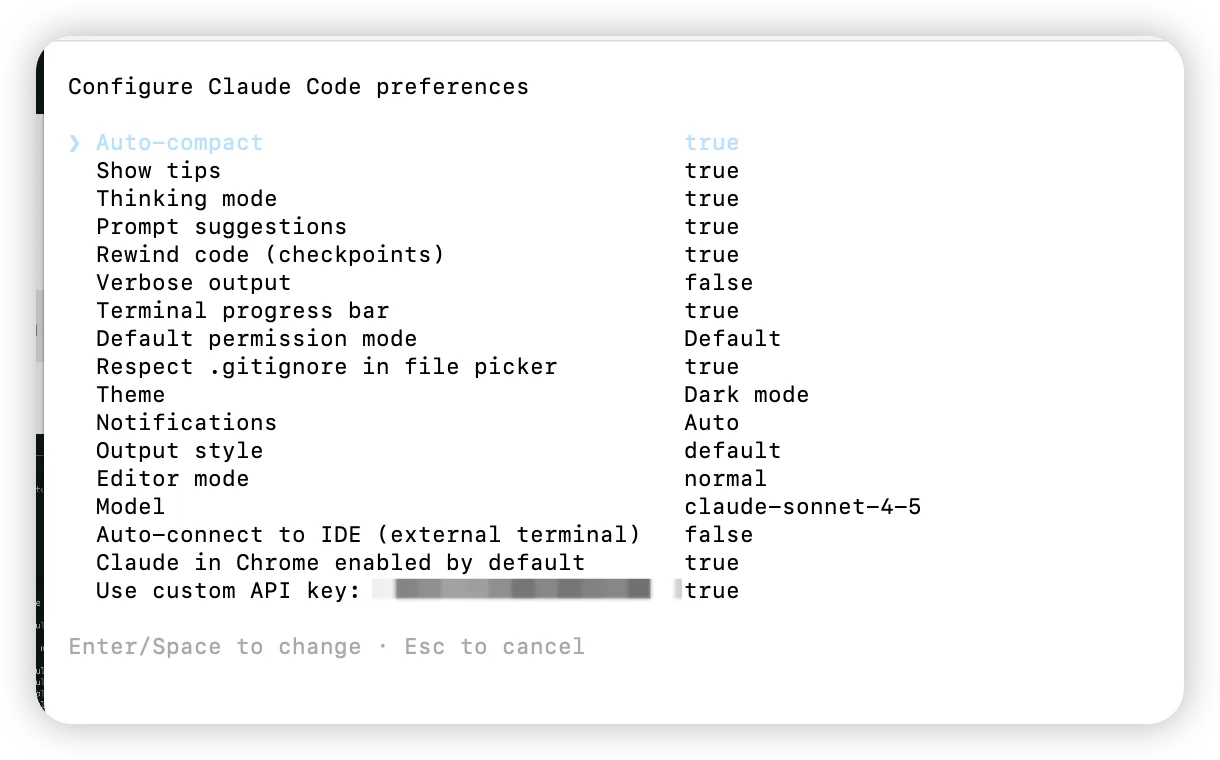
In the Claude terminal run `/config`, enable **Use custom API key**, verify the token.
## Using the deepseek model in Claude code
Available models `deepseek-r1-distill-qwen-14b` `deepseek-v3` `deepseek-v3-0324` `deepseek-v3-1-250821` `deepseek-v3.2` `deepseek-v4-flash` `deepseek-v4-pro`
Method 1: Directly modify the configuration file
Locate the `.claude.json` file in the user's home directory. The specific path is as follows:
* macOS / Linux: `~/.claude.json`
* Windows: `C:\Users\%USERNAME%\.claude.json`
Change the value of `ANTHROPIC_MODEL` to the name of the deepseek model.
```json theme={null} theme={null}
{
"env": {
"ANTHROPIC_AUTH_TOKEN": "sk-**",
"ANTHROPIC_BASE_URL": "https://onetoken.one",
"ANTHROPIC_MODEL": "deepseek-v4-pro"
},
"includeCoAuthoredBy": false
}
```
Method 2: Directly modify the configuration file using CC Switch. change the model name to the DeepSeek model name, and then restart Claude Code.
## FAQ
### Q: `401 , No token provided...`
In the Claude terminal run `/config`, enable **Use custom API key**, verify the token.
 ### Q: `zsh: command not found: claude` on macOS
The binary exists but isn’t on `PATH`. Common locations:
* `~/.claude/bin`
* `~/.local/bin`
```shellscript theme={null} theme={null}
ls -l ~/.claude/bin
# or
ls -l ~/.local/bin | grep claude
```
**If in `~/.claude/bin`:**
```shellscript theme={null} theme={null}
echo 'export PATH="$HOME/.claude/bin:$PATH"' >> ~/.zshrc
source ~/.zshrc
```
**If in `~/.local/bin`:**
```shellscript theme={null} theme={null}
echo 'export PATH="$HOME/.local/bin:$PATH"' >> ~/.zshrc
source ~/.zshrc
```
Check:
```text theme={null} theme={null}
which claude
claude -v
```
### Q: Cannot reach Anthropic
Newer Claude Code builds expect **`AUTH_TOKEN`** instead of `API_KEY`. Update the header name and reload env—key value stays the same. Follow the env steps above.
### Q: Login API Error 403
### Q: `zsh: command not found: claude` on macOS
The binary exists but isn’t on `PATH`. Common locations:
* `~/.claude/bin`
* `~/.local/bin`
```shellscript theme={null} theme={null}
ls -l ~/.claude/bin
# or
ls -l ~/.local/bin | grep claude
```
**If in `~/.claude/bin`:**
```shellscript theme={null} theme={null}
echo 'export PATH="$HOME/.claude/bin:$PATH"' >> ~/.zshrc
source ~/.zshrc
```
**If in `~/.local/bin`:**
```shellscript theme={null} theme={null}
echo 'export PATH="$HOME/.local/bin:$PATH"' >> ~/.zshrc
source ~/.zshrc
```
Check:
```text theme={null} theme={null}
which claude
claude -v
```
### Q: Cannot reach Anthropic
Newer Claude Code builds expect **`AUTH_TOKEN`** instead of `API_KEY`. Update the header name and reload env—key value stays the same. Follow the env steps above.
### Q: Login API Error 403
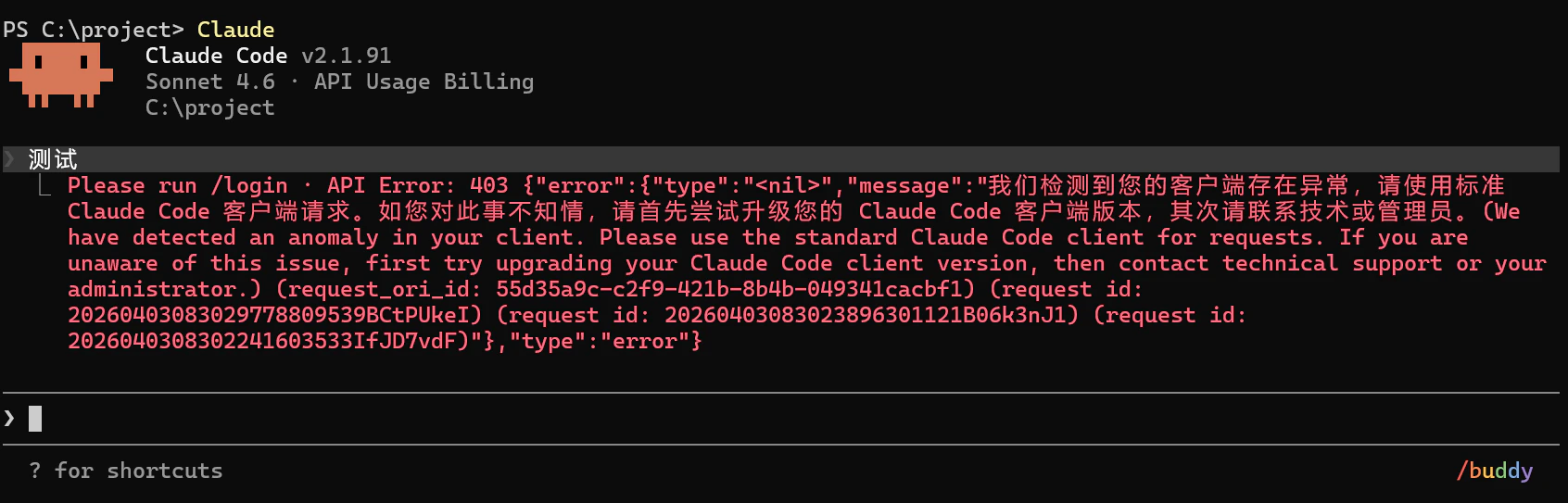 Upgrade Claude Code to the latest version and disable CC-Switch local proxy / failover if enabled.
### Q: How to enable 1-hour caching
1. Open the global configuration file \~/.claude/settings.json (or .claude/settings.json in the project directory);
2. Add the env field:
```
{ "env": { "ENABLE_PROMPT_CACHING_1H": "1" } }
```
Happy coding!
Upgrade Claude Code to the latest version and disable CC-Switch local proxy / failover if enabled.
### Q: How to enable 1-hour caching
1. Open the global configuration file \~/.claude/settings.json (or .claude/settings.json in the project directory);
2. Add the env field:
```
{ "env": { "ENABLE_PROMPT_CACHING_1H": "1" } }
```
Happy coding!