> ## Documentation Index
> Fetch the complete documentation index at: https://doc.onetoken.one/llms.txt
> Use this file to discover all available pages before exploring further.
# Hermes
## Hermes Agent (Hamers) Configuration Guide for OneToken API Integration
## I. Product Introduction
**Hermes Agent** is an open-source, autonomous AI agent framework developed by Nous Research, possessing "closed-loop self-learning" capabilities. Unlike other AI tools that forget after a single conversation, Hermes' core advantage lies in its **persistent cross-session memory** and **automatic skill extraction system**.
After completing a complex task independently or through tools, it evaluates the results and automatically encapsulates them into "skill cards." The next time a similar task is encountered, it can directly retrieve and invoke the skill, becoming increasingly intelligent with use. Hermes employs a decoupled design, not binding to any single model vendor, and supports seamless integration with various third-party large model APIs via native configuration or command line.
***
## II. Download and Installation on Different Platforms
Hermes Agent supports macOS, Linux, and Windows (WSL2) environments. ### 1. Preparation
Ensure your system has the following installed:
* **Python 3.10+**
* **Node.js 18+**
### 2. Linux, macOS, WSL2, Termux Installation
Open a terminal and execute the official one-click installation script:
```bash theme={null}
curl -fsSL https://raw.githubusercontent.com/NousResearch/hermes-agent/main/scripts/install.sh | bash
```
After installation, verify success:
```bash theme={null}
hermes --version
```
### 3. Windows
Because Hermes involves low-level terminal tool calls, it is recommended to run it on the Windows WSL2 (Ubuntu 22.04+) subsystem.
Run this in PowerShell:
```bash theme={null}
iex (irm https://raw.githubusercontent.com/NousResearch/hermes-agent/main/scripts/install.ps1)
```
## III. Changing Configuration to Access Third-Party API Formats
Hermes provides extremely simple model management commands and also supports manually accessing third-party API interfaces compatible with OpenAI formats by modifying environment configuration files.
### Method 1: Quickly Switch Using the Built-in Command Line (Recommended)
Hermes supports interactive configuration. Simply enter the following command in the terminal:
```bash theme={null}
hermes model
```
An interactive menu will pop up, listing mainstream third-party vendors (such as OpenRouter, OpenAI, Anthropic, DeepSeek, MiniMax, etc.). After selecting the corresponding vendor, enter your `API Key` to automatically complete the configuration.
\***\*Tips (OpenClaw User Migration):**
If you are a previous OpenClaw user, you can use the migration command to import all configurations and API keys with one click:
`hermes claw migrate`
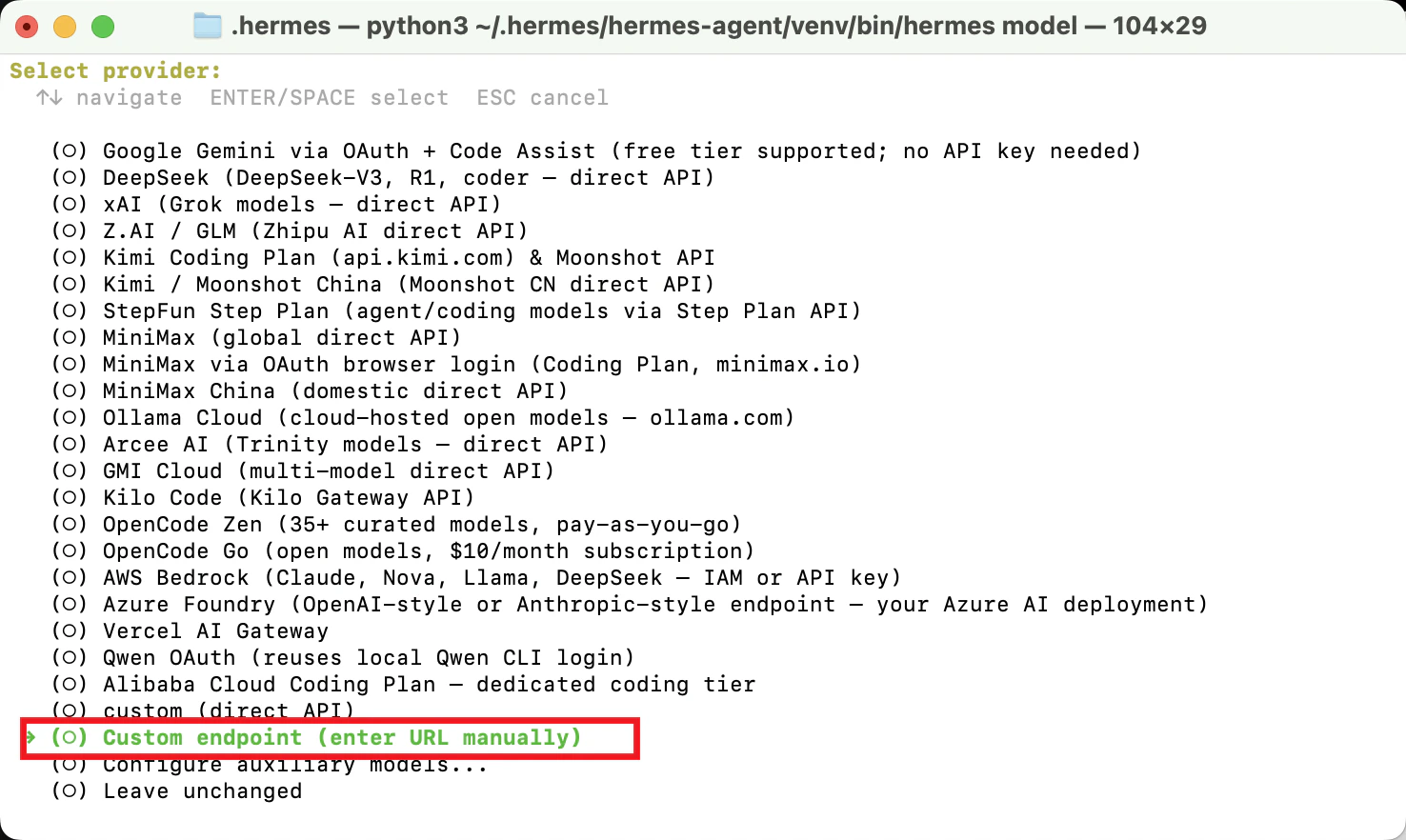
Enter the interactive menu and use the up and down arrow keys to navigate to the options, then press Enter to confirm your selection.
1. Select `Custom endpoint`
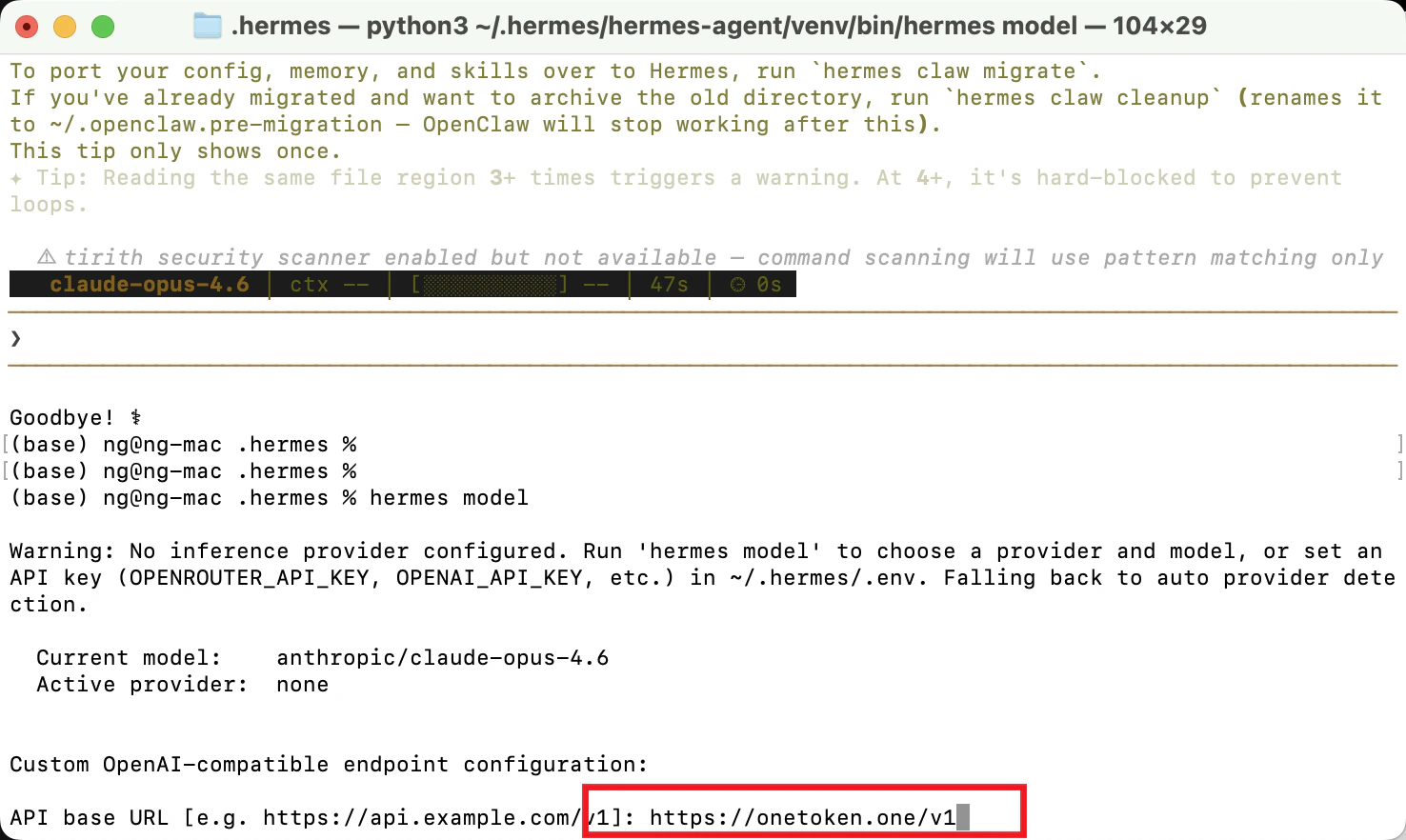
 2. Enter the OneToken address `https://onetoken.one/v1`
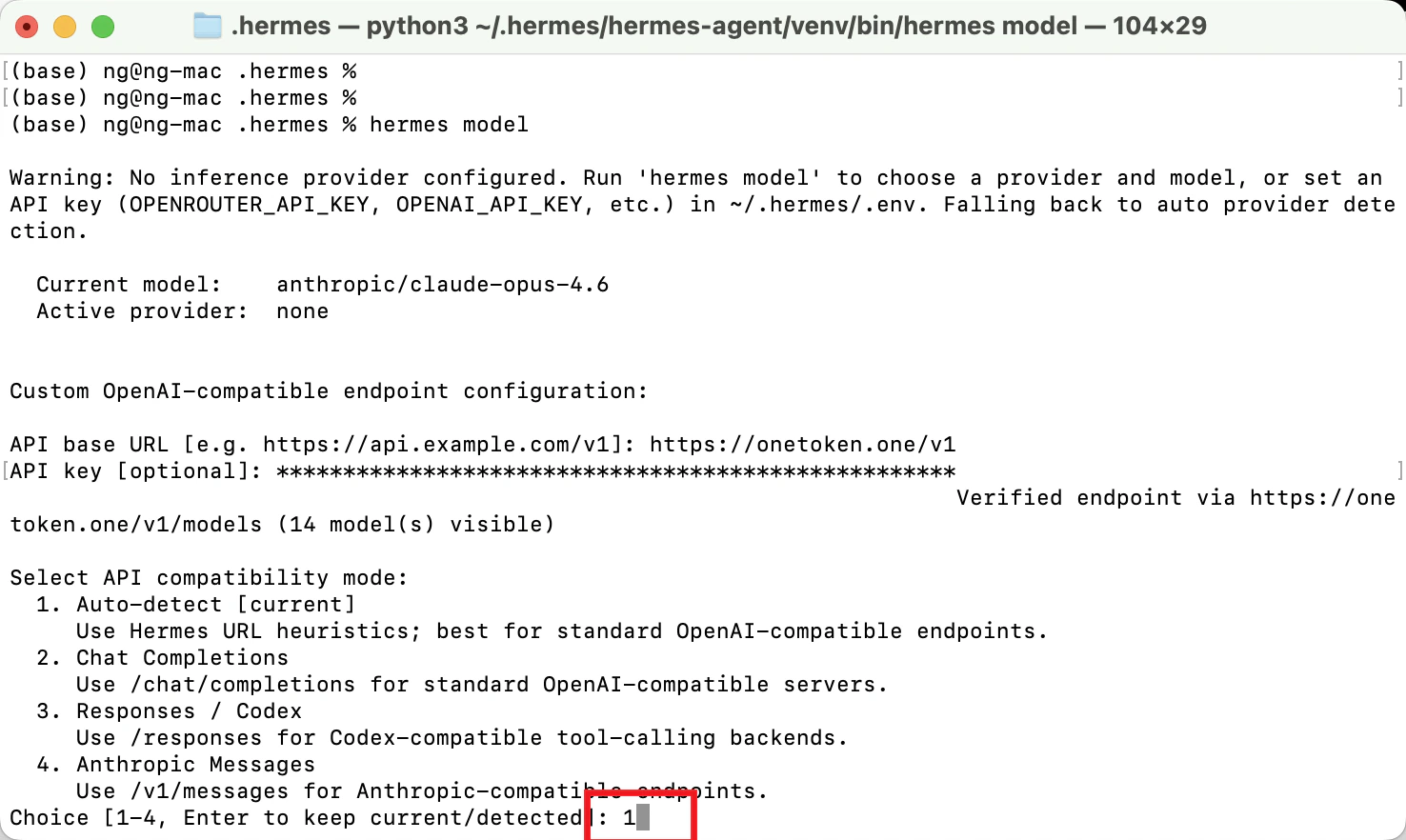
 3. Enter the API compatibility options. Enter 1 here to proceed to the next step.
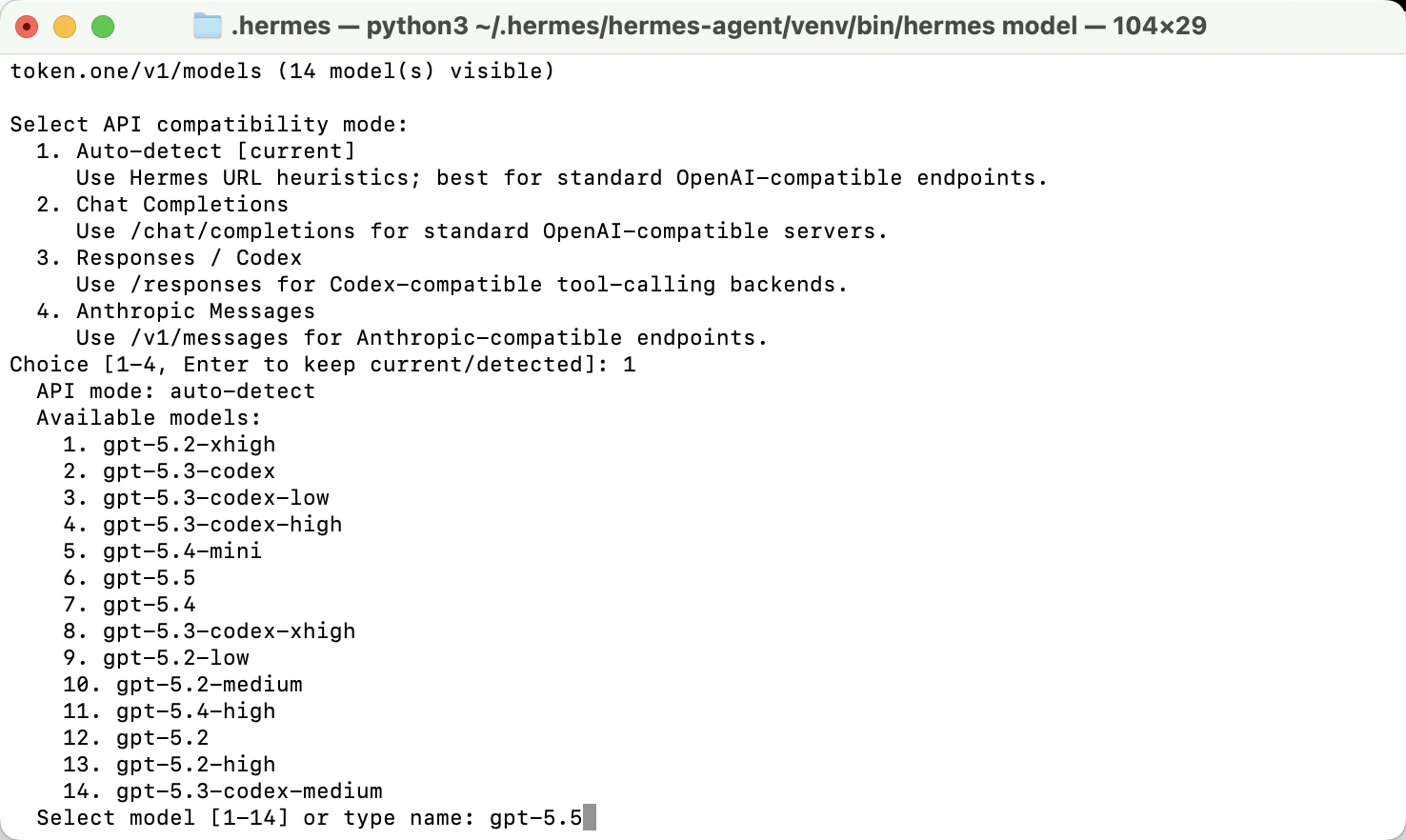
 4. Enter the model name.
 5. Enter the model context length here. Leave it blank and press Enter.
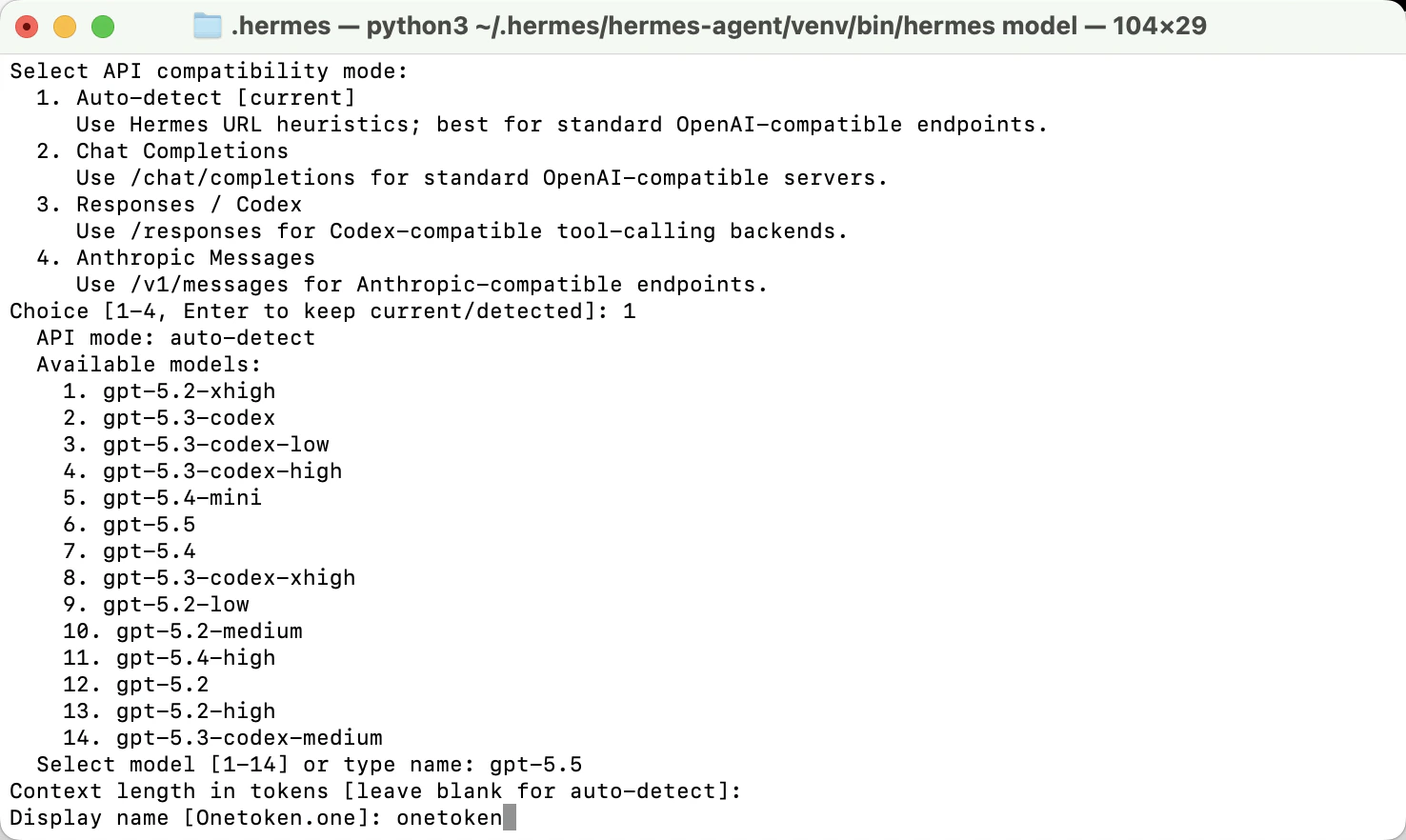
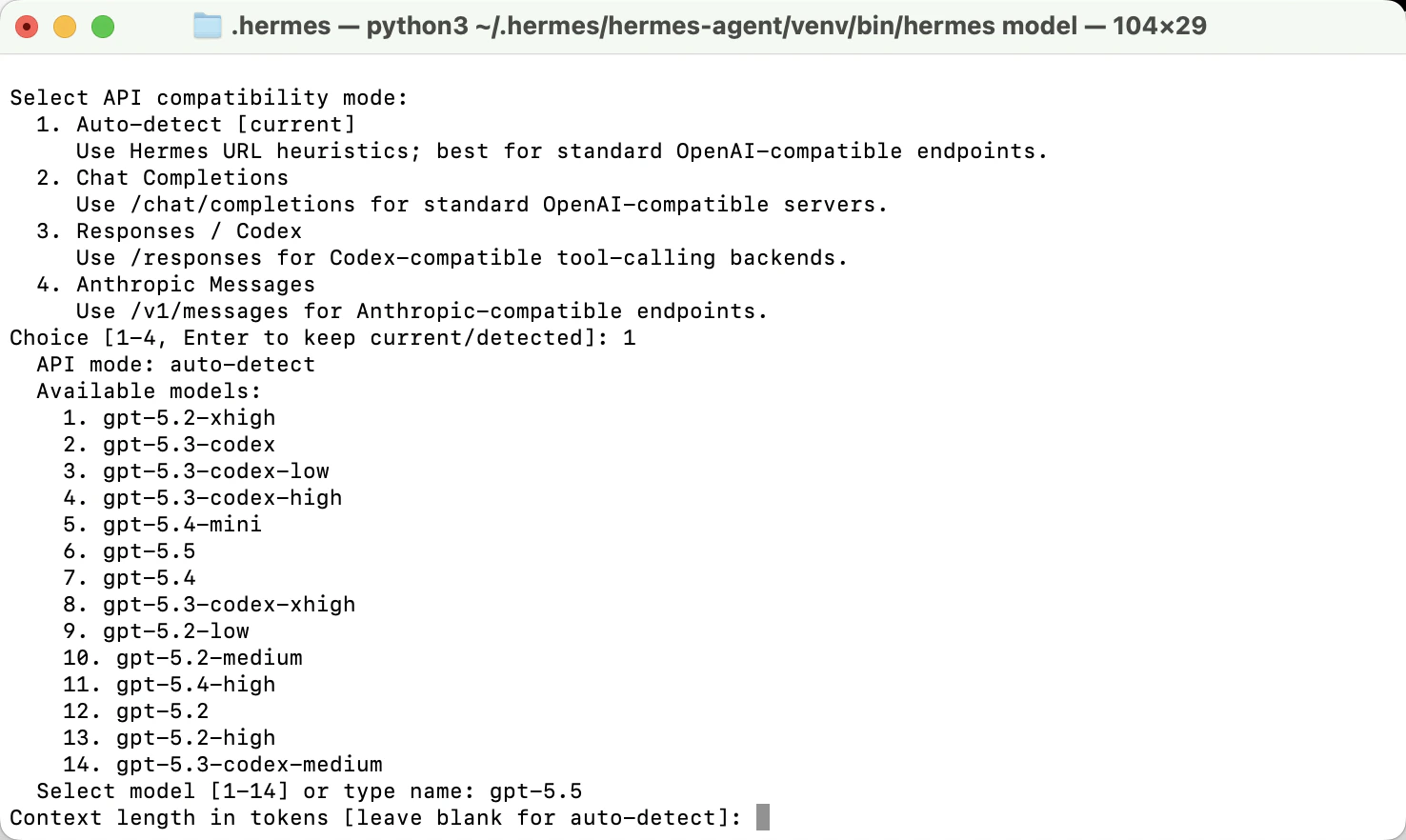 6. Enter your display name. `OneToken`
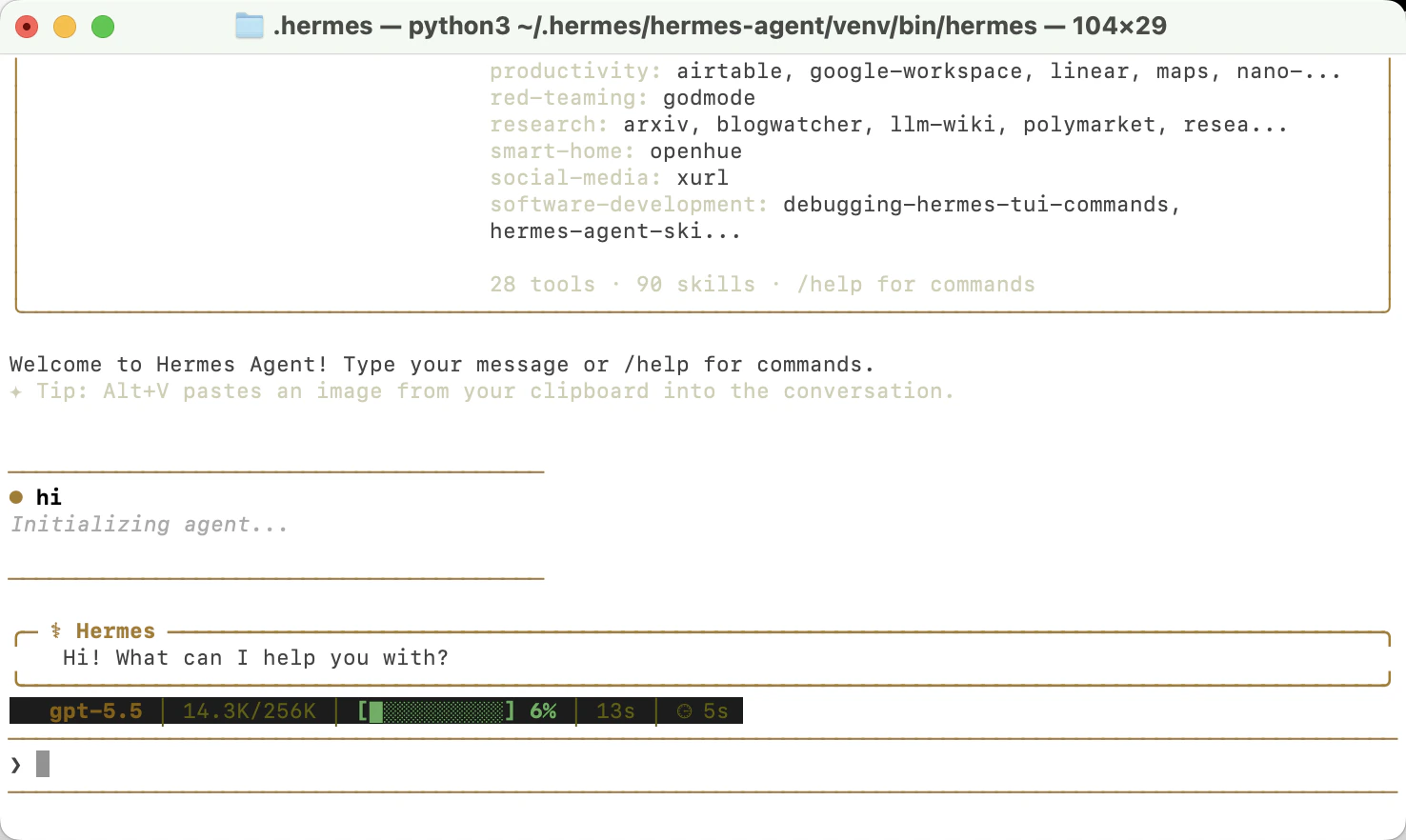
 7. After setting up, type `hermes` in the terminal to enter the dialog box to test if it works correctly.
 You can run `hermes setup` at any time to modify the settings.