> ## Documentation Index
> Fetch the complete documentation index at: https://doc.onetoken.one/llms.txt
> Use this file to discover all available pages before exploring further.

# Costrict 配置教程

CoStrict 是一款开源、实用的研发编程工具，基于代码大模型，实现代码补全、智能问答、代码审查、代码优化、单测编写、注释生成等功能。

## 安装 cli

```
npm install -g @costrict/cs

```

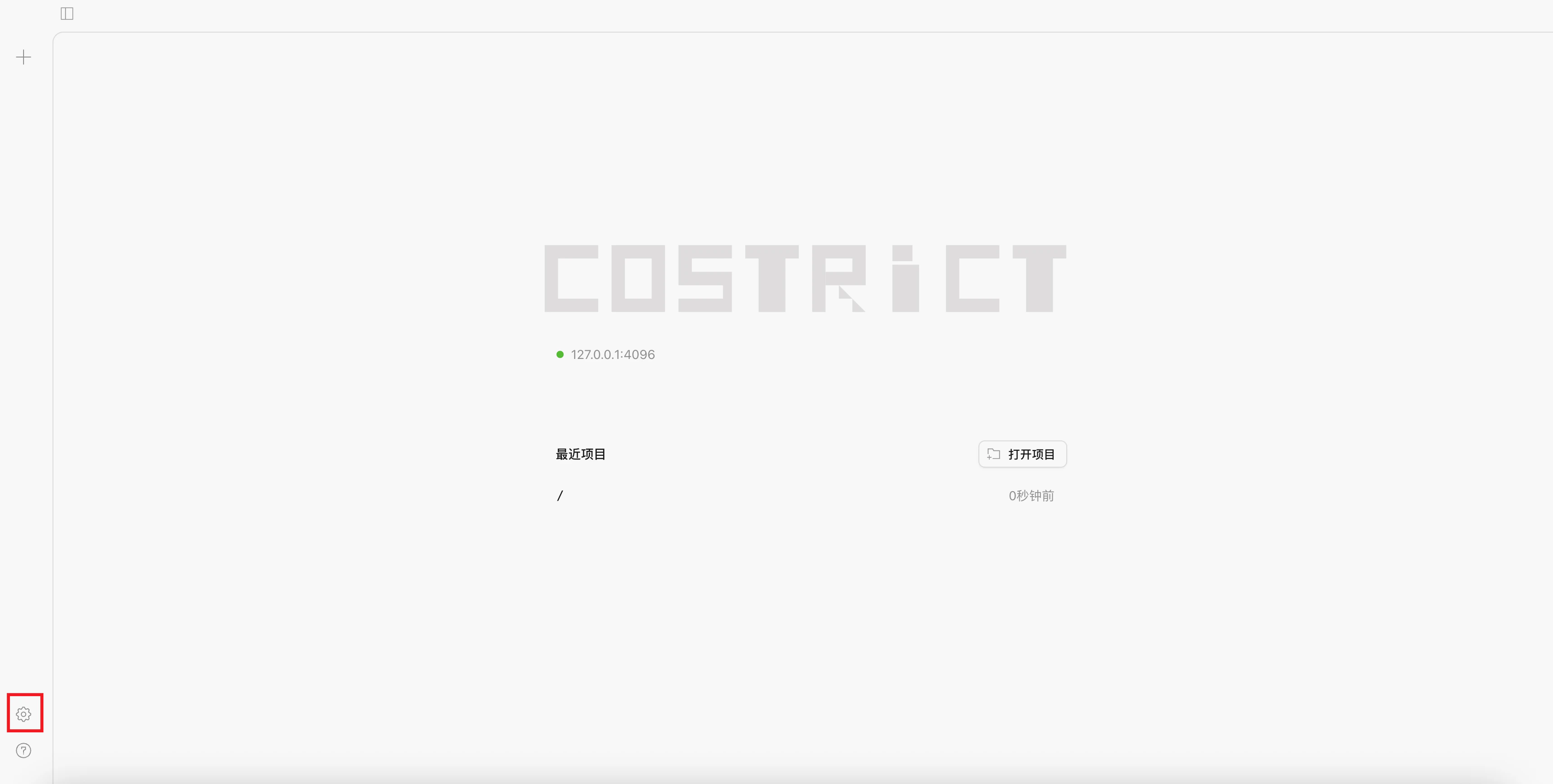
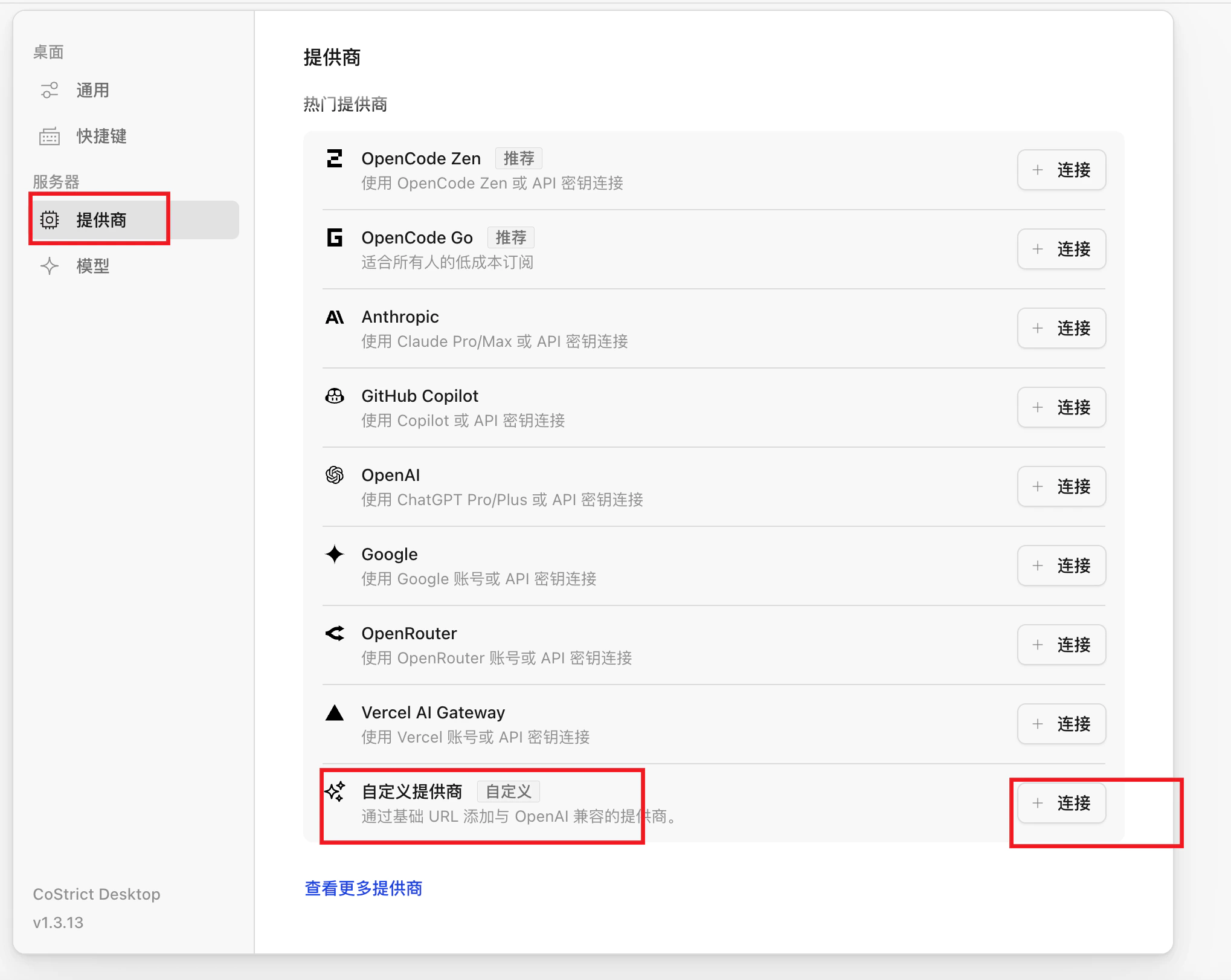
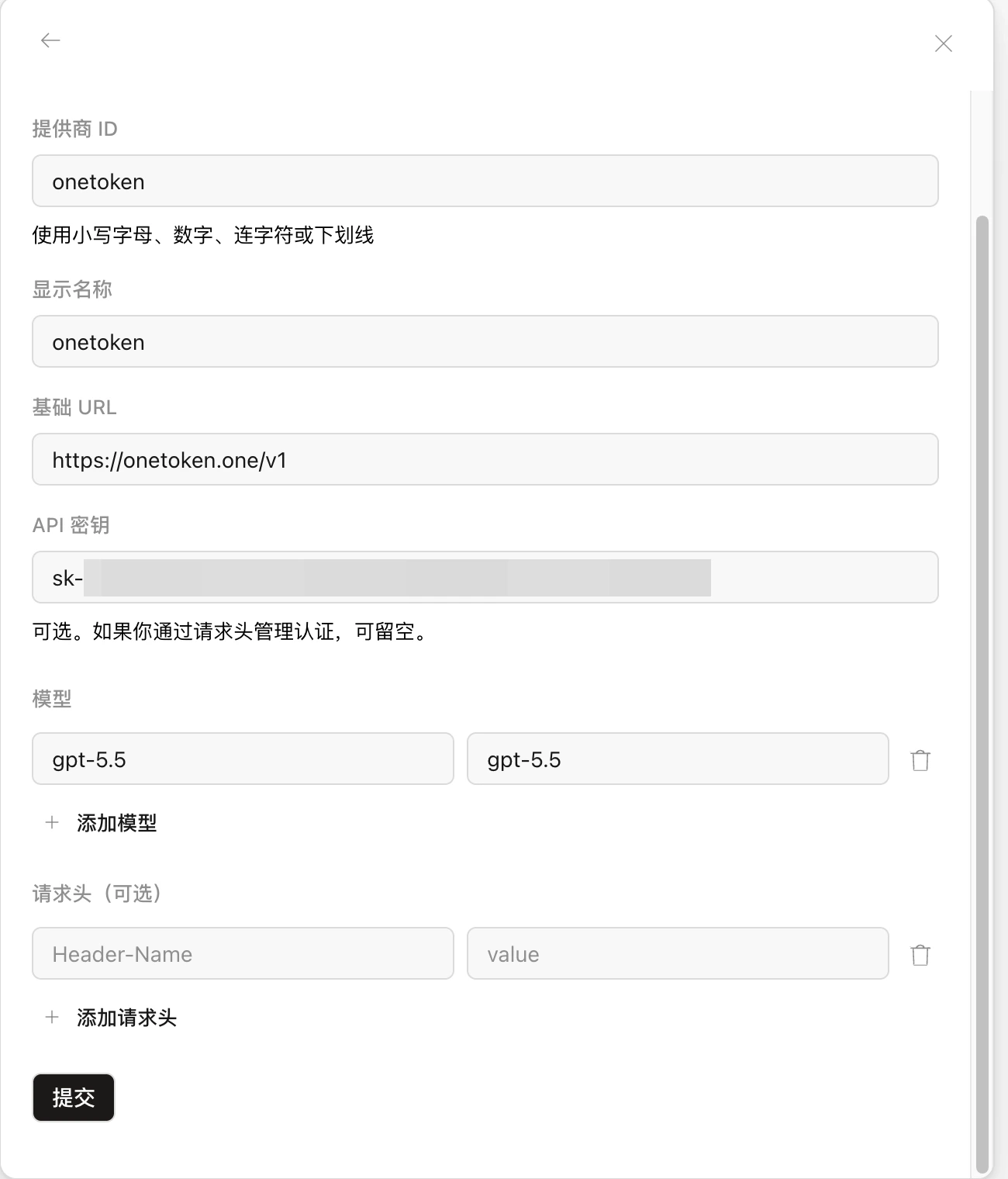
1. 安装成功后终端执行 `cs web` 打开 web 设置页面， 点击设置添加自定义提供商

<img src="https://mintcdn.com/onetoken-9a3c590a/KmHH52Mc6zGrQ7J8/images/costrict/1.png?fit=max&auto=format&n=KmHH52Mc6zGrQ7J8&q=85&s=22009e1bc355964bf4415d71a368f6a8" width="3430" height="1732" data-path="images/costrict/1.png" />

<img src="https://mintcdn.com/onetoken-9a3c590a/KmHH52Mc6zGrQ7J8/images/costrict/2.png?fit=max&auto=format&n=KmHH52Mc6zGrQ7J8&q=85&s=1b16aeea9c1e419d7df685bc84f27c2d" width="2038" height="1622" data-path="images/costrict/2.png" />

<img src="https://mintcdn.com/onetoken-9a3c590a/7lPCBY-bCxIfaqsf/images/costrict/3.png?fit=max&auto=format&n=7lPCBY-bCxIfaqsf&q=85&s=56eb2c7863139a532e8d0d88b7a55eb0" width="1300" height="1520" data-path="images/costrict/3.png" />

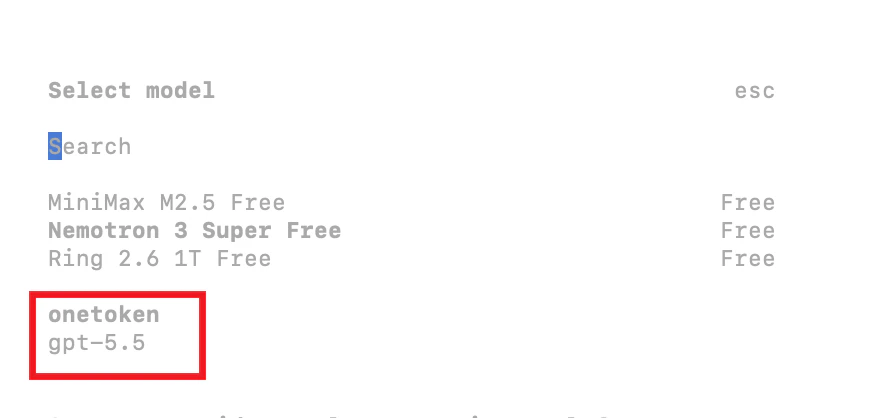
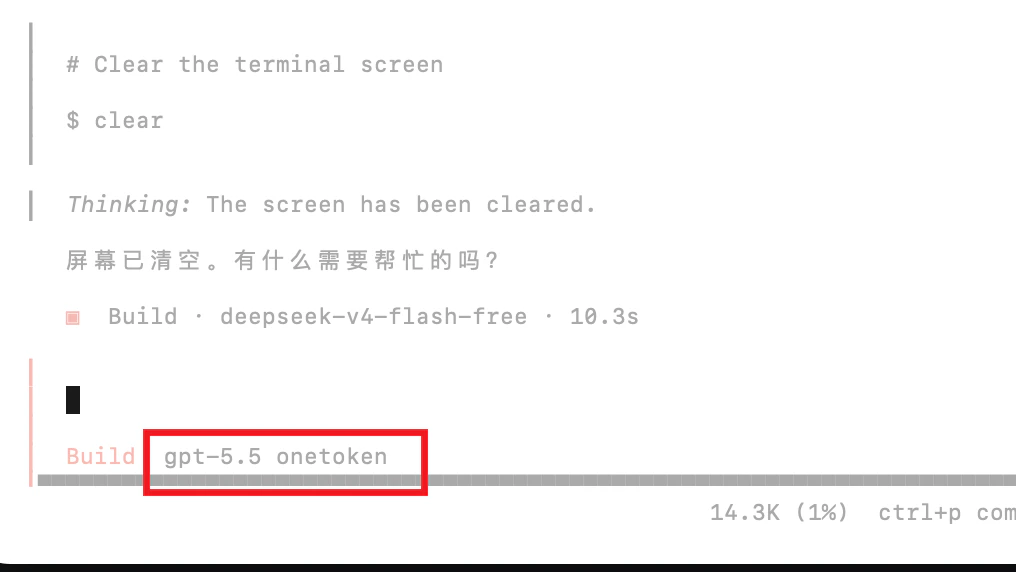
2. 提交成功后 control + c 关闭 当前 web 命令 从新在终端输入 `cs` 回车, 输入` /models` 选择我们刚新增的模型， 回车开始使用

<img src="https://mintcdn.com/onetoken-9a3c590a/KmHH52Mc6zGrQ7J8/images/costrict/4.png?fit=max&auto=format&n=KmHH52Mc6zGrQ7J8&q=85&s=70a70445073b1b09a9ec5fe05f131349" width="888" height="418" data-path="images/costrict/4.png" />

<img src="https://mintcdn.com/onetoken-9a3c590a/KmHH52Mc6zGrQ7J8/images/costrict/5.png?fit=max&auto=format&n=KmHH52Mc6zGrQ7J8&q=85&s=c9d85af00b4ce91dc1800d1fa99a5d76" width="1016" height="572" data-path="images/costrict/5.png" />

## 在 vs code 中使用

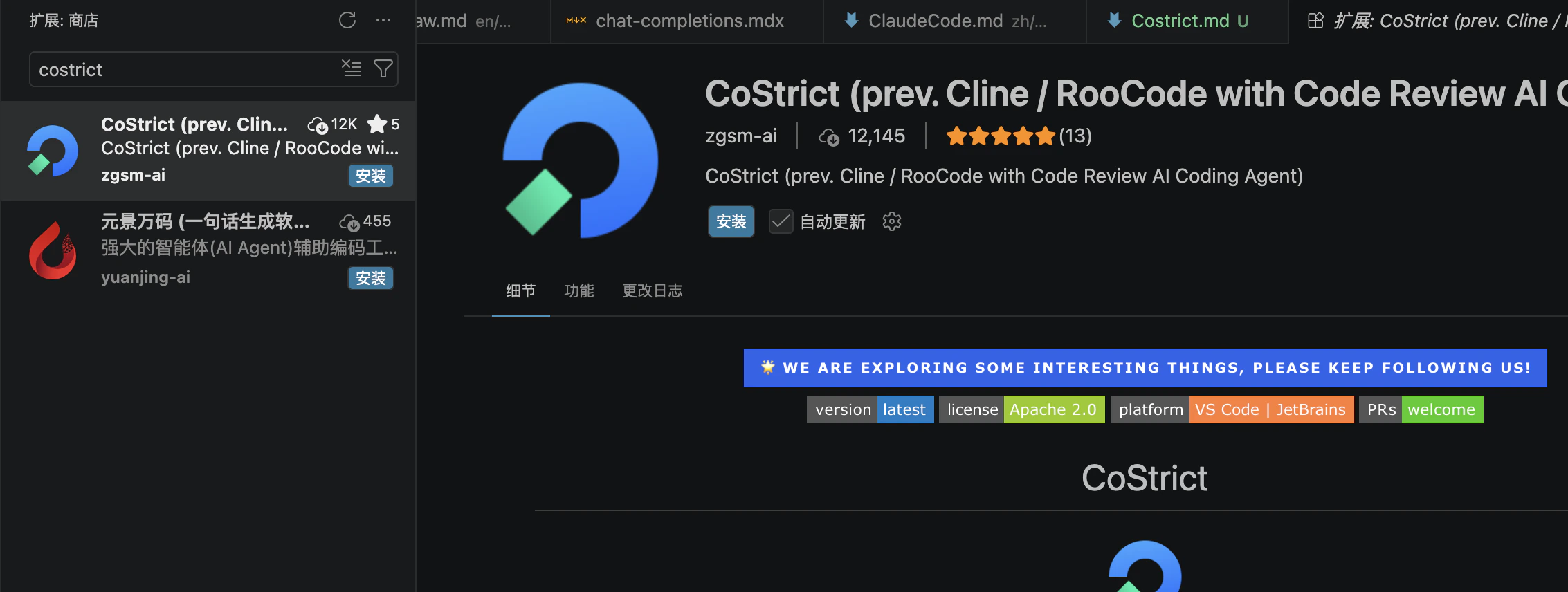
1. 打开 vs code 点击扩展商店搜索 `costrict` 安装
<img src="https://mintcdn.com/onetoken-9a3c590a/KmHH52Mc6zGrQ7J8/images/costrict/6.png?fit=max&auto=format&n=KmHH52Mc6zGrQ7J8&q=85&s=26a4fa886cd7c0b10c5832c1438884b5" width="2266" height="856" data-path="images/costrict/6.png" />

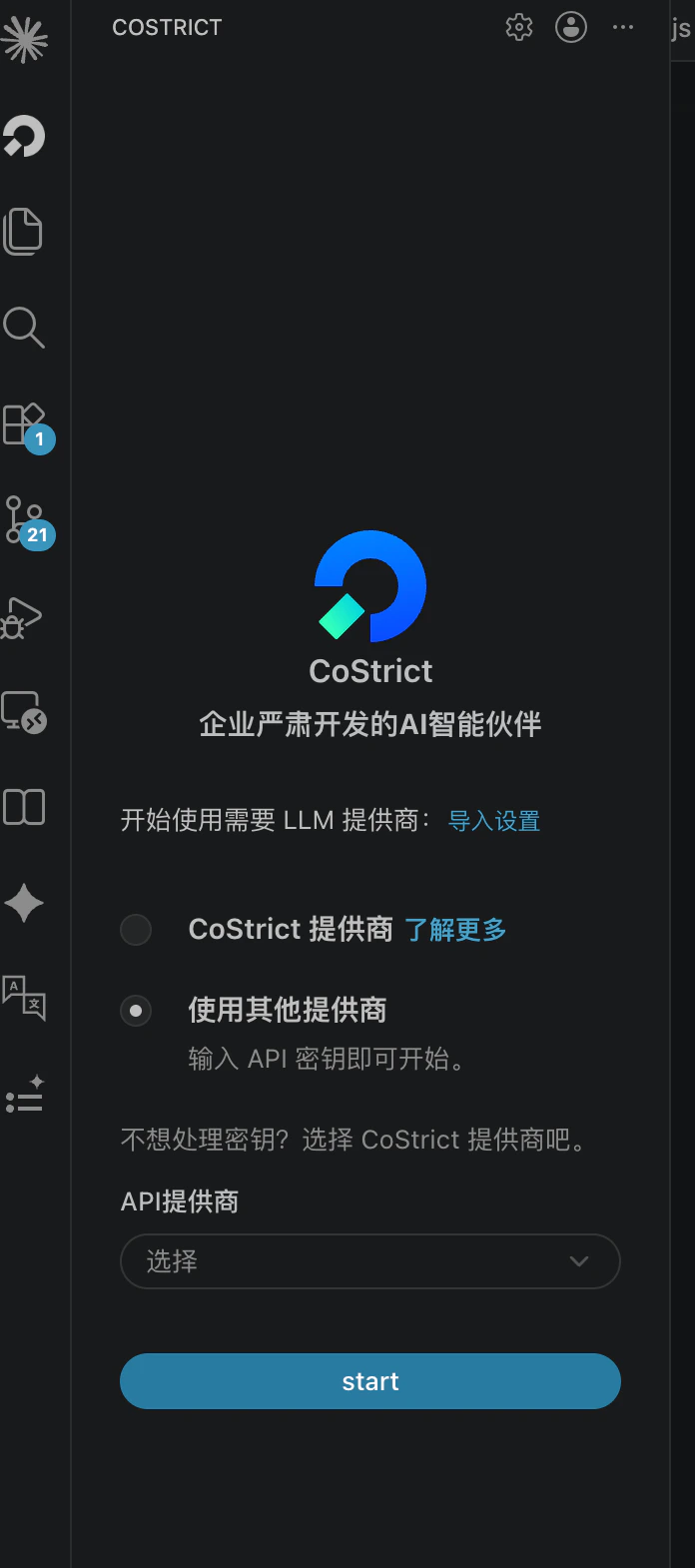
2. 打开 `costrict` 插件，选择使用其他提供商

<img src="https://mintcdn.com/onetoken-9a3c590a/KmHH52Mc6zGrQ7J8/images/costrict/7.png?fit=max&auto=format&n=KmHH52Mc6zGrQ7J8&q=85&s=bf99ee6adec5e9724b306294abf76c33" width="696" height="1570" data-path="images/costrict/7.png" />

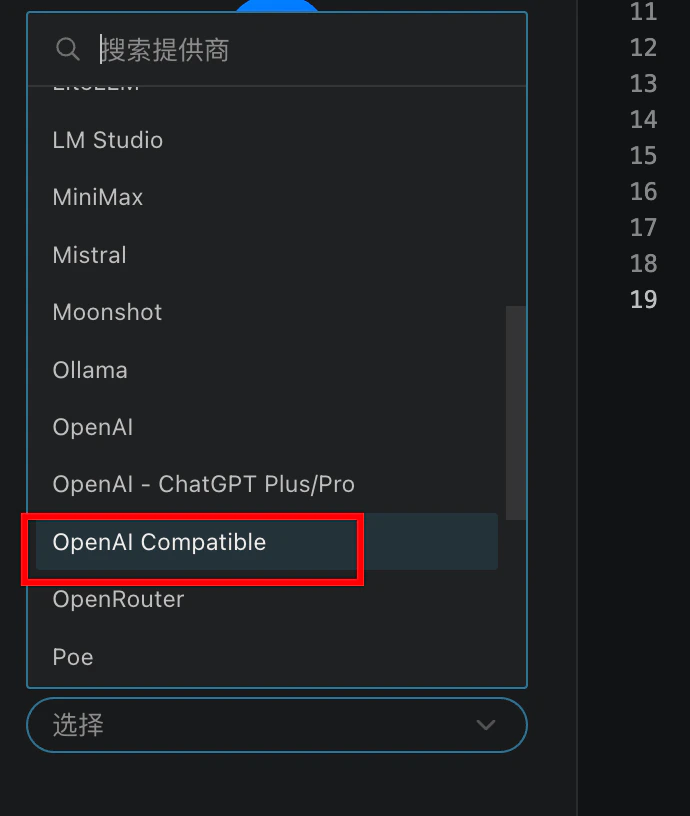
3. 在下拉列表中选择 `OpenAl Compatible`

<img src="https://mintcdn.com/onetoken-9a3c590a/KmHH52Mc6zGrQ7J8/images/costrict/8.png?fit=max&auto=format&n=KmHH52Mc6zGrQ7J8&q=85&s=620aaa9fc11d1b291b6f1f6e4e2b421c" width="690" height="816" data-path="images/costrict/8.png" />

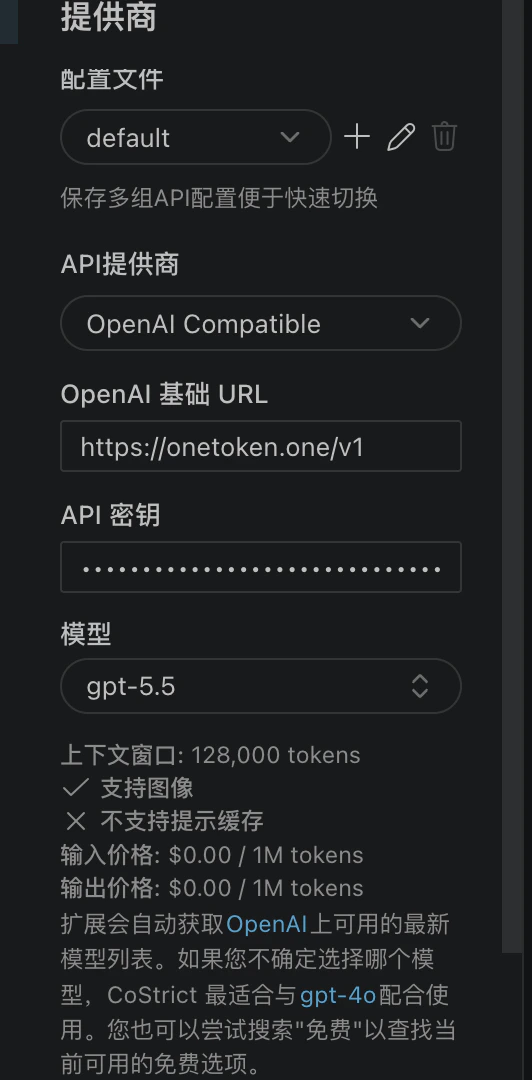
4. 填入相关信息

<img src="https://mintcdn.com/onetoken-9a3c590a/KmHH52Mc6zGrQ7J8/images/costrict/9.png?fit=max&auto=format&n=KmHH52Mc6zGrQ7J8&q=85&s=49bf5da1491feced78de8645bd14e398" width="532" height="1080" data-path="images/costrict/9.png" />