> ## Documentation Index
> Fetch the complete documentation index at: https://doc.onetoken.one/llms.txt
> Use this file to discover all available pages before exploring further.
# Cursor
***
## Cursor 配置第三方 API (OpenAI/Anthropic) 教程
Cursor 允许用户使用自己的 API Key。这样做的好处是可以使用自己购买的额度(如 DeepSeek 或高倍率中转站),不受 Cursor 官方订阅套餐的次数限制。
***
## 步骤一:开启 API 模式
1. 打开 **Cursor**。
2. 进入设置中心:
* 点击右上角的 **齿轮图标 (Cursor Settings)**。
* 或者使用快捷键 `Ctrl + Shift + J` (Windows/Linux) 或 `Cmd + Shift + J` (macOS)。
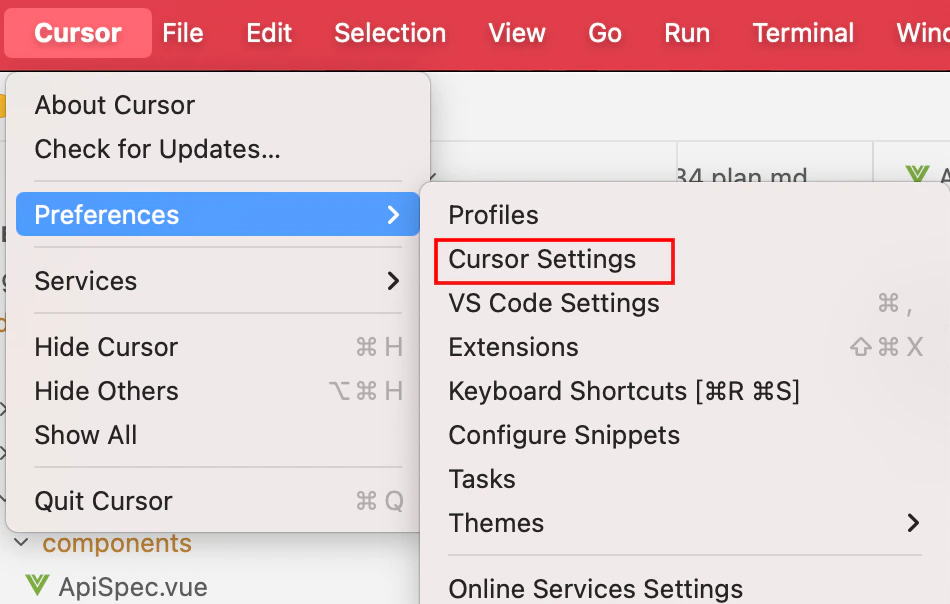 3. 在弹出的侧边栏或窗口中,选择 **General** 或 **Models** 选项卡。
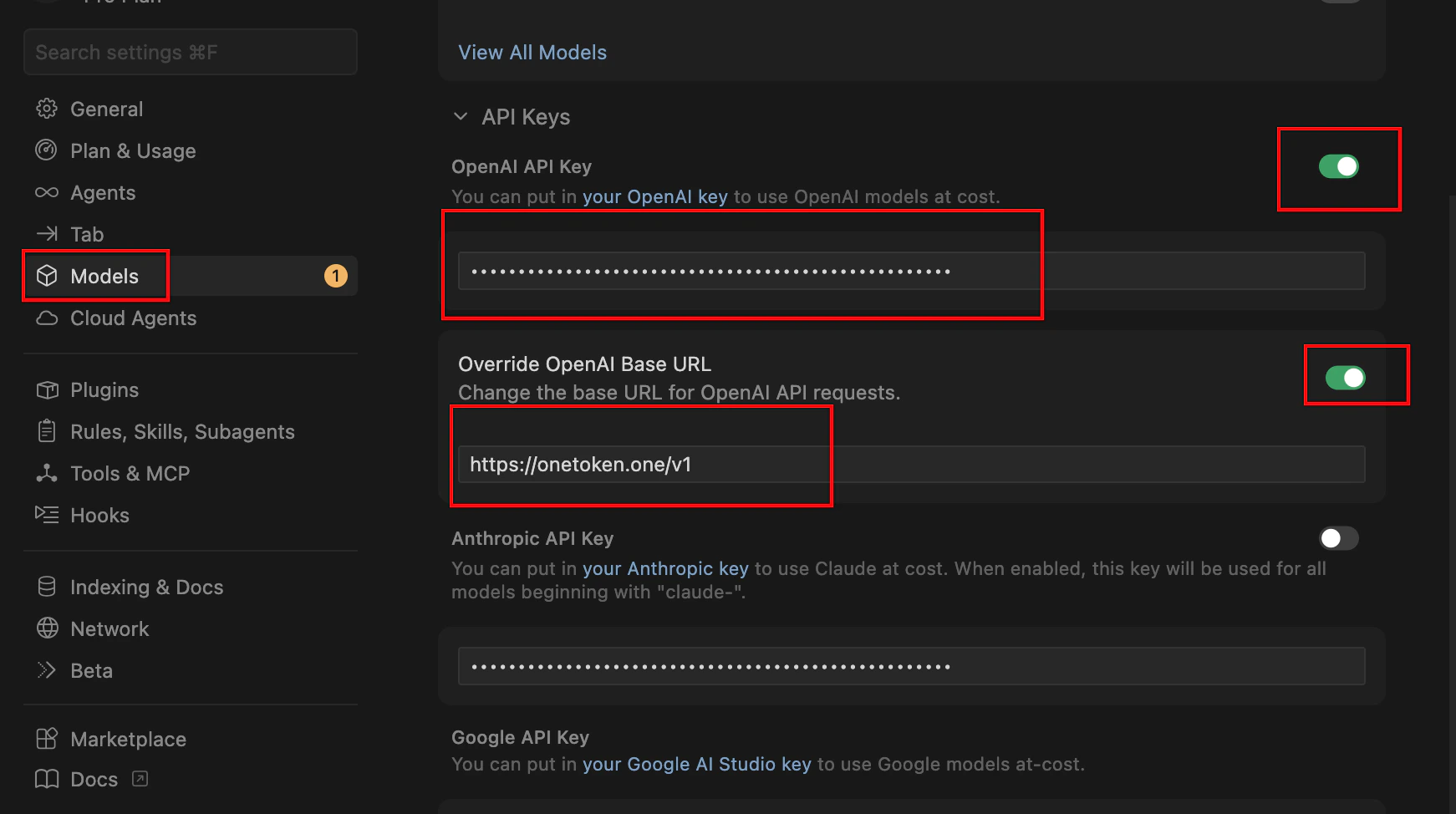
4. 找到 OpenAI API Key 打开选项 填入令牌
5. 打开 Override OpenAI Base URL 选项 填入 [https://onetoken.one/v1](https://onetoken.one/v1)
3. 在弹出的侧边栏或窗口中,选择 **General** 或 **Models** 选项卡。
4. 找到 OpenAI API Key 打开选项 填入令牌
5. 打开 Override OpenAI Base URL 选项 填入 [https://onetoken.one/v1](https://onetoken.one/v1)
 ## 步骤二:管理模型列表 (Models)
为了确保 Cursor 调用正确的模型,你需要在设置中手动开启或添加模型:
cursor 中不能跟他内置的模型名相同 所以你需要在模型广场选择 cursor 分类的模型
1. 在同一设置页面找到 **Models** 区域。
## 步骤二:管理模型列表 (Models)
为了确保 Cursor 调用正确的模型,你需要在设置中手动开启或添加模型:
cursor 中不能跟他内置的模型名相同 所以你需要在模型广场选择 cursor 分类的模型
1. 在同一设置页面找到 **Models** 区域。
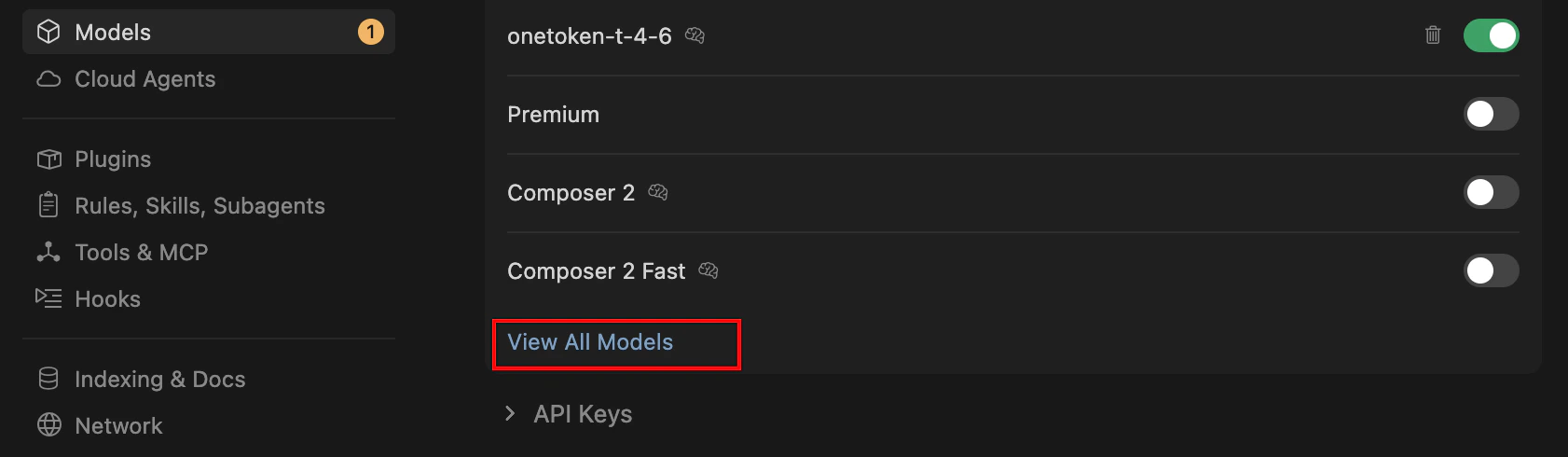 2. **开启开关**:打开你想用的模型(如 `gpt-4o`, `claude-3-5-sonnet`)。
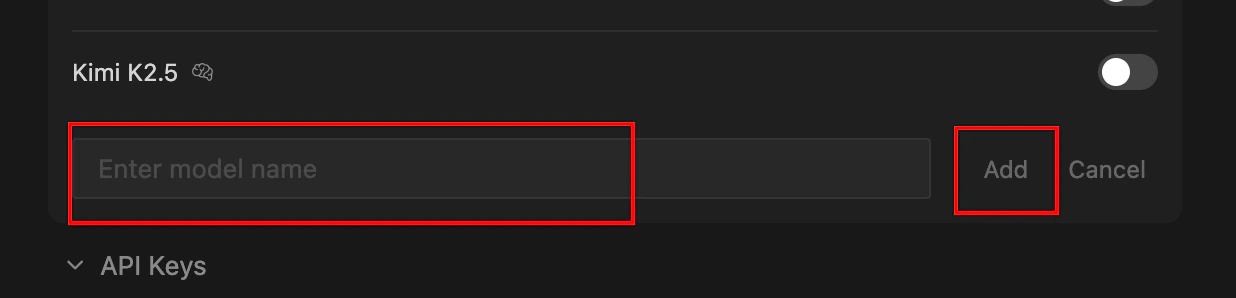
3. **添加自定义模型**:如果你用的是 DeepSeek,点击 **+ Add Model**。
2. **开启开关**:打开你想用的模型(如 `gpt-4o`, `claude-3-5-sonnet`)。
3. **添加自定义模型**:如果你用的是 DeepSeek,点击 **+ Add Model**。
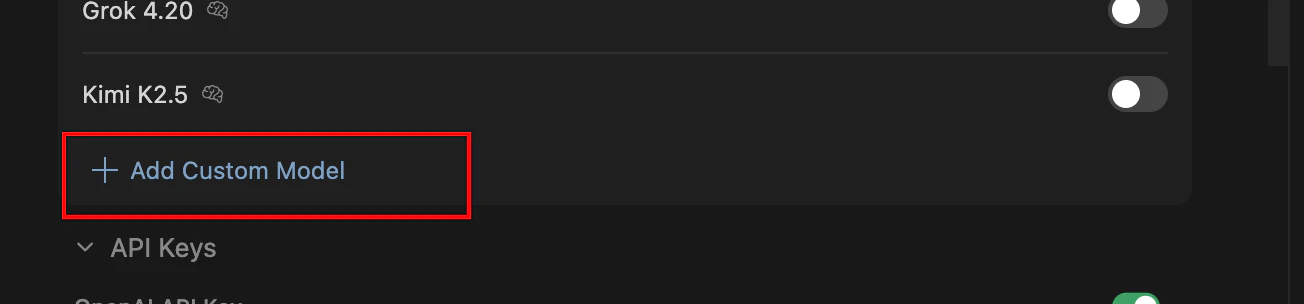 4. 输入模型准确 ID(例如 `deepseek-chat` 或 `deepseek-reasoner`)。
 ***
## 步骤三:在编辑器中使用
1. 回到编辑器代码界面。
2. 使用 `Ctrl + L` (Chat) 或 `Ctrl + K` (Edit)。
3. 在输入框底部的**模型下拉菜单**中,选择你刚刚配置的第三方模型。
4. **重要提示**:当使用自己的 API Key 时,Cursor 的某些高级功能(如 Composer 模式的特定优化)可能会略有不同,但代码生成能力取决于你所选的 API。
***
## 常见问题
| 现象 | 解决方法 |
| :----------------------- | :--------------------------------------------------- |
| **验证失败 (Verify Failed)** | 检查 Base URL 是否多写了 `/chat/completions`。只需写到 `/v1`。 |
| **模型不回复** | 检查第三方余额是否充足。 |
| **无法使用内置模型** | 当你开启自己的 API Key 模式后,通常会优先消耗你的 Key 额度,而非 Cursor 订阅额度。 |
***
***
## 步骤三:在编辑器中使用
1. 回到编辑器代码界面。
2. 使用 `Ctrl + L` (Chat) 或 `Ctrl + K` (Edit)。
3. 在输入框底部的**模型下拉菜单**中,选择你刚刚配置的第三方模型。
4. **重要提示**:当使用自己的 API Key 时,Cursor 的某些高级功能(如 Composer 模式的特定优化)可能会略有不同,但代码生成能力取决于你所选的 API。
***
## 常见问题
| 现象 | 解决方法 |
| :----------------------- | :--------------------------------------------------- |
| **验证失败 (Verify Failed)** | 检查 Base URL 是否多写了 `/chat/completions`。只需写到 `/v1`。 |
| **模型不回复** | 检查第三方余额是否充足。 |
| **无法使用内置模型** | 当你开启自己的 API Key 模式后,通常会优先消耗你的 Key 额度,而非 Cursor 订阅额度。 |
***