> ## Documentation Index
> Fetch the complete documentation index at: https://doc.onetoken.one/llms.txt
> Use this file to discover all available pages before exploring further.
# Hermes
## Hermes Agent (Hamers) 配置 OneToken API 接入指南
## 一、 产品简介
**Hermes Agent** 是由 Nous Research 开发的一款开源、具备“闭环自学习”能力的自主 AI 智能体(Agent)框架。与其他单次对话即忘的 AI 工具不同,Hermes 的核心优势在于它拥有**持久性跨会话记忆**与**自动技能提炼系统(Skills System)**。
当它独立或通过工具完成一项复杂任务后,会评估结果并自动封装为“技能卡”。下次遇到类似任务时,它能直接检索并调用该技能,越用越聪明。Hermes 采用解耦设计,不绑定任何单一的模型供应商,支持通过原生配置或命令行,无缝接入各类第三方大模型 API。
***
## 二、 不同平台的下载与安装
Hermes Agent 支持 macOS、Linux 以及 Windows (WSL2) 环境。
### 1. 准备工作
确保系统已安装:
* **Python 3.10+**
* **Node.js 18+**
### 2. Linux, macOS, WSL2, Termux 安装
打开终端,执行官方提供的一键安装脚本:
```bash theme={null}
curl -fsSL https://raw.githubusercontent.com/NousResearch/hermes-agent/main/scripts/install.sh | bash
```
安装完成后,验证是否成功:
```bash theme={null}
hermes --version
```
### 3. Windows
由于 Hermes 涉及底层的终端工具调用,建议在 Windows 的 WSL2(Ubuntu 22.04+)子系统中运行。
Run this in PowerShell:
```bash theme={null}
iex (irm https://raw.githubusercontent.com/NousResearch/hermes-agent/main/scripts/install.ps1)
```
## 三、 更改配置接入第三方 API 格式
Hermes 提供了极简的模型管理命令,同时也支持通过修改环境配置文件来手动接入兼容 OpenAI 格式的第三方 API 接口。
### 方法 1:使用内置命令行快速切换(推荐)
Hermes 支持交互式配置,直接在终端输入以下命令:
```bash theme={null}
hermes model
```
系统会弹出一个交互式菜单,列出主流的第三方供应商(如 OpenRouter, OpenAI, Anthropic, DeepSeek, MiniMax 等)。选择对应的供应商后,输入你的 `API Key` 即可自动完成配置。
> **提示(OpenClaw 用户迁移):**
> 如果你之前是 OpenClaw 的用户,可以使用迁移命令一键导入所有配置和 API Key:
> `hermes claw migrate`
进入交互式菜单使用上下方向键移动选项,回车确定选择
1. 选择 `Custom endpoint`
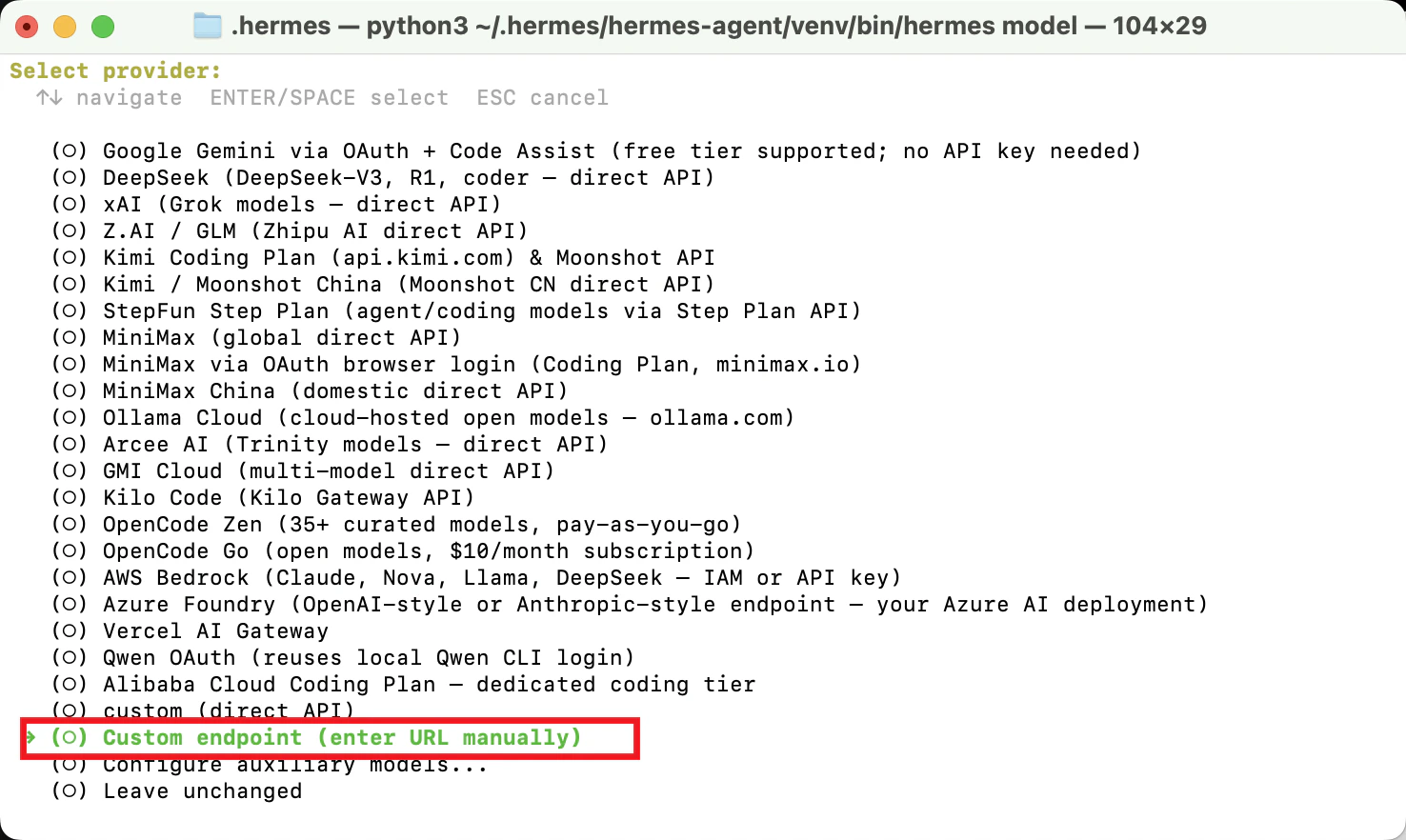 2. 输入 OneToken 的 地址 `https://onetoken.one/v1`
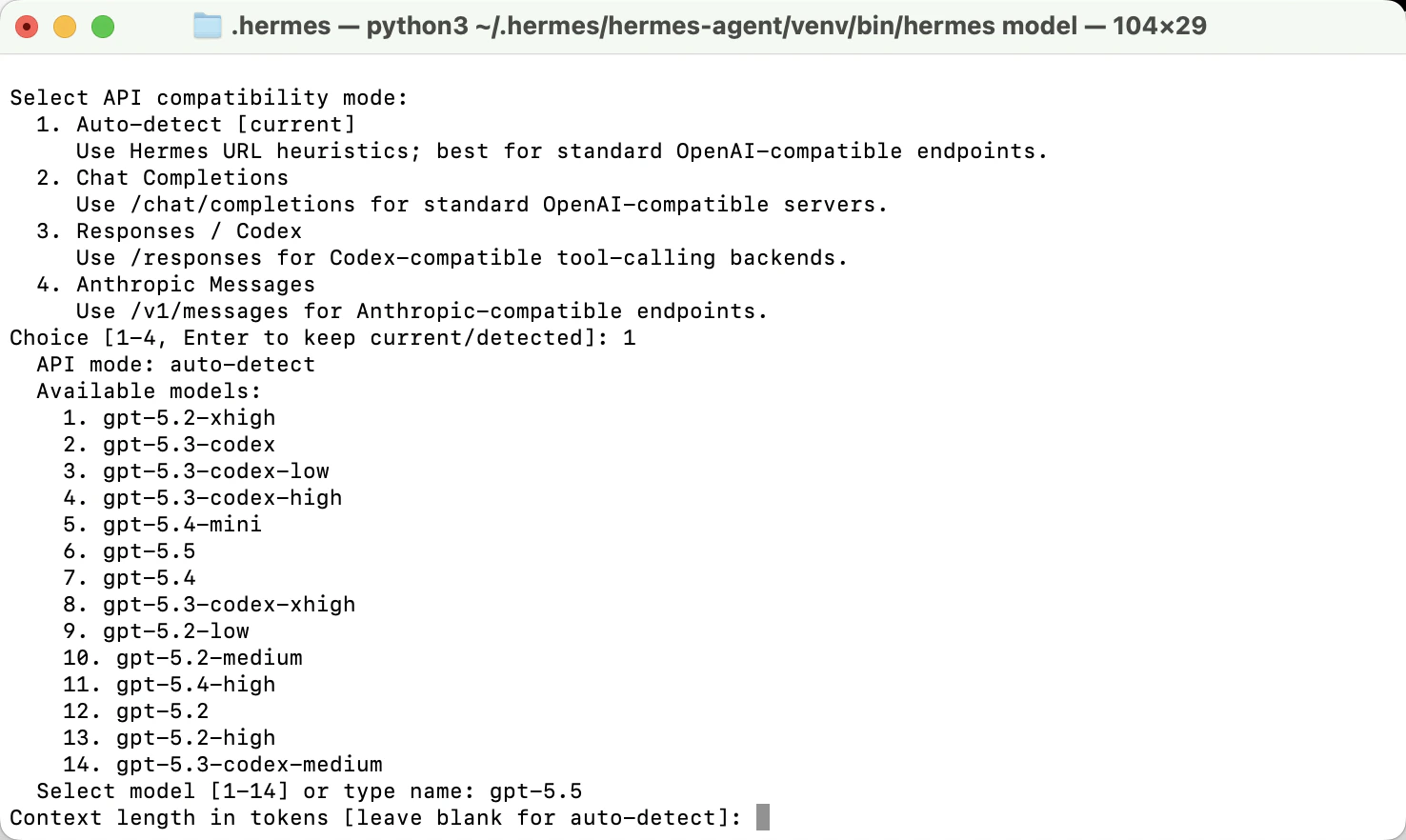
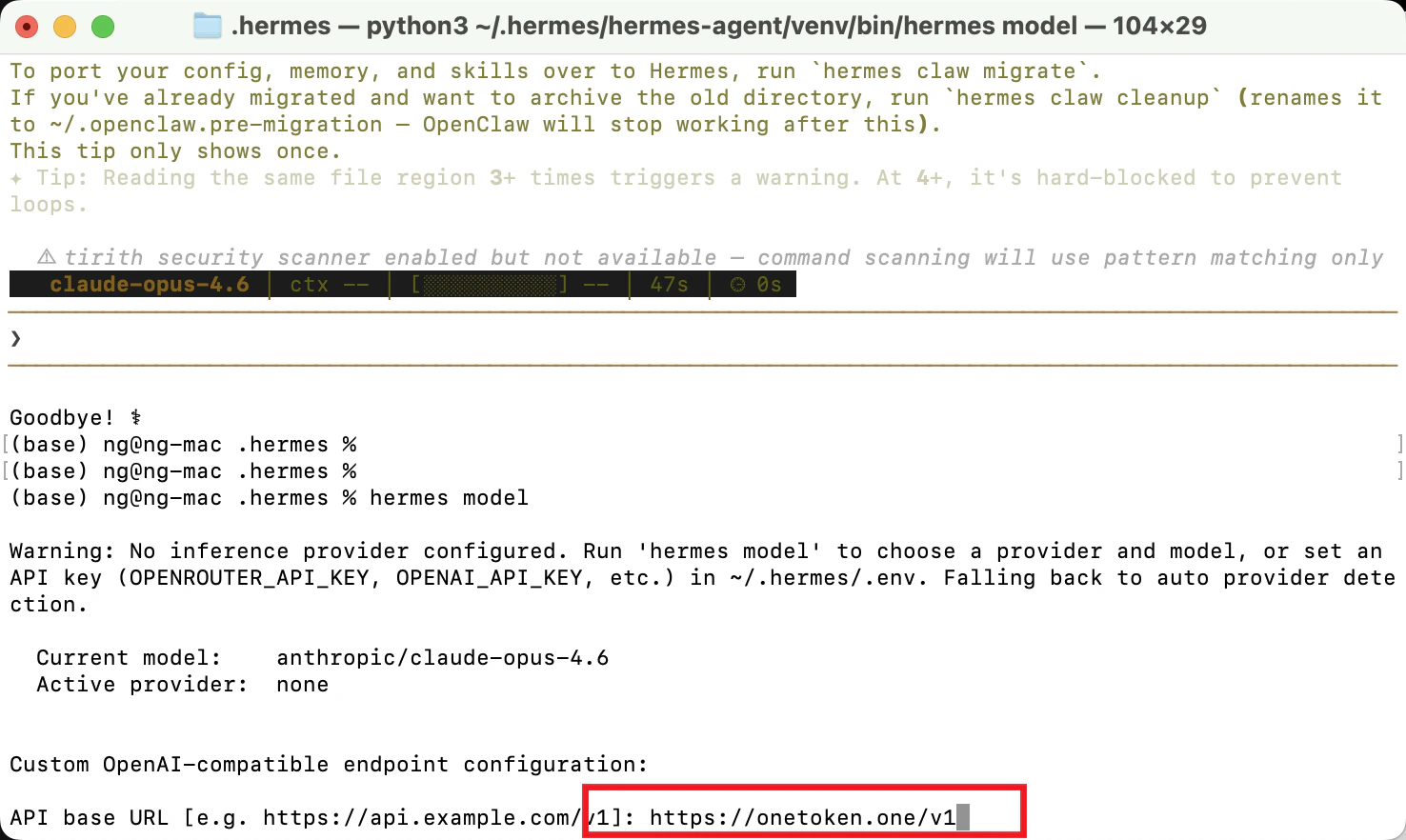 3. 进入 API 兼容性选项 这里直接输入 1 进入下一步
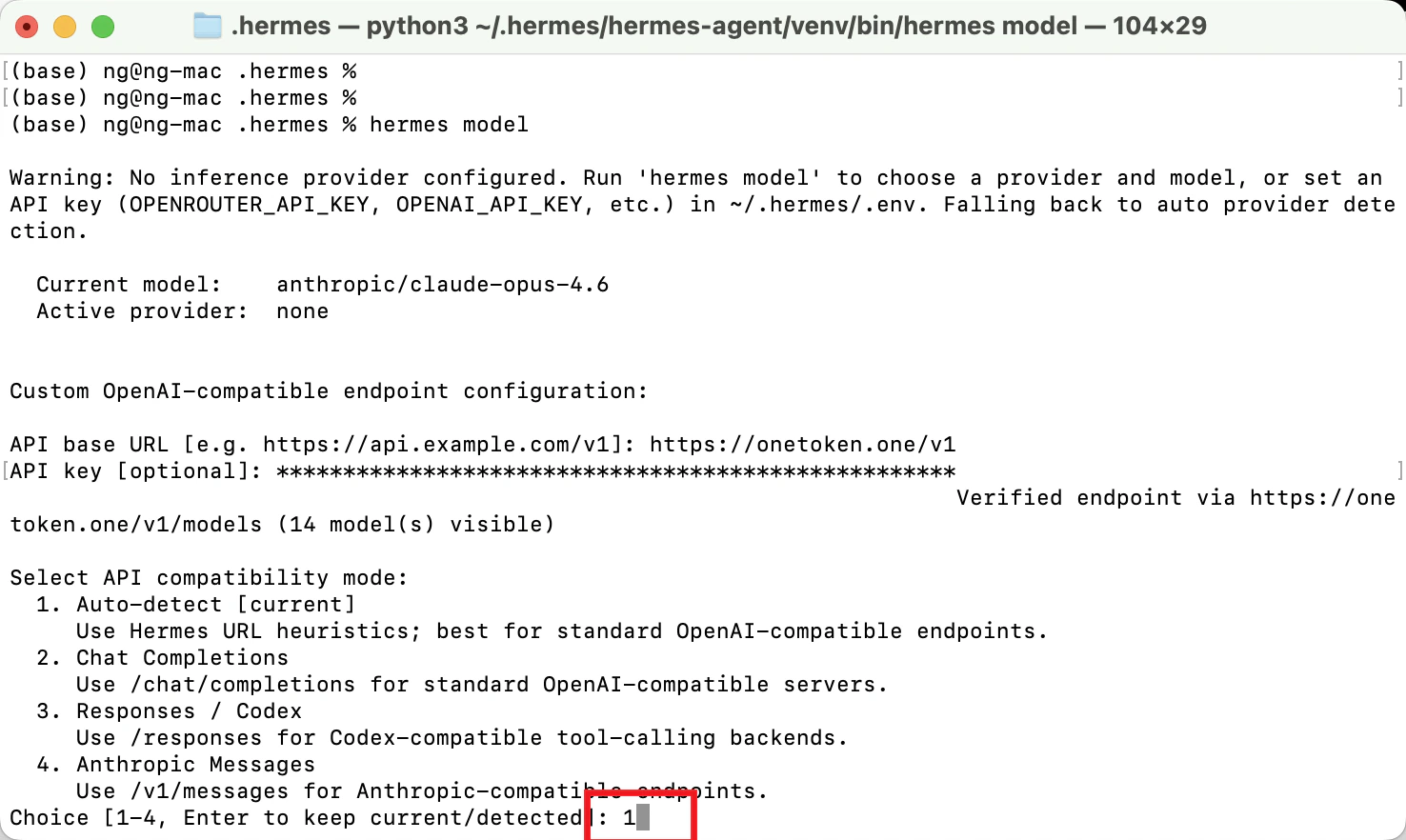 4. 输入模型名
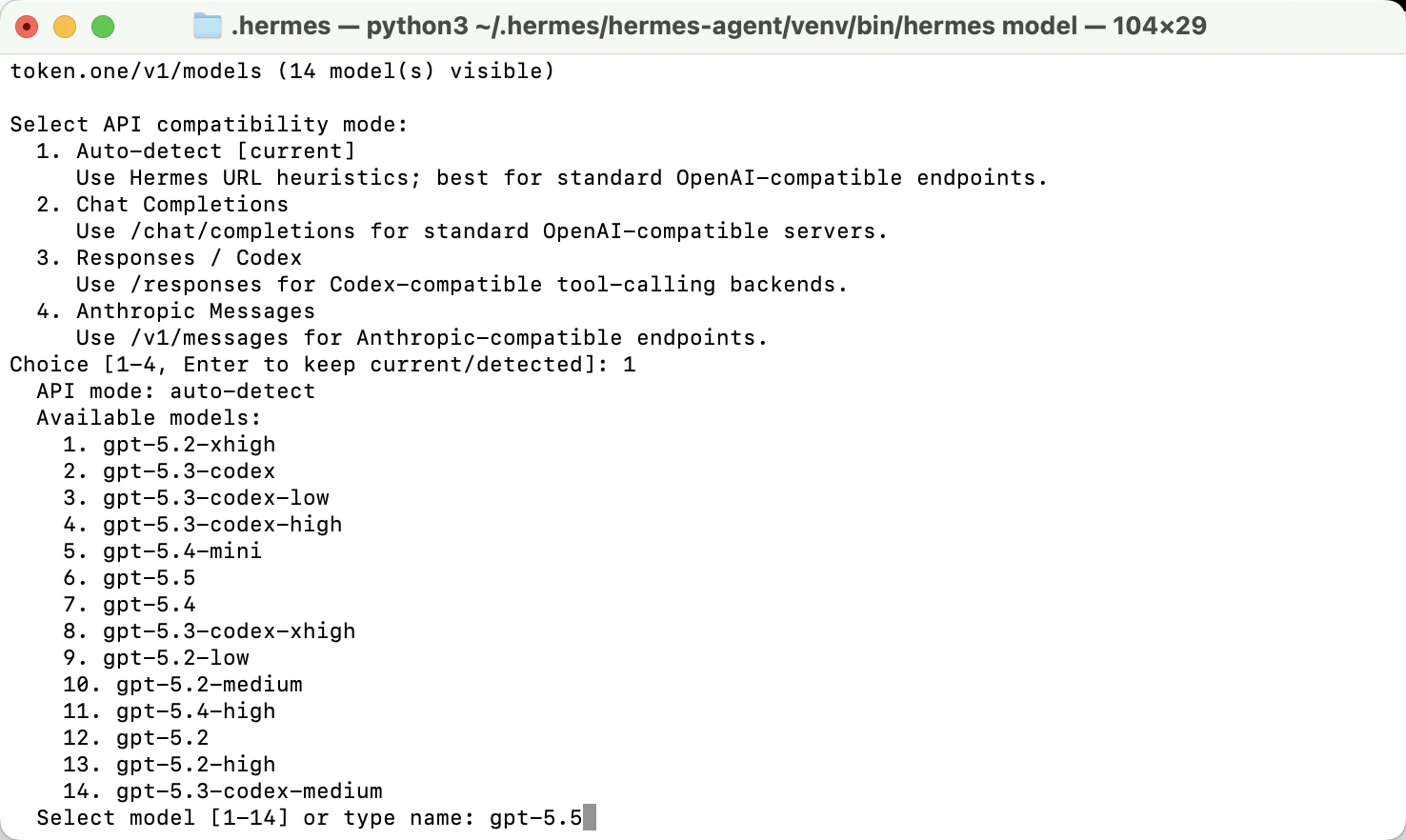 5. 这里输入模型的上下文长度直接留空回车即可
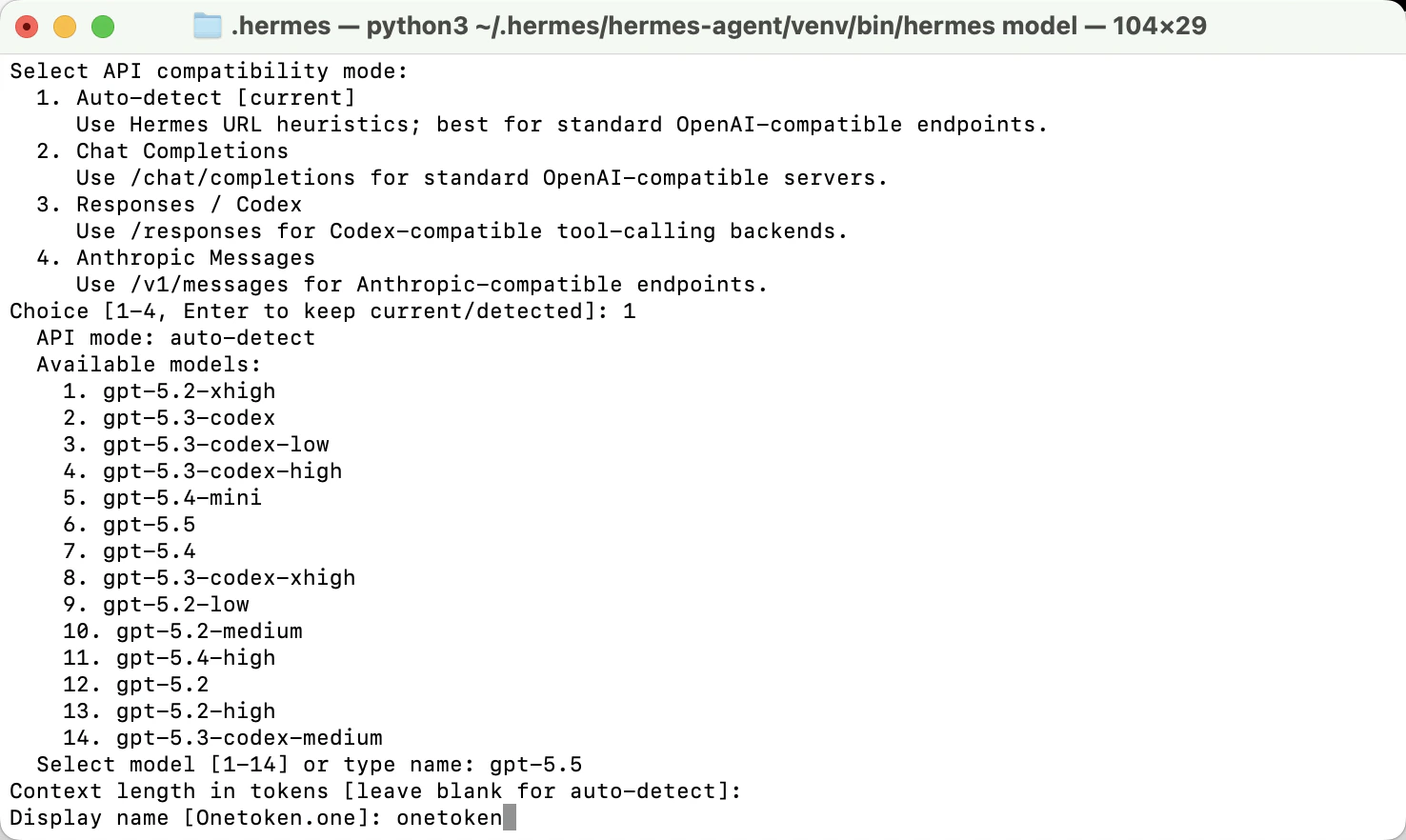
 6. 输入你显示名字 `OneToken`
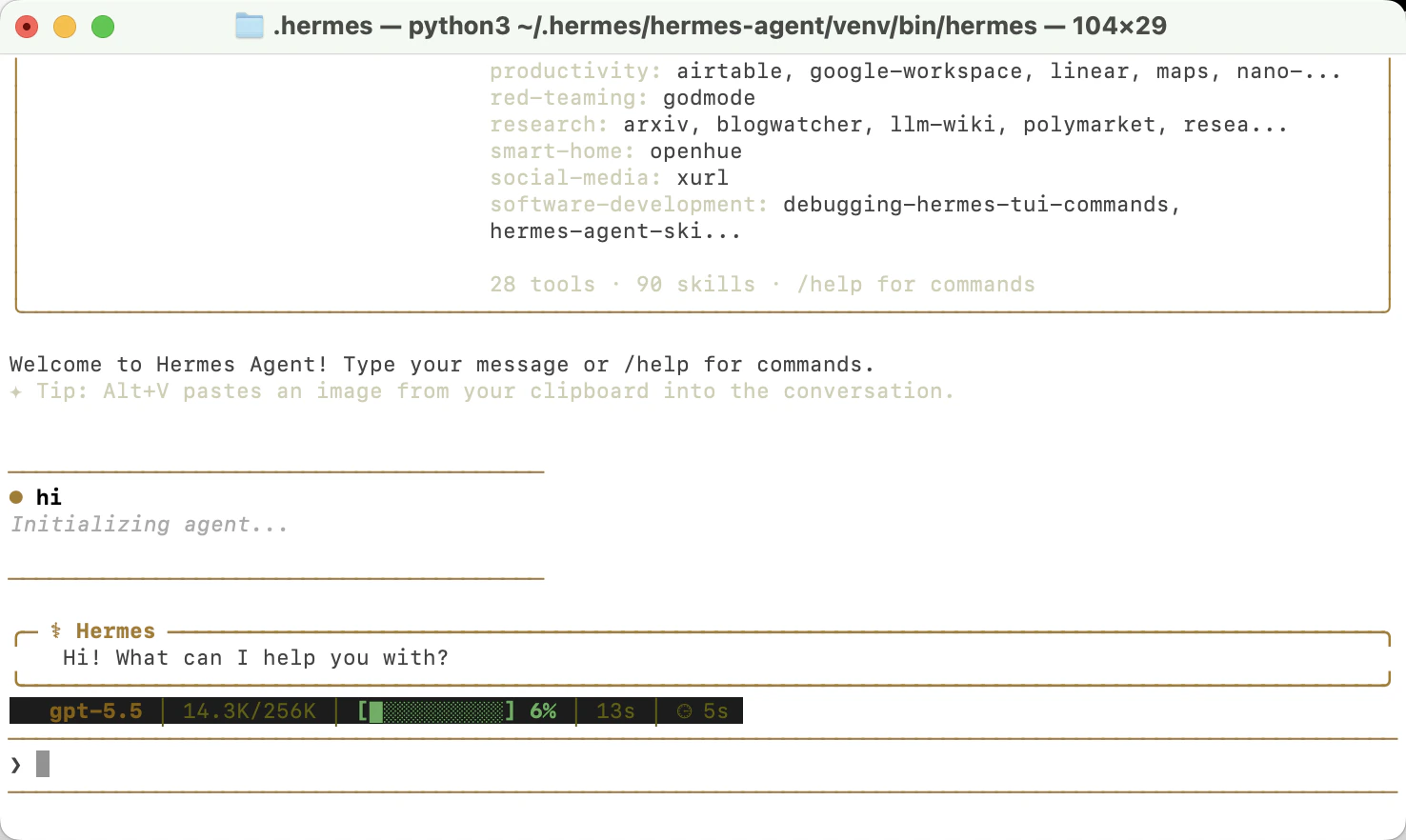
 7. 设置完成终端输入 `hermes` 进入对话测试是否正常
 后续可以随时运行 hermes setup 修改设置