

Complete Guide: Configuring OneToken API in Coder
By integrating Coder with the OneToken platform, you can easily access a variety of powerful Large Language Models (LLMs). Follow the detailed, step-by-step guide below to complete the configuration.📝 Prerequisites
Before you begin, please ensure you have the following ready:- Registered and logged into the OneToken Platform.
- Accessed the OneToken Console and generated your unique API Key (please keep this safe and secure).
⚙️ Configuration Steps
1. Go to the Agent Settings Open the Coder interface and navigate to the dedicated Agent page. Find and click the “Settings” icon to enter the system’s configuration backend.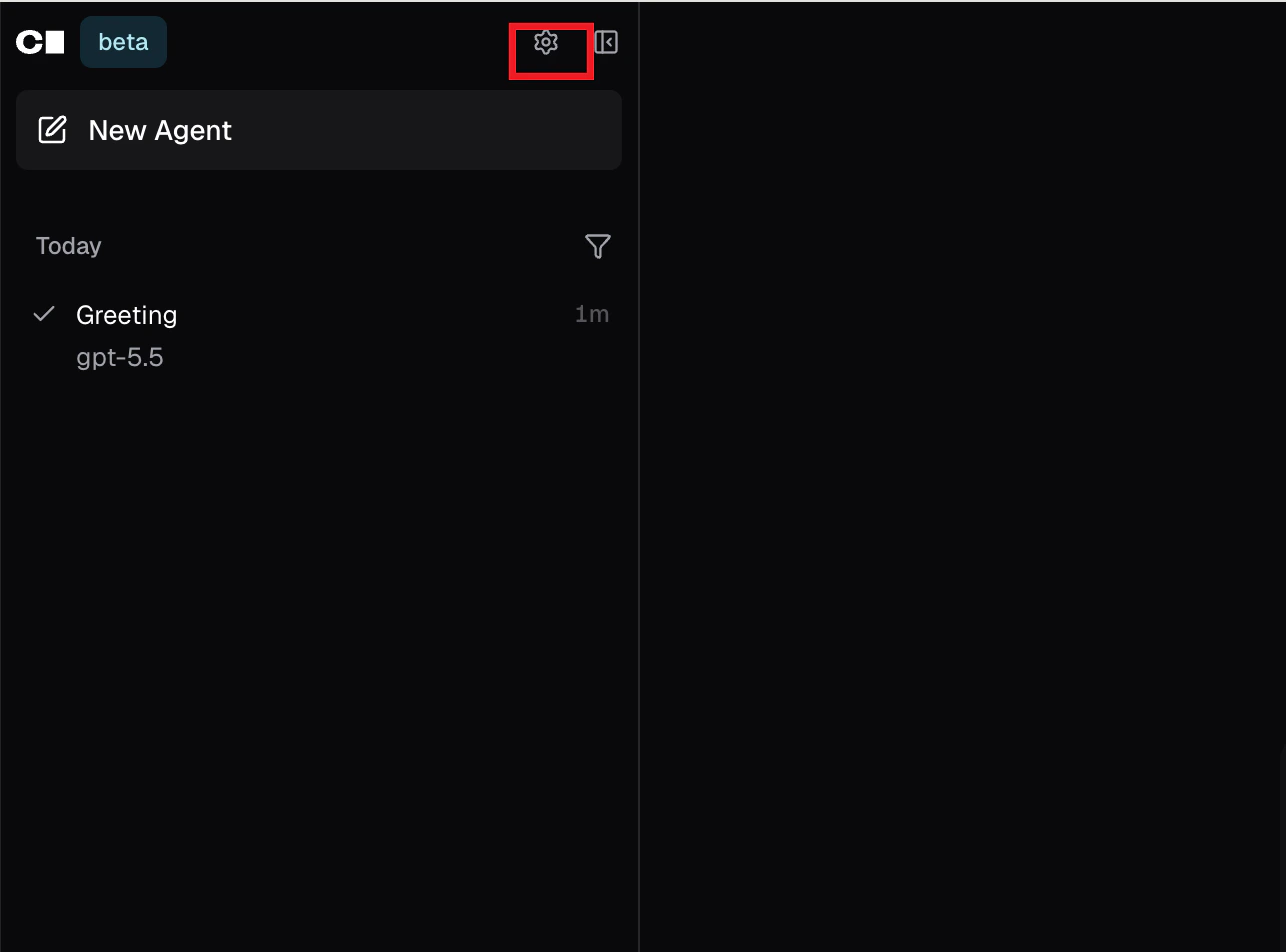
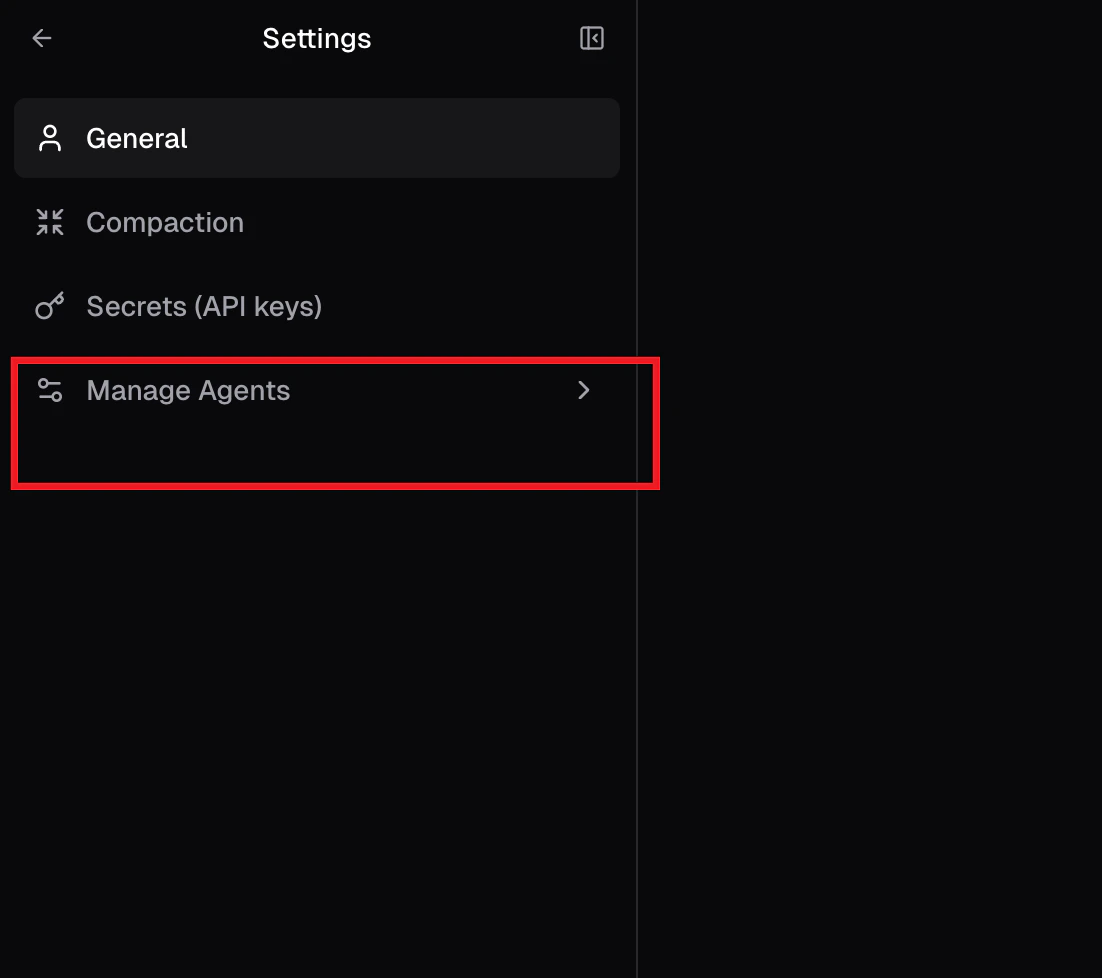
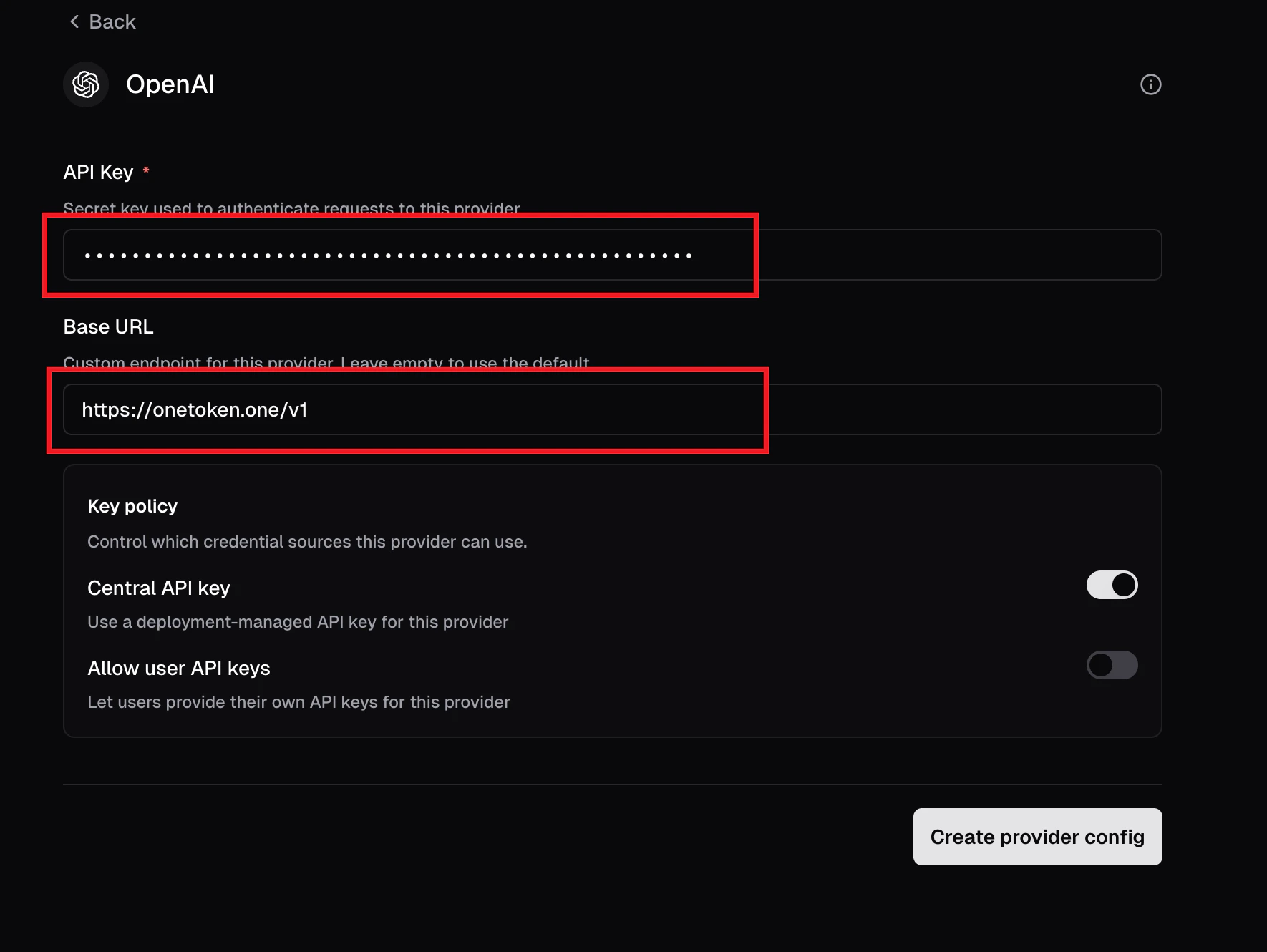
💡 Tip: Why select OpenAI when we are using OneToken? This is because OneToken provides an interface that is fully compatible with the standard OpenAI API format. By selecting the OpenAI provider and modifying the proxy address (BaseURL), we can seamlessly connect to OneToken’s services.
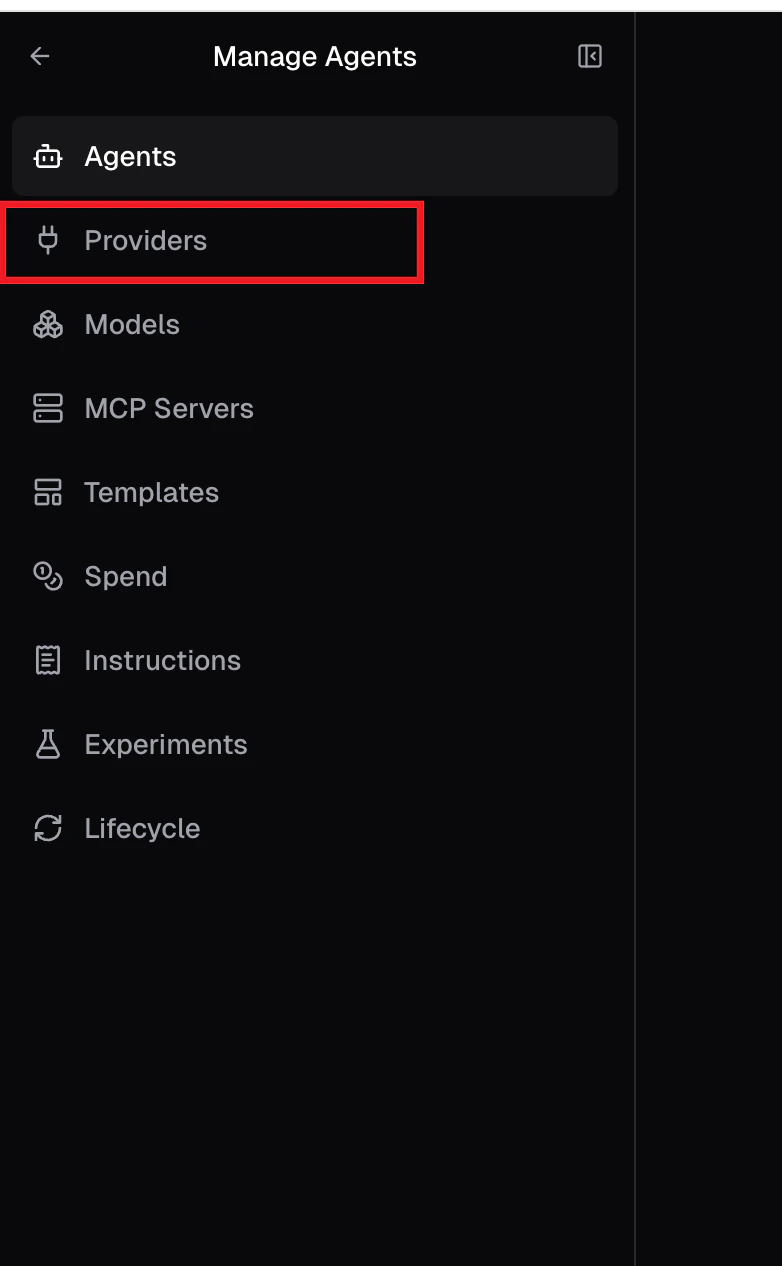
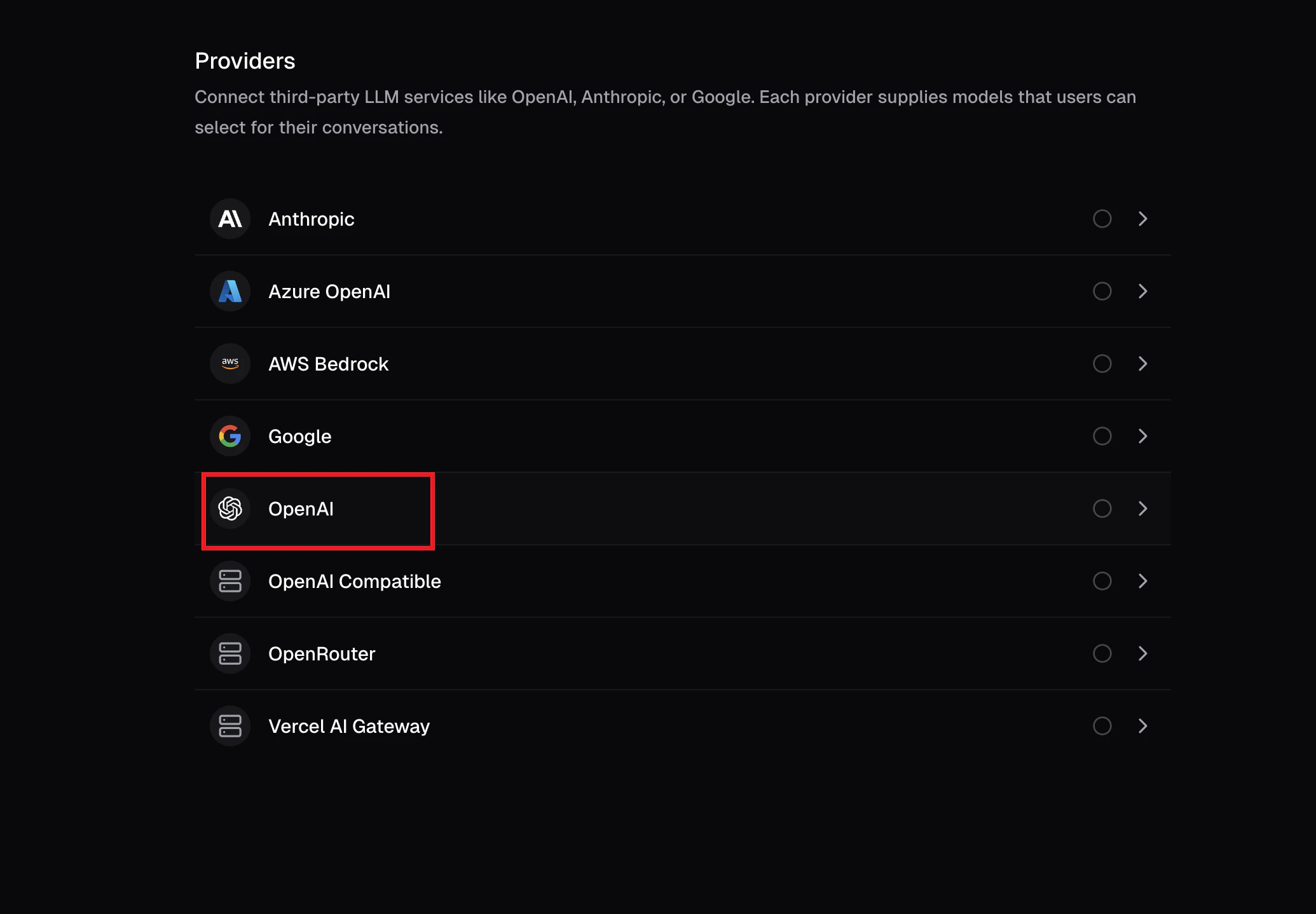
- BaseURL: Enter
https://onetoken.one/v1 - API Key: Enter the OneToken API Key you obtained during the prerequisites stage.
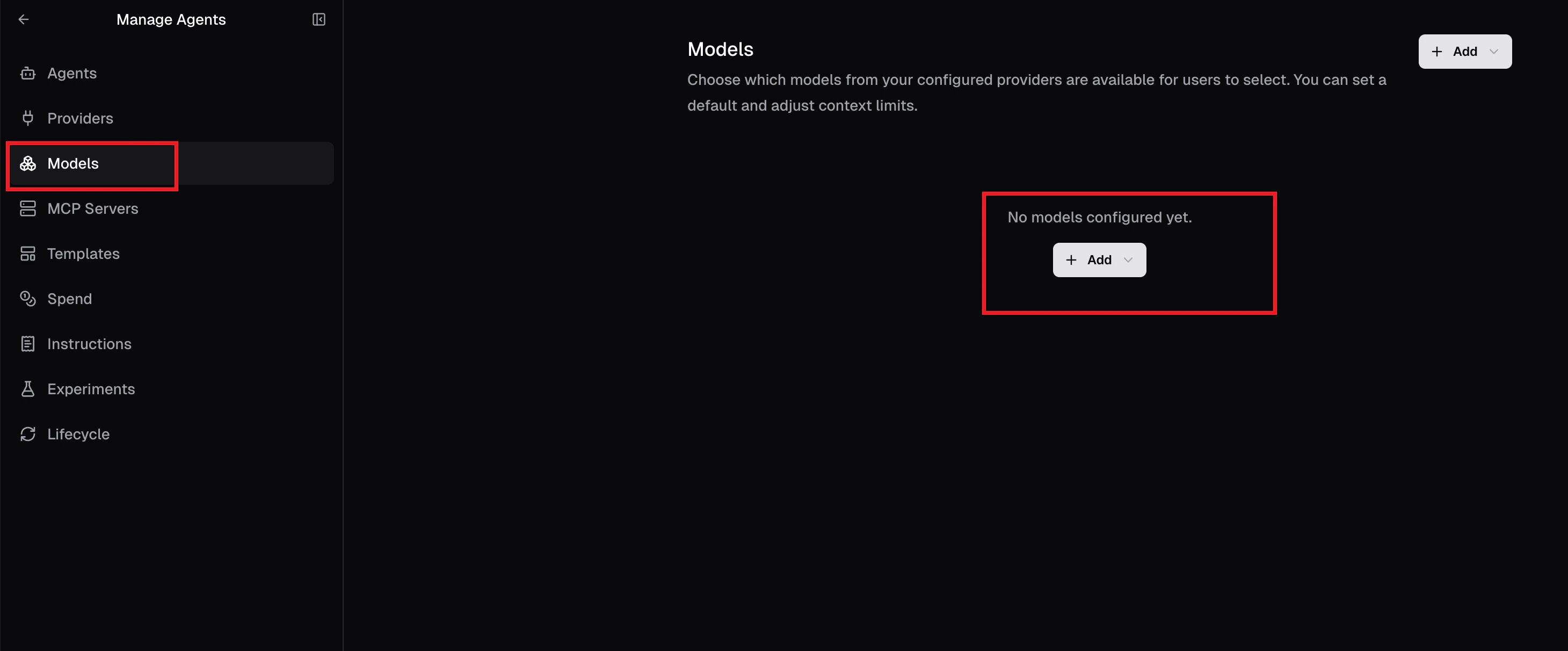
gpt-4o, claude-3-5-sonnet, etc. Please refer to the OneToken platform for the supported model list), and link it to the provider you just created.
🛠️ FAQ & Troubleshooting
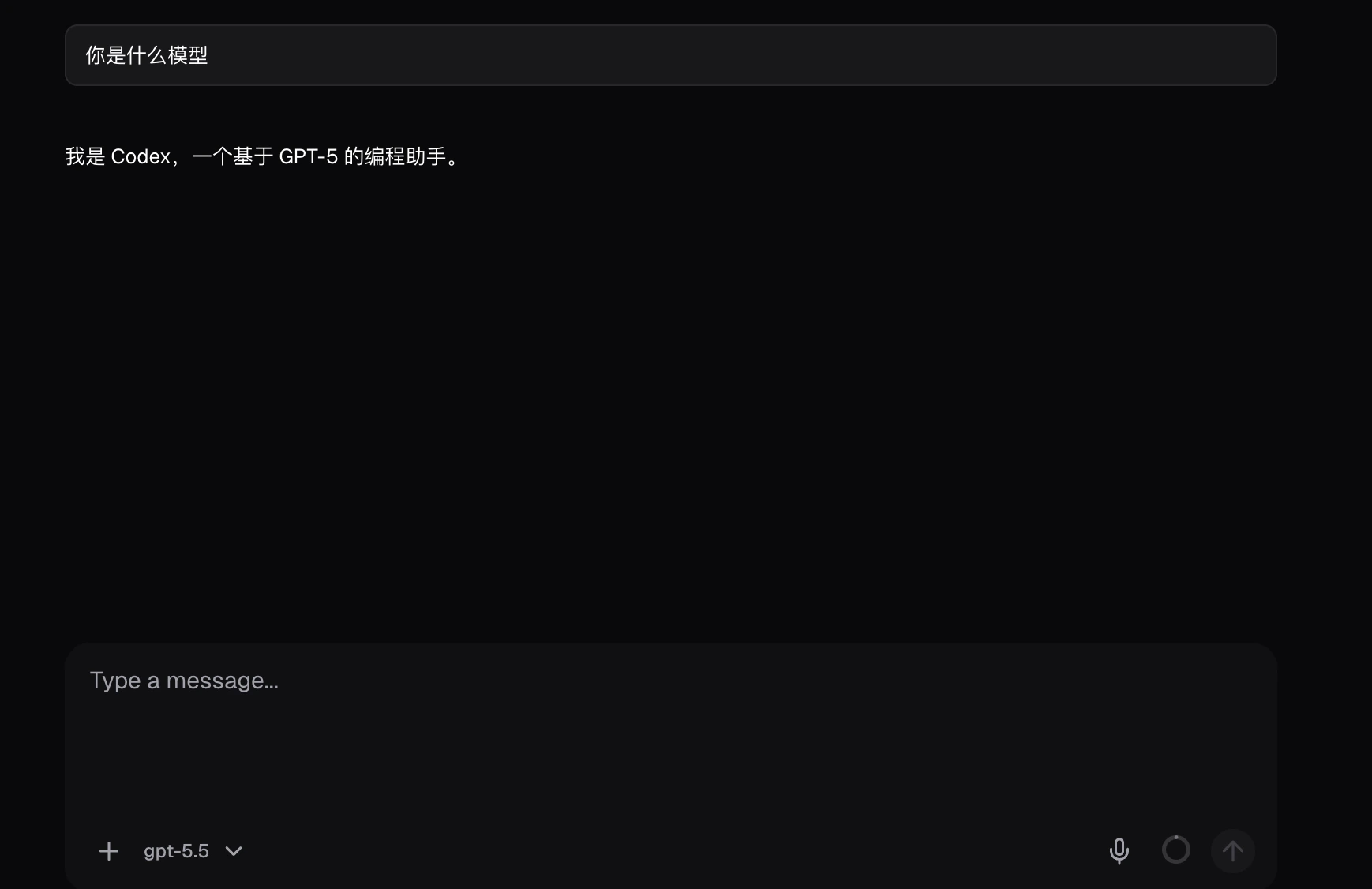
If you encounter errors during the test in Step 6, please check the following:- Incorrect BaseURL Format: Double-check your BaseURL and ensure there are no trailing slashes (Correct format:
https://onetoken.one/v1). - Invalid API Key: Ensure the API Key is copied completely without any accidental leading or trailing spaces.
- Incorrect Model Name: Make sure the model name you entered in Step 5 actually exists and is currently supported on the OneToken platform.