

Hermes Agent (Hamers) Configuration Guide for OneToken API Integration
I. Product Introduction
Hermes Agent is an open-source, autonomous AI agent framework developed by Nous Research, possessing “closed-loop self-learning” capabilities. Unlike other AI tools that forget after a single conversation, Hermes’ core advantage lies in its persistent cross-session memory and automatic skill extraction system. After completing a complex task independently or through tools, it evaluates the results and automatically encapsulates them into “skill cards.” The next time a similar task is encountered, it can directly retrieve and invoke the skill, becoming increasingly intelligent with use. Hermes employs a decoupled design, not binding to any single model vendor, and supports seamless integration with various third-party large model APIs via native configuration or command line.II. Download and Installation on Different Platforms
Hermes Agent supports macOS, Linux, and Windows (WSL2) environments. ### 1. Preparation Ensure your system has the following installed:- Python 3.10+
- Node.js 18+
2. Linux, macOS, WSL2, Termux Installation
Open a terminal and execute the official one-click installation script:3. Windows
Because Hermes involves low-level terminal tool calls, it is recommended to run it on the Windows WSL2 (Ubuntu 22.04+) subsystem. Run this in PowerShell:III. Changing Configuration to Access Third-Party API Formats
Hermes provides extremely simple model management commands and also supports manually accessing third-party API interfaces compatible with OpenAI formats by modifying environment configuration files.Method 1: Quickly Switch Using the Built-in Command Line (Recommended)
Hermes supports interactive configuration. Simply enter the following command in the terminal:API Key to automatically complete the configuration.
**Tips (OpenClaw User Migration):
If you are a previous OpenClaw user, you can use the migration command to import all configurations and API keys with one click:
hermes claw migrate
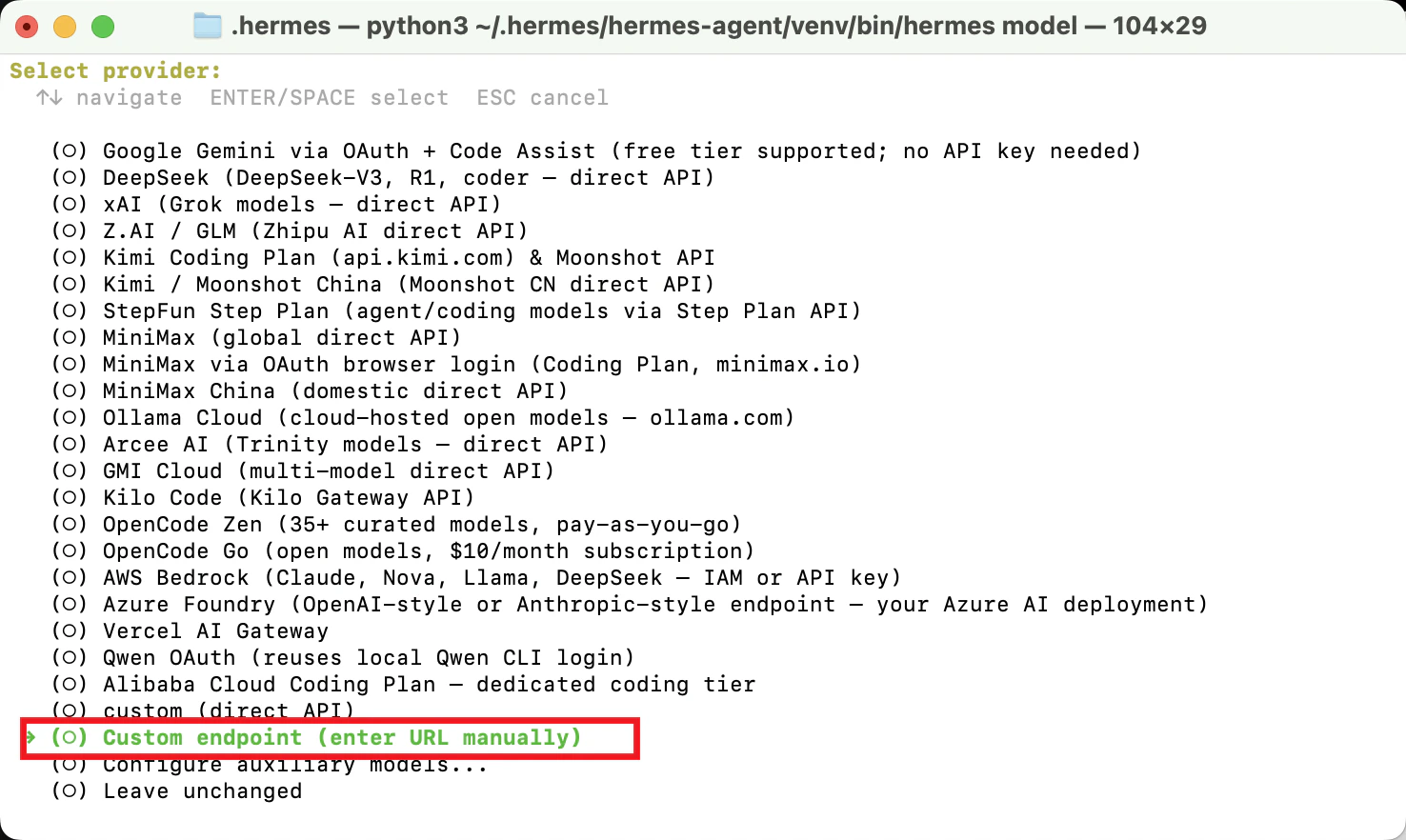
Enter the interactive menu and use the up and down arrow keys to navigate to the options, then press Enter to confirm your selection.
- Select
Custom endpoint
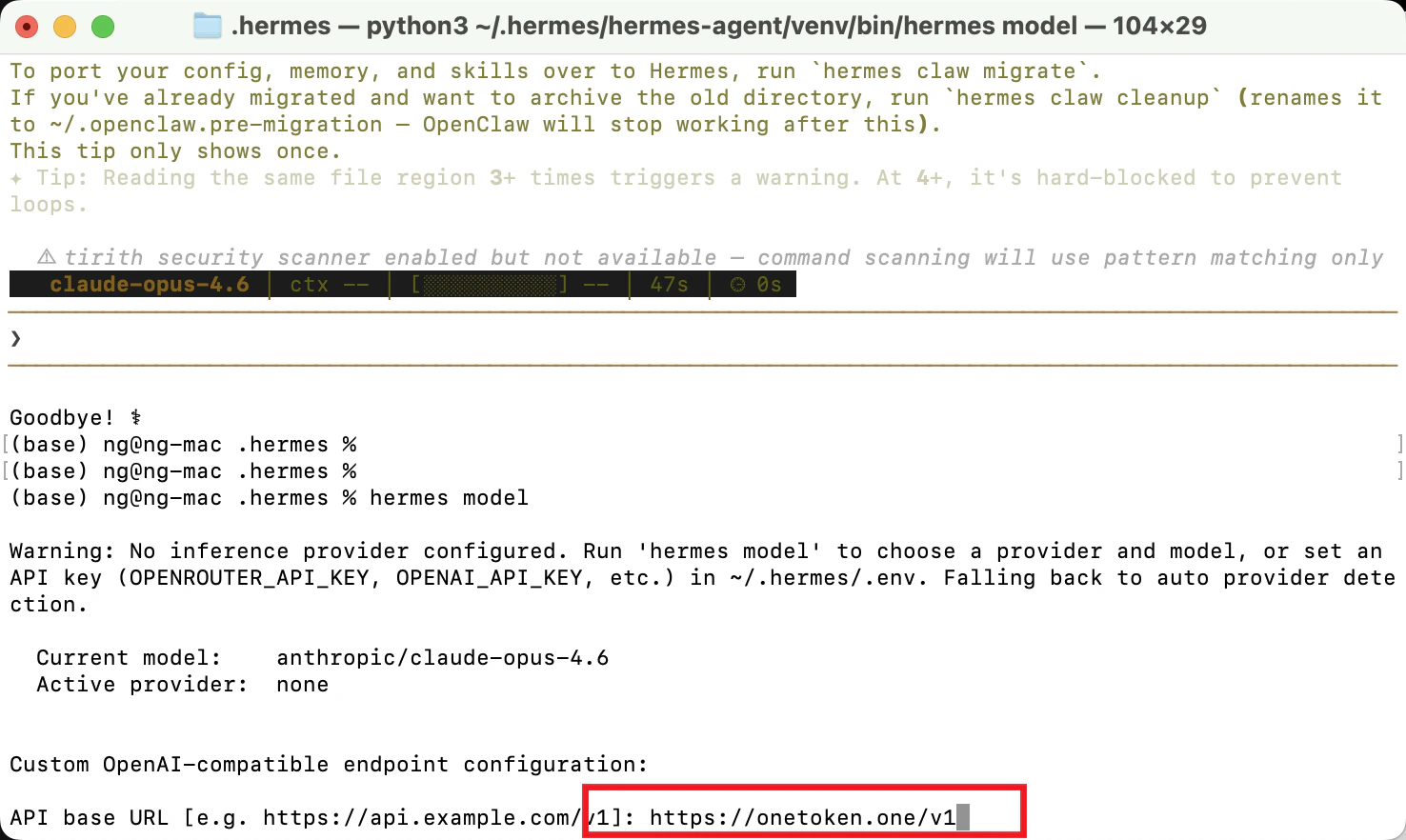
- Enter the OneToken address
https://onetoken.one/v1
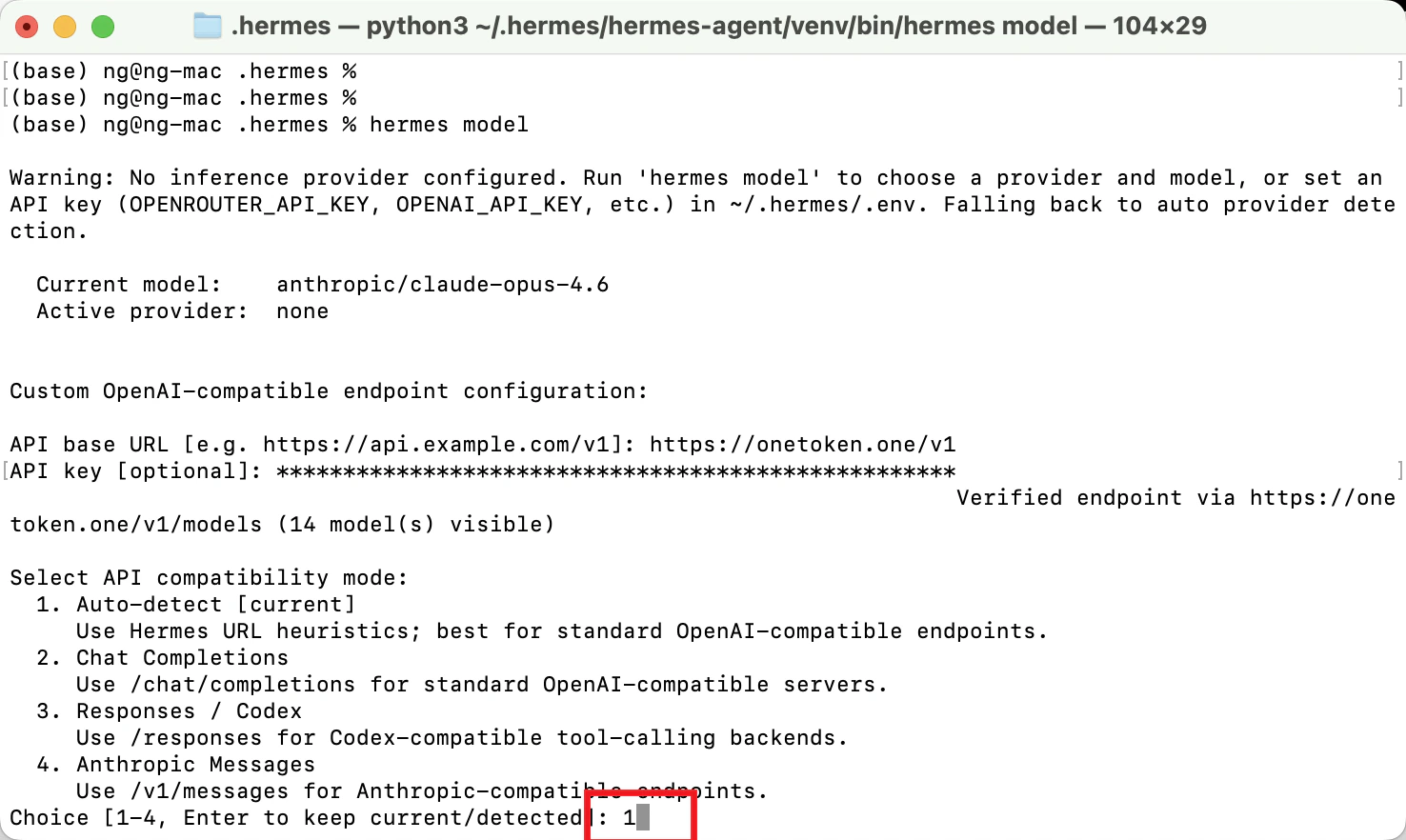
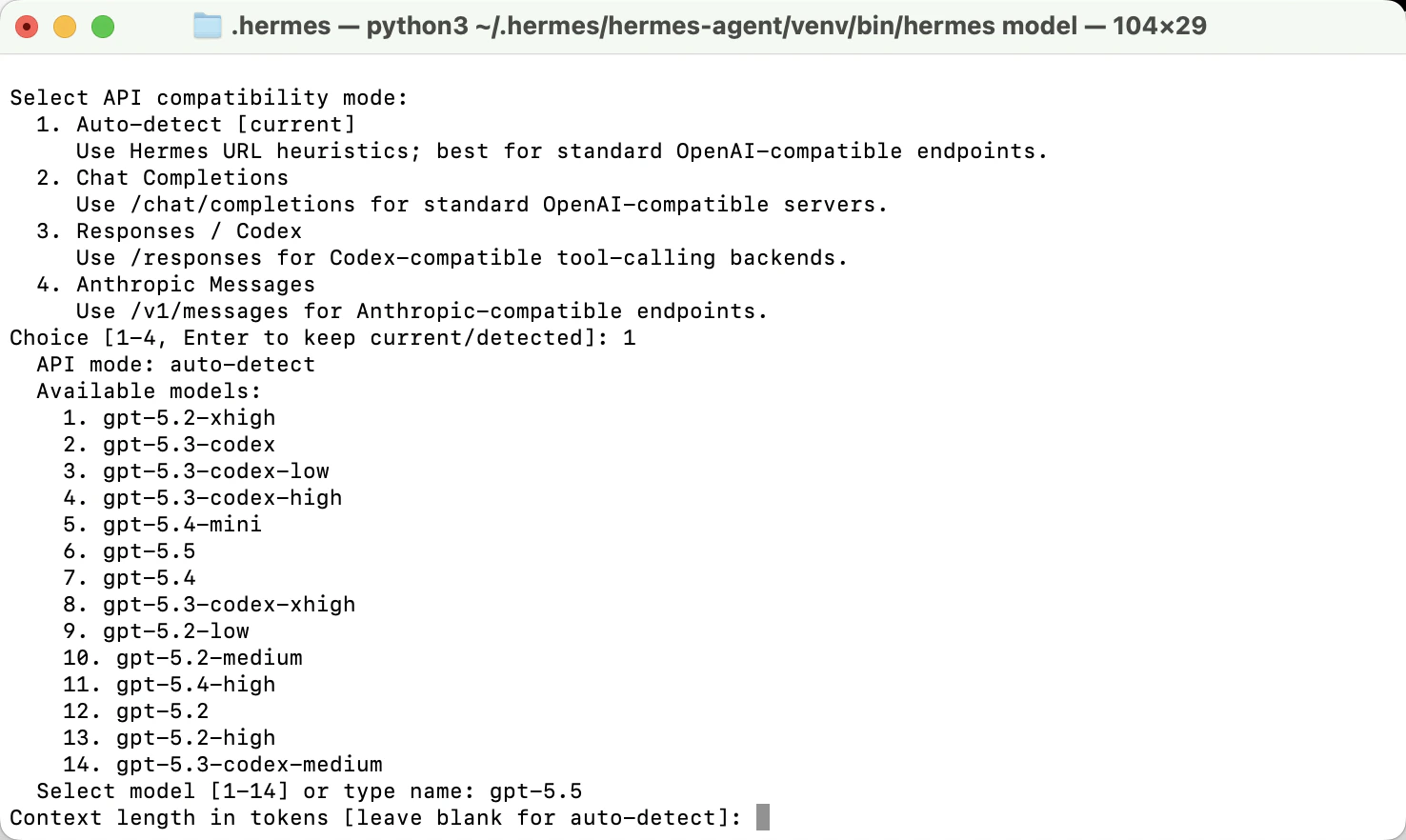
- Enter the API compatibility options. Enter 1 here to proceed to the next step.
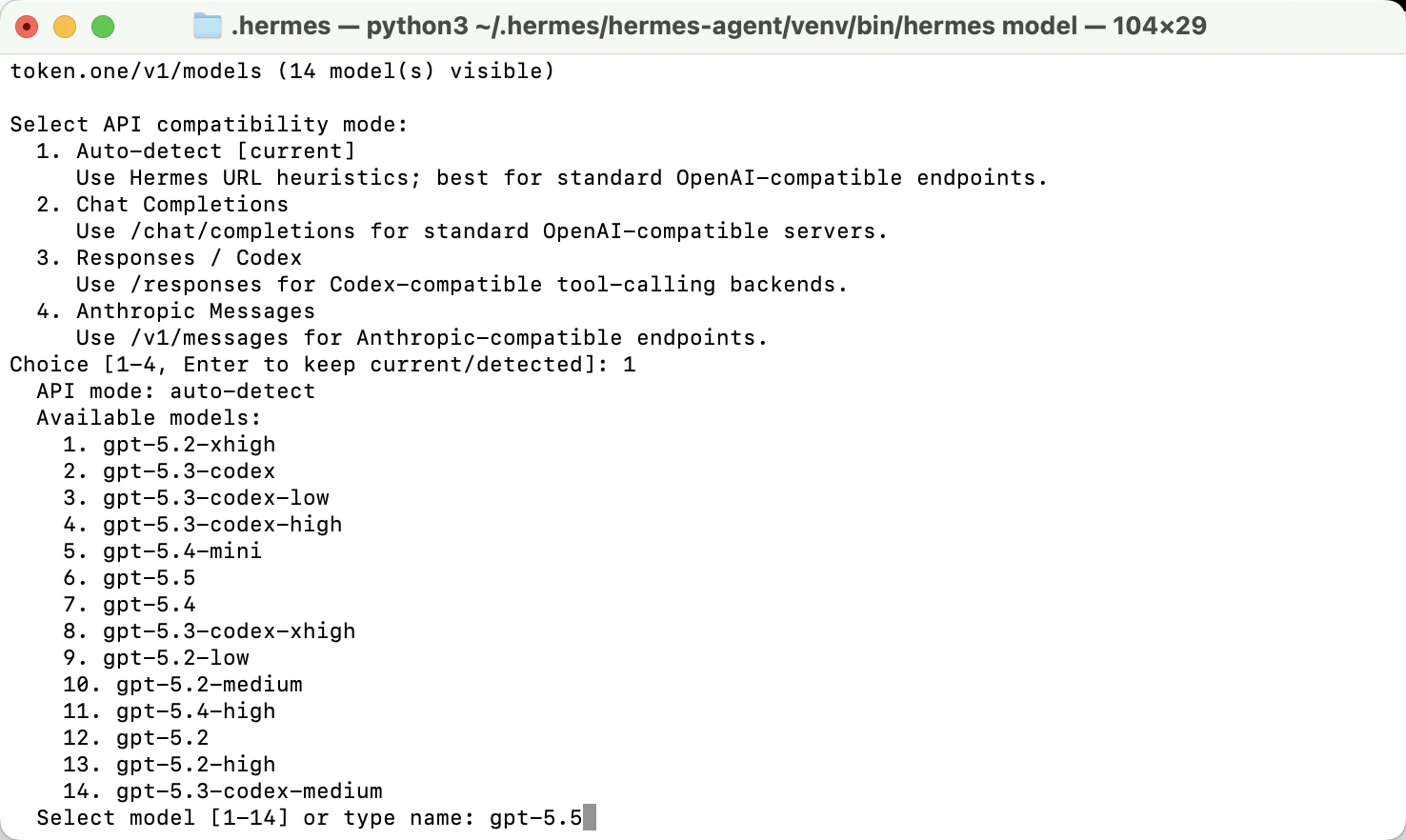
- Enter the model name.
- Enter the model context length here. Leave it blank and press Enter.
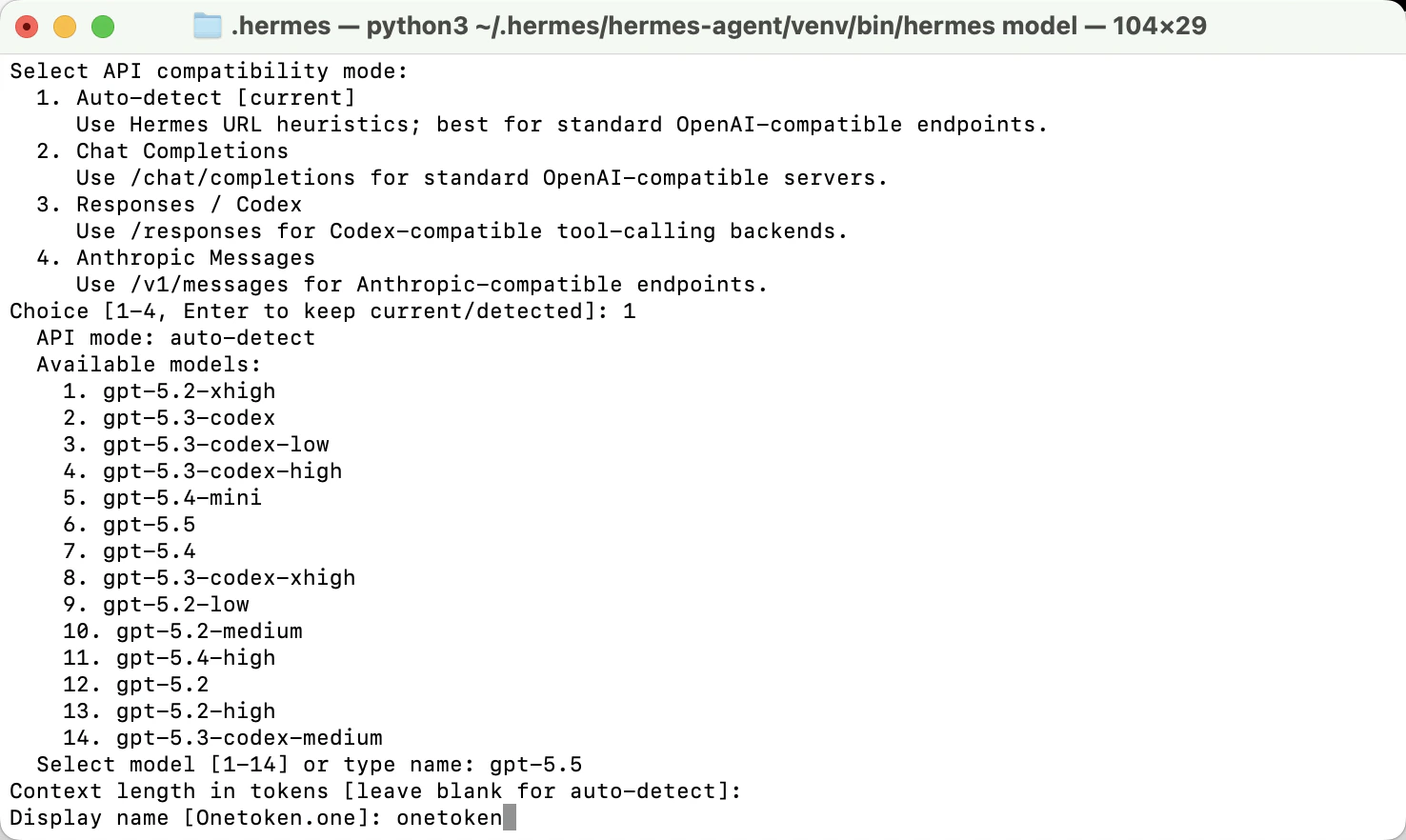
- Enter your display name.
OneToken
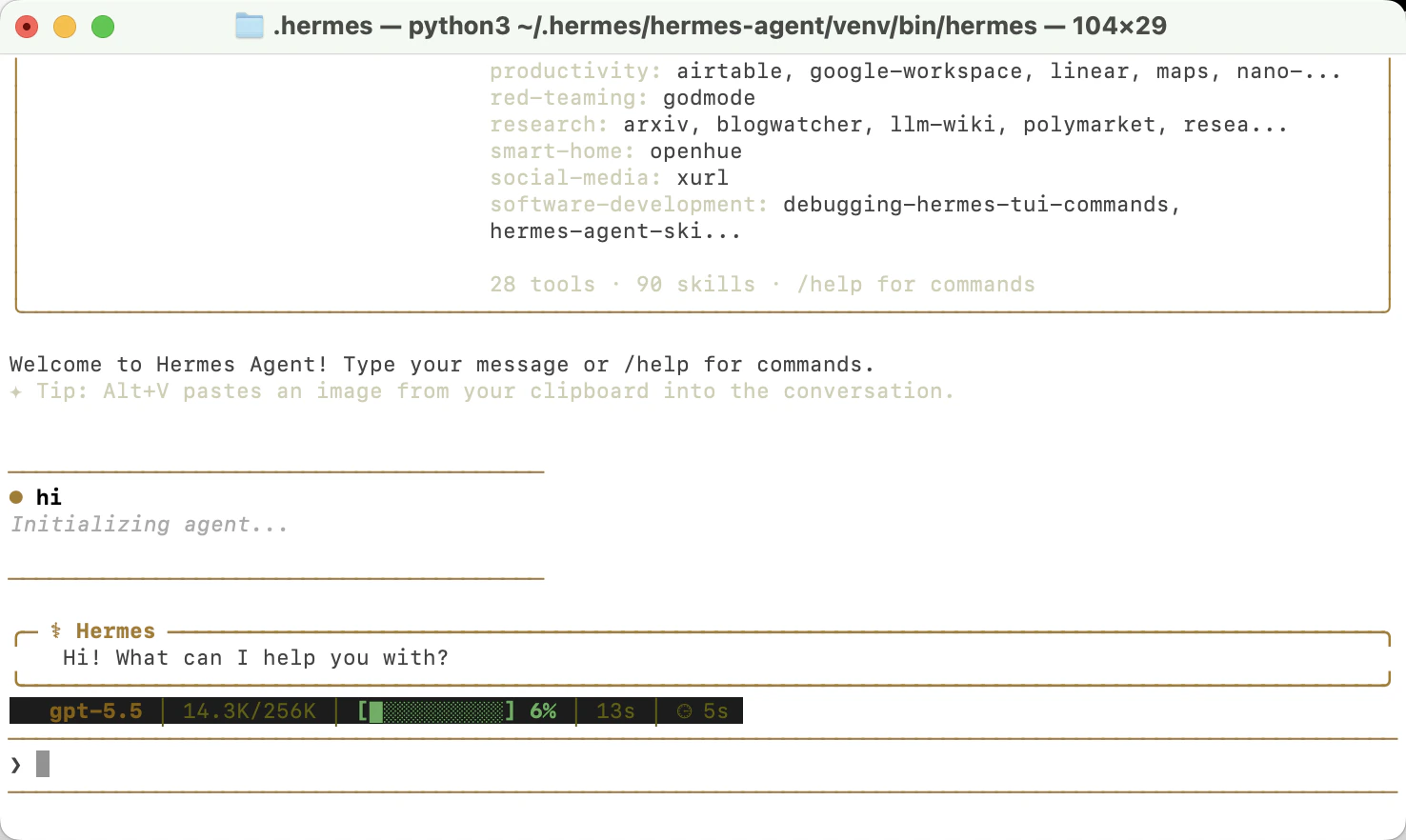
- After setting up, type
hermesin the terminal to enter the dialog box to test if it works correctly.
hermes setup at any time to modify the settings.