

Prerequisites
Before you begin, make sure you have:- Installed Node.js and npm.
- Created an API key in the OneToken console.
- Copied the model ID you want to use from the OneToken model marketplace.
Install and start DeepSeek Harness
Run the following command in your terminal:Configure OneToken
1. Open Settings
Click Settings in the lower-left corner.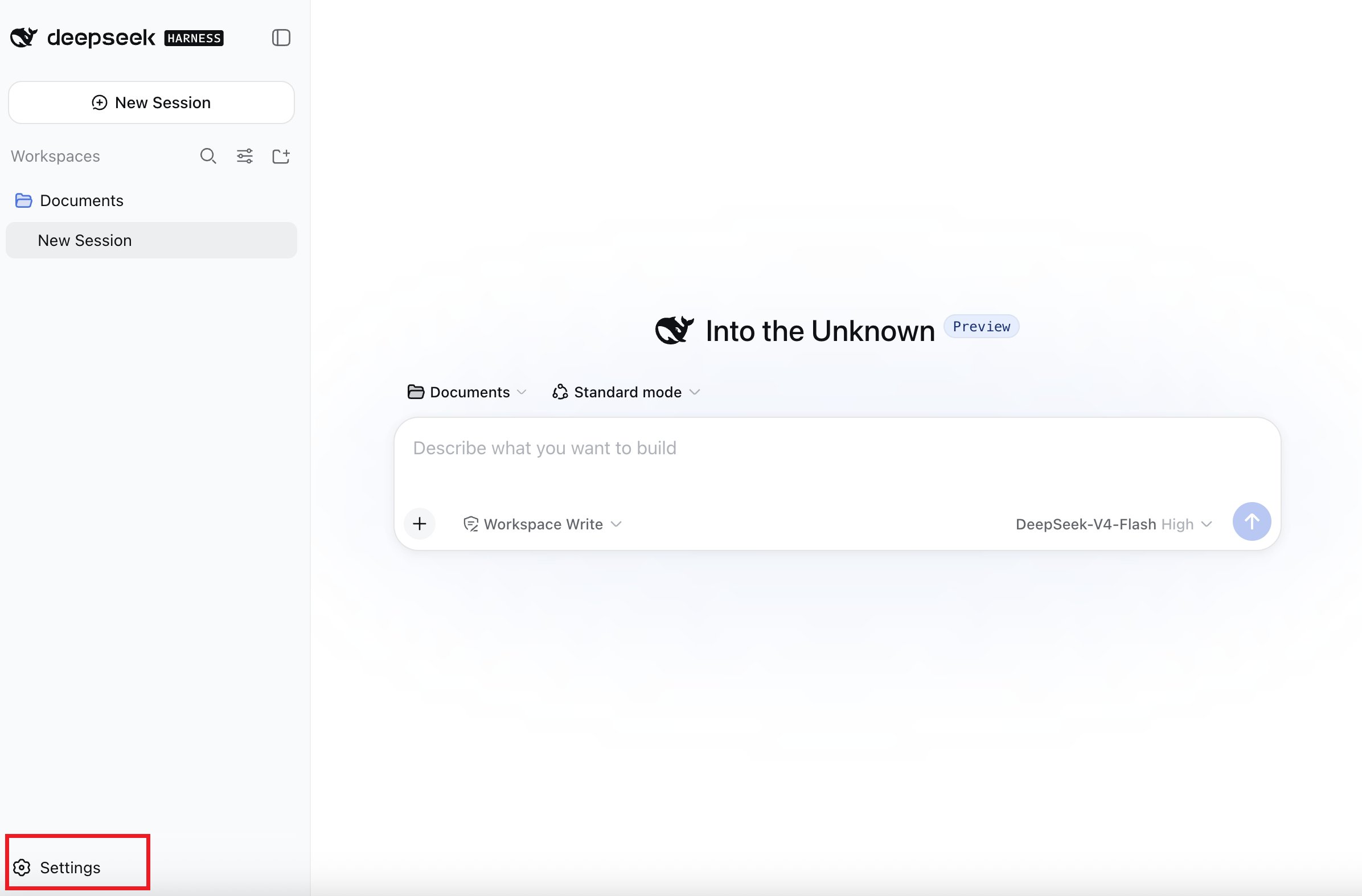
2. Add a custom provider
Open Models, then click Add a custom provider.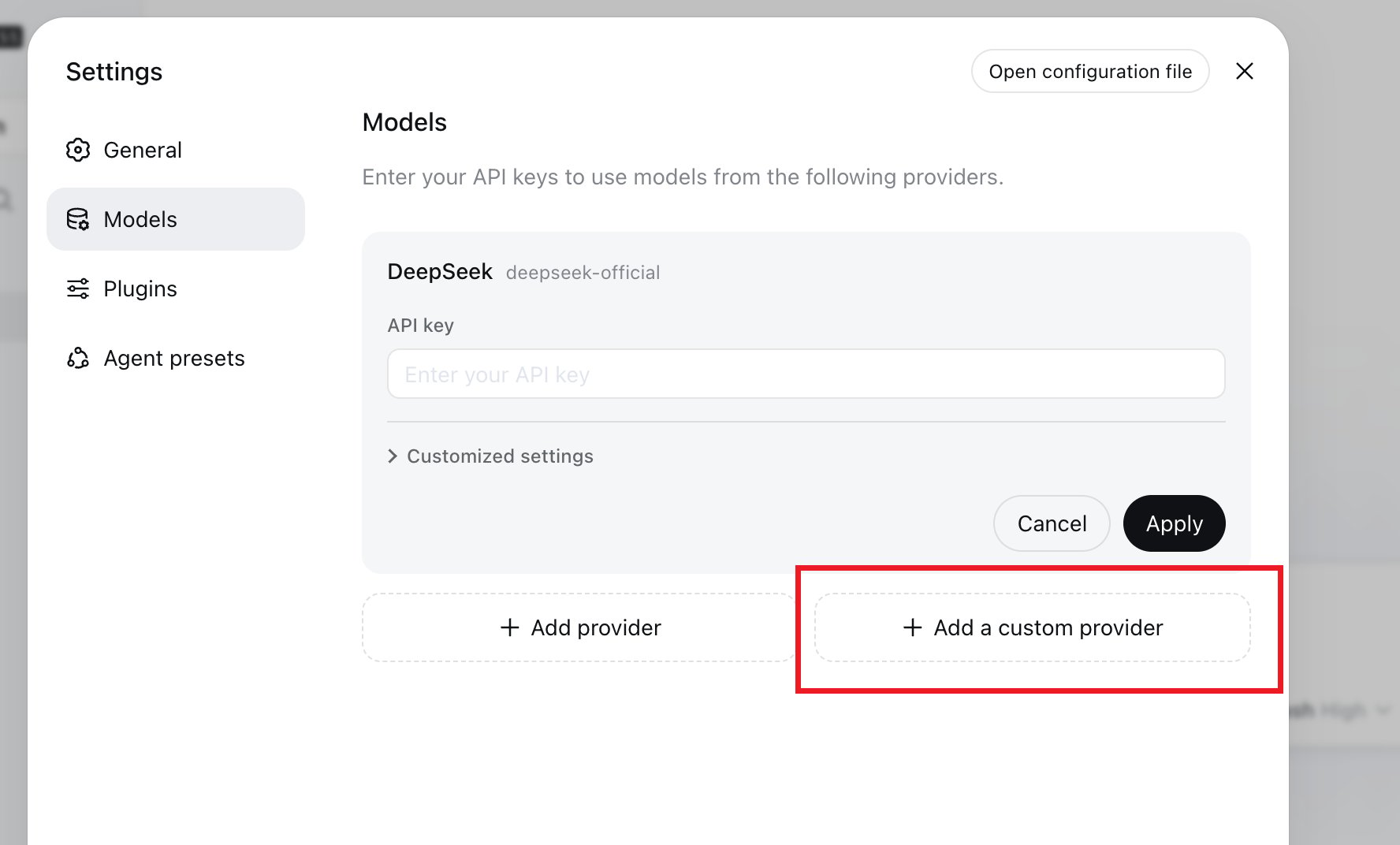
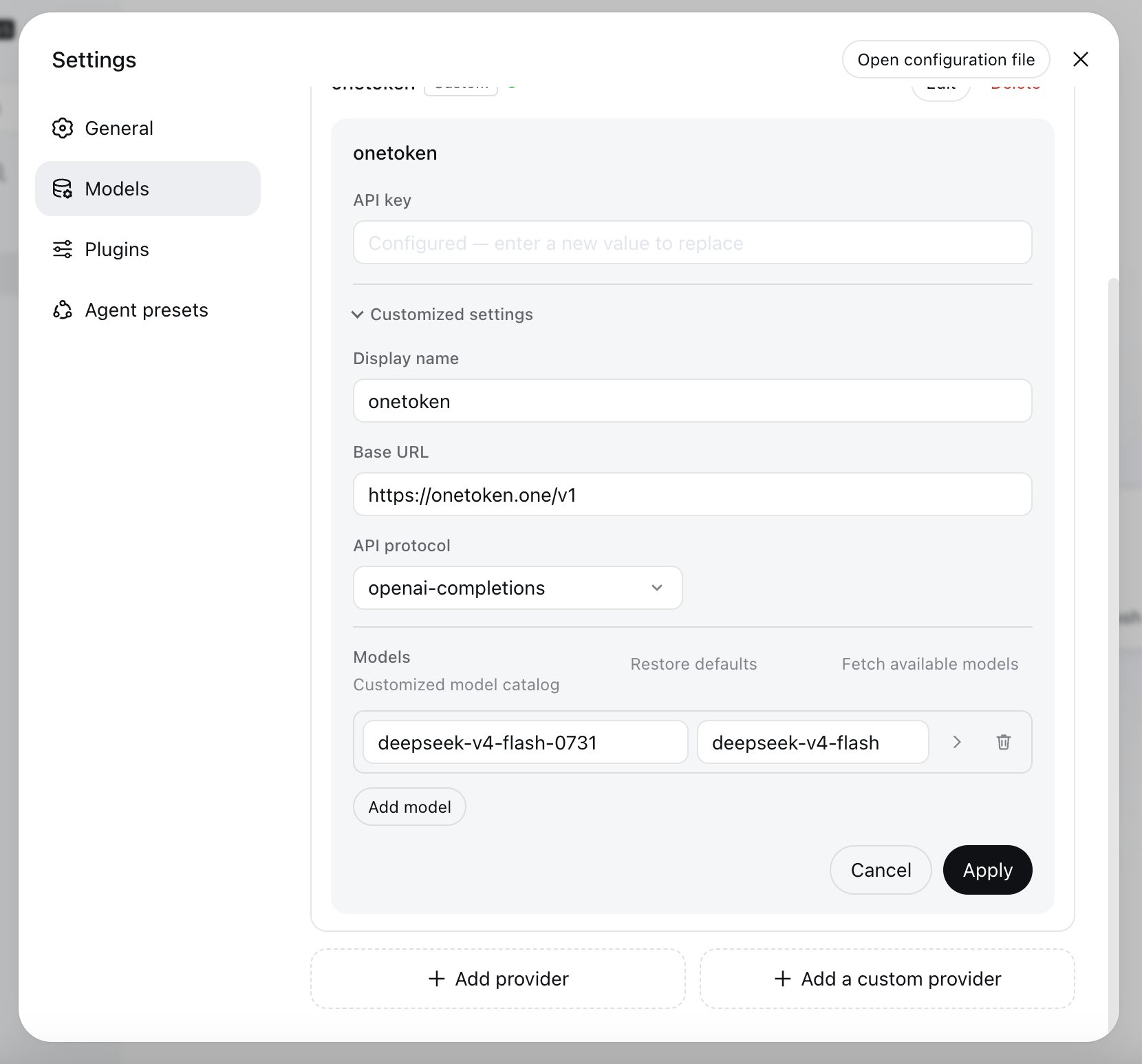
3. Enter the provider details
Complete the provider configuration with these values:- Provider ID: Enter
onetoken. The value must begin with a lowercase letter. - Display name: Enter
OneToken, or choose another recognizable name. - Base URL: Enter
https://onetoken.one/v1. - API protocol: Select
openai-completions. - API key: Paste your OneToken API key.
- In the first field, enter the model ID copied from the OneToken model marketplace, such as
deepseek-v4-flash-0731. - In the second field, enter the name that Harness should display, such as
DeepSeek-V4-Flash. - To configure more models, click Add model and enter each additional model.
Select a workspace and model
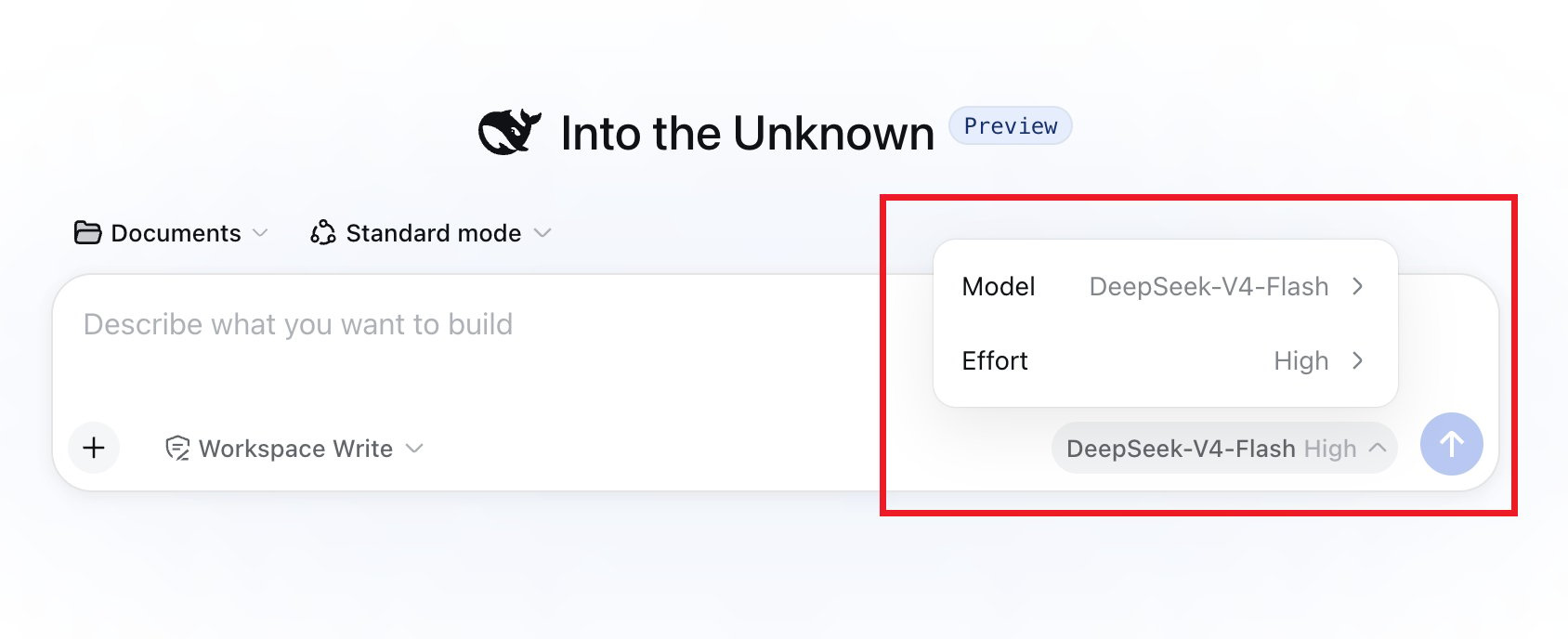
Return to the home page and select an existing workspace from the workspace menu. To use a different local directory, click Add workspace.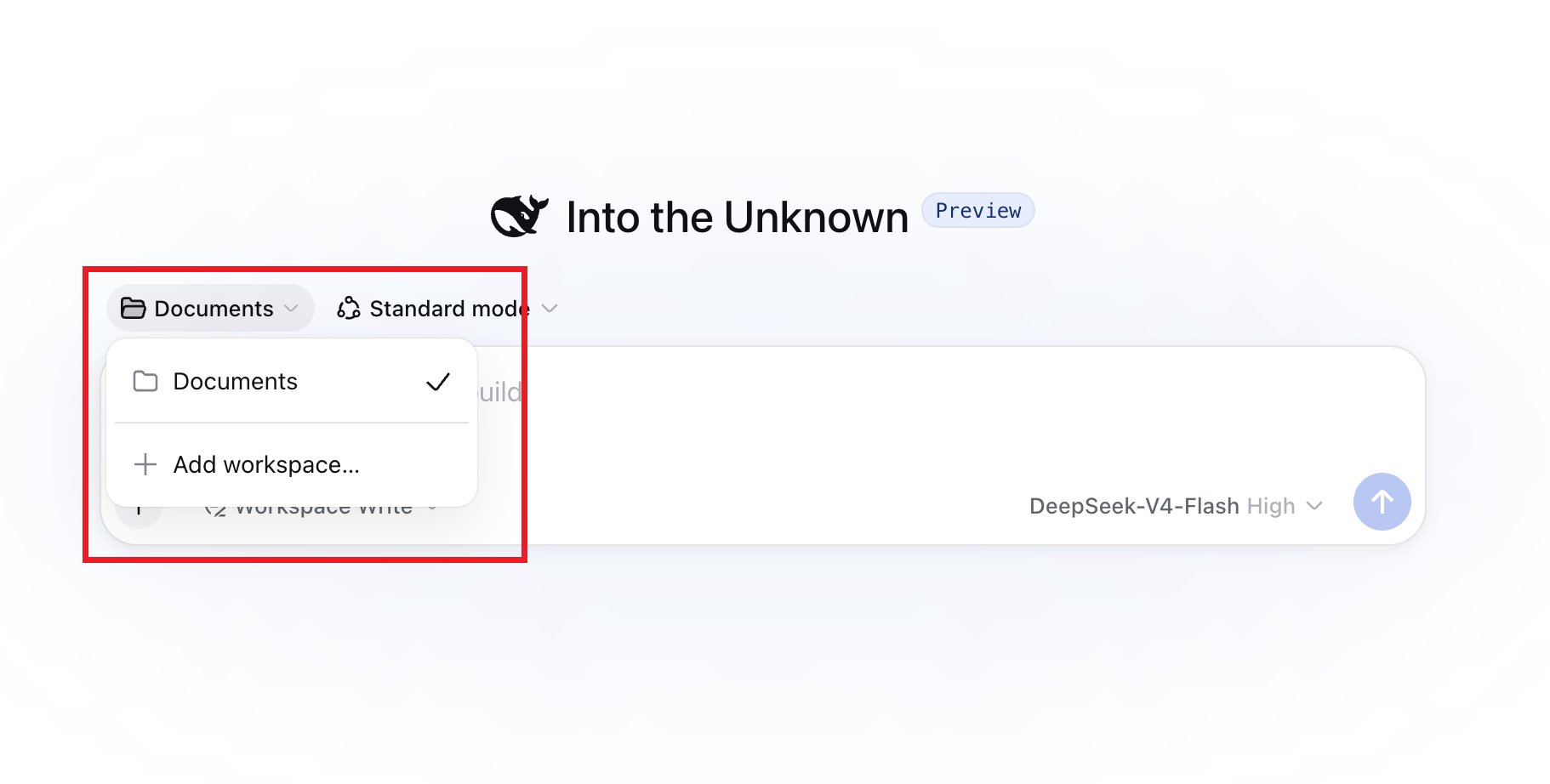
Never expose your API key in screenshots, logs, or public files.